

Natural language prompting
Describe what you want in plain language. Catalyst searches your team (workflows, tickets, knowledge, connected apps), drafts workflow code, and stages changes for review.Tips for effective prompts
- State the outcome: “Create a workflow that provisions Okta access when a manager approves”
- Name integrations: mention the dependent apps you expect to use
- Reference existing resources: “Update the @password-reset workflow to also notify the security channel”
- Ask Catalyst to check first: “Search installable workflows before writing one from scratch”
After Catalyst creates a workflow, it asks whether you want to test it. Testing is recommended but optional, and only runs when you explicitly agree.
Workflow tab
You are not limited to chat. When Catalyst opens a workflow in the resource panel, you can make adjustments on the summary view or edit the TypeScript code directly. When you start a new chat using a workflow’s Run button or the/ workflow picker, the chat title includes the workflow name, such as Run Onboarding. Running a workflow in an existing chat preserves its established title.
Hover over the version status in the action bar and select Full version history to explore published versions and drafts. Use Compare versions, when available, to inspect differences. For workflow version history outside an active session, see Workflow versioning.
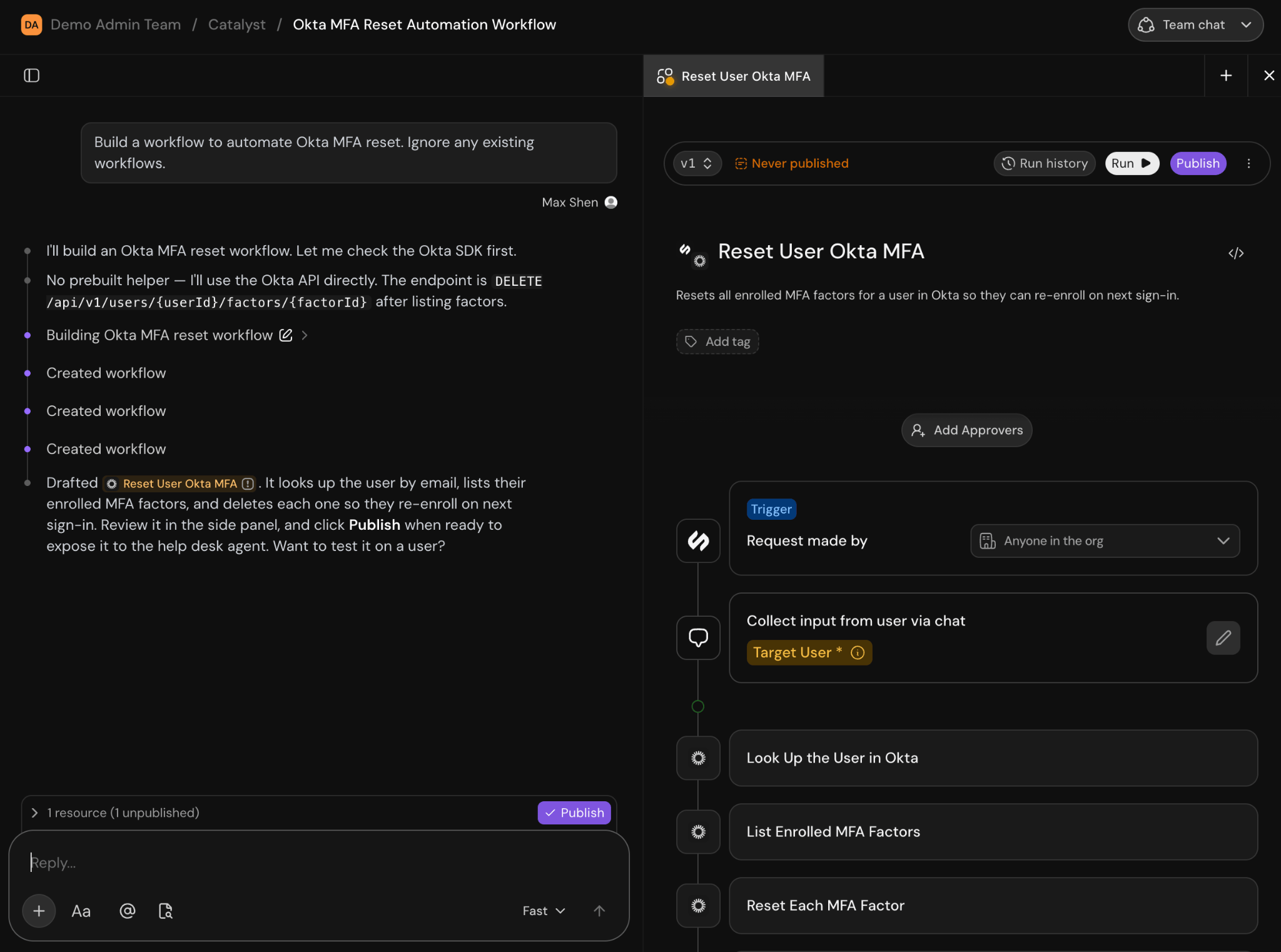
A workflow draft open in the resource panel beside the Catalyst chat
Published vs unpublished changes
Catalyst stages new and updated workflows as drafts. The Publish button on a workflow tab applies the change and exposes it to the help desk agent. When Require approval before publishing is enabled under Settings → Catalyst → Approval settings → Catalyst, direct Publish is hidden. Publishing happens through structured reviews with designated approvers. See Changes and reviews for the full flow and settings.Connecting external apps
Catalyst needs working integrations before it can call Okta, Slack, Jira, and other services in workflows. When an app integration is missing or needs credentials, Catalyst shows Configure integrations cards in chat. Each card shows the service and a Connect, Configure, or Reconfigure action:- Connect: Built-in service not yet connected: starts OAuth or setup and creates the app instance
- Configure: App instance exists but authentication is incomplete
- Reconfigure: App is connected but credentials or scopes need refresh
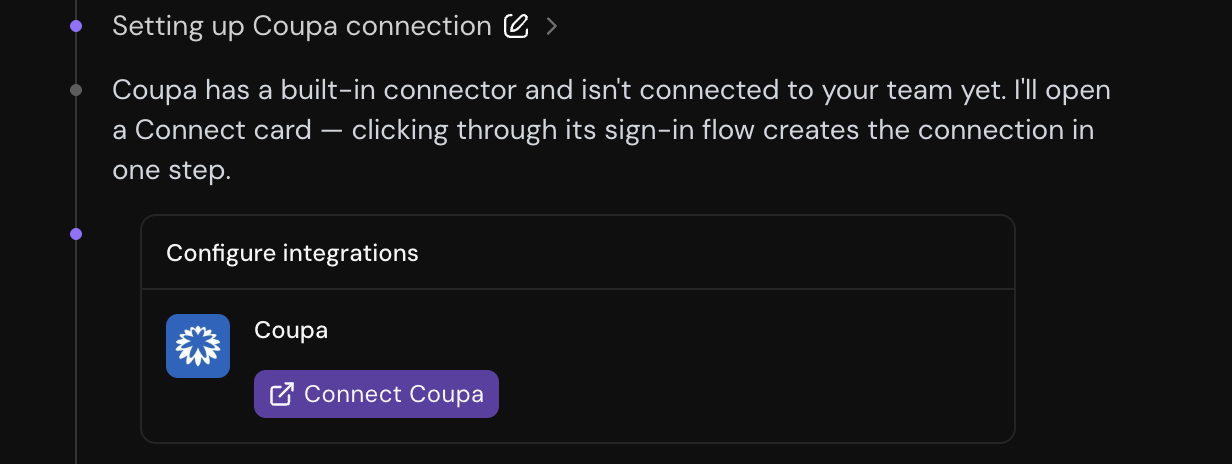
A Configure integrations card with a Connect action for an unconnected app
Don’t paste secrets into chat. Use the in-chat setup cards instead. If you do paste a secret in chat, Catalyst won’t use it. As a security best practice you should rotate any secrets posted into chat.
Choose which instance a step uses
If you connect more than one instance of the same app (for example, separate Okta tenants for US and EU employees), a workflow step could match any of them. To specify, select the specific instance a step should call from the instance dropdown, so there’s no ambiguity about which one runs. Different steps can target different instances.Temporary workflows
Catalyst sometimes creates a temporary workflow, a short-lived workflow used to probe an API, fetch data, or validate an integration before building the real automation. Temporary workflows are not published to your team’s catalog. When Catalyst proposes a temporary workflow, a card appears in chat showing:- The workflow name and a link to open it in the resource panel
- Run and Reject actions (unless the workflow is read-only, in which case it runs automatically)
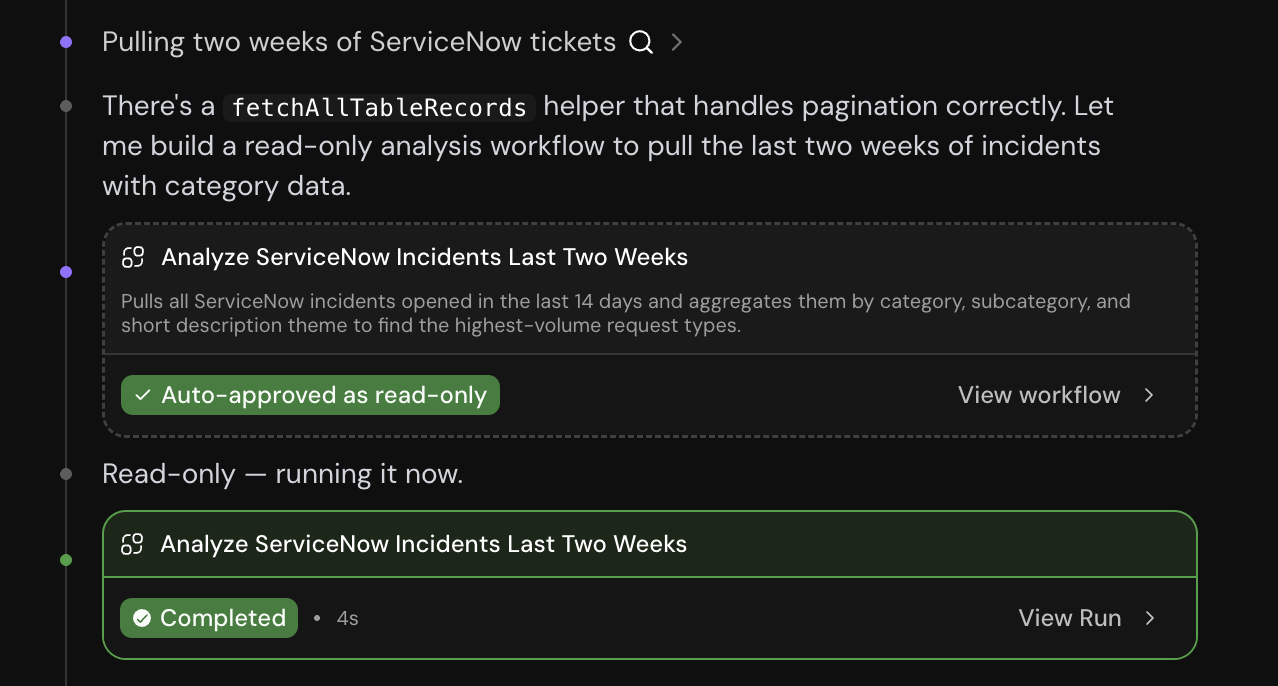
A read-only temporary workflow auto-approved and run in chat
Confirming workflow inputs
When Catalyst runs a workflow that requires input confirmation, it presents the workflow’s inputs as a Confirm workflow inputs form in chat instead of starting the run right away. Catalyst prefills any values it already gathered from the conversation. You review the inputs, complete or adjust them, and select Confirm to start the run.Related
Catalyst overview
What Catalyst can do
Catalyst workspace
Get familiar with the Catalyst interface
Getting started
Open your first session and publish a change
Tutorial
Using Catalyst to analyze ServiceNow tickets and build automations
Changes and reviews
Stage changes, propose reviews, and configure approvers
Dashboards
Building analytics dashboards with Catalyst