

Organization Roles
Every user has one organization-level role that applies across all of Serval.Most users should be Members. Reserve Admin for IT administrators who need to manage the platform. Guests are usually created automatically for external senders from untrusted domains. For more information, see Email intake.
Team Roles
Within each team, users are assigned a team-specific role that controls their capabilities for that team.A user can be a Manager in one team and an Agent in another. Team roles are independent.
The Drafter role is being rolled out gradually and may not yet be available in your account.
Custom Team Roles
When a built-in role doesn’t have the capabilities you need, create a custom role. A custom role is built on top of a base role and grants additional specific actions. An example of a custom role is a base role of Agent with permission to also view and cancel workflow runs. Custom roles are configured per team, alongside the built-in roles.Create a Custom Role
- Go to Team Settings → Roles. The page lists available built-in roles and any existing custom roles.
- Click Create role to open the dialog.
- Enter a Name and Description.
- Select a Base role. The custom role inherits everything that base role can do. A role without a base role can’t be assigned until you set one.
- Under Granted actions, select the extra actions to grant.
- Click Create role to save.
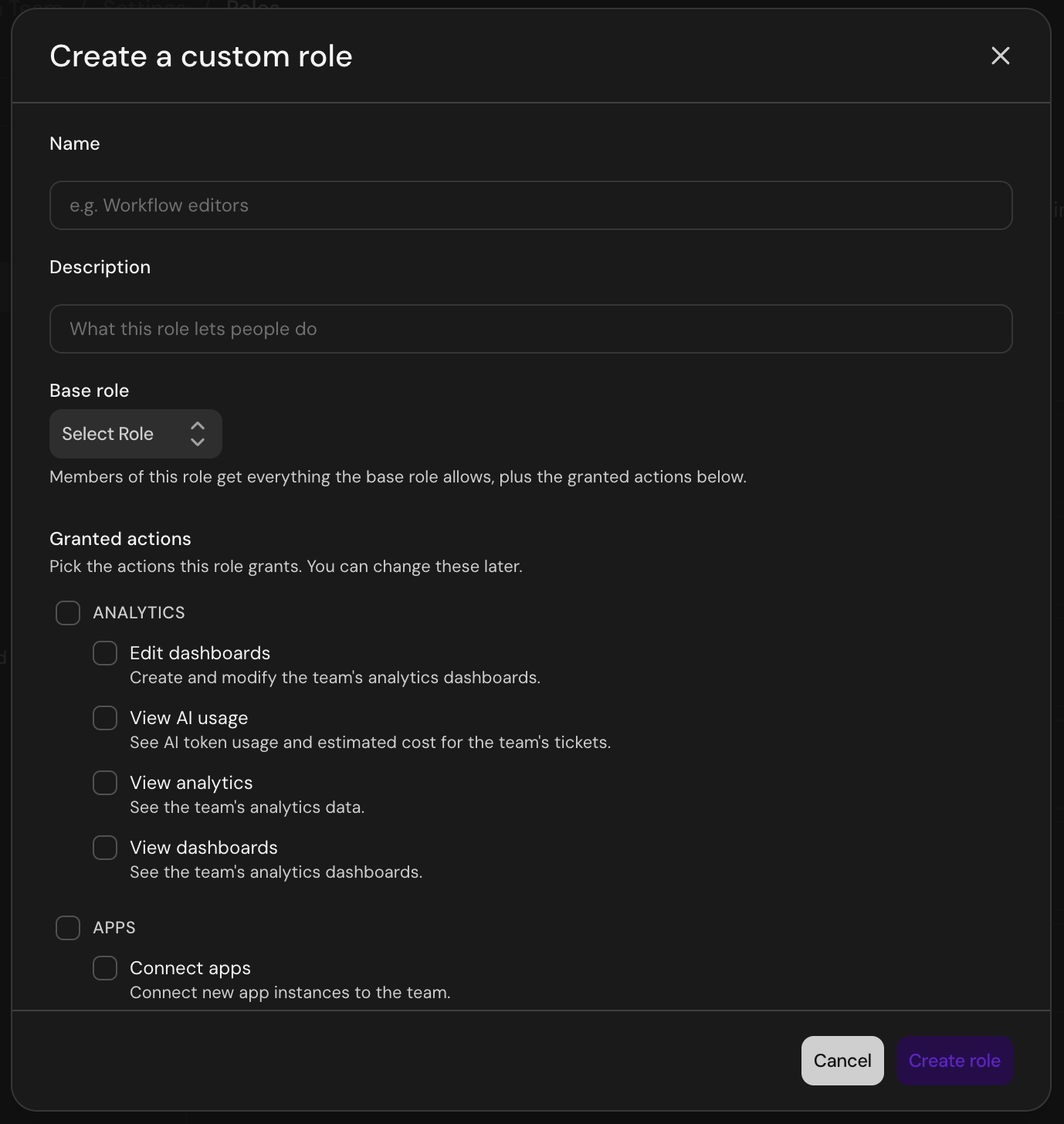
The Create a custom role dialog
You can only grant actions that you already hold on the team, so a custom role can’t be used to escalate beyond your own permissions.
Edit a Custom Role
Open the role from Team Settings → Roles to change its name, description, base role, or granted actions. Select Save after changing the name, description, or base role. Changes under Granted actions are saved separately with Save granted actions, which replaces the complete action selection and confirms with a Granted actions updated message.Edit a Built-in Role
Where enabled for your organization, a team can also adjust what its built-in roles grant, without creating a custom role. Editing requires Edit Team Settings; members with only View Team Settings open the same dialog read-only.1
Open the role
Go to Team Settings → Roles and select a built-in role. Actions the role grants by default carry a Default badge.
2
Change its actions
Check an action to grant it to everyone who holds this role on this team, or uncheck a default to take it away from this role.
3
Save
Select Save granted actions. The change applies on the next permission check for every member with that role, including members who hold it through a group.
As with custom roles, you can only grant actions that you already hold on the team. Resetting a customized role re-grants the defaults you took away, so it also requires holding those.
Assign a Custom Role
Custom roles are assigned the same way as built-in roles. In the team members list, open a member’s role dropdown. Selecting a custom role sets the member’s base role automatically and attaches the custom permissions. A member holds one direct role grant at a time, but can additionally inherit roles through one or more groups. Changing a member’s direct role doesn’t remove any roles they inherit through groups. Custom roles can also be managed through the Custom Role API. Create a role with itsteam_id, name, base_role, and the granted_actions it adds on top of the base role; the same endpoints list, update, and delete a team’s custom roles. Updating a role replaces its full set of granted actions, and deleting one leaves its members on the team with the role’s base role.
Groups can also be bound to a custom role through the Team Group API. Pass custom_role_id when creating or updating a team group; the binding’s role is set to the custom role’s base role and can be omitted. Updating a team group with a built-in role and no custom_role_id replaces any custom role the group held on that team.
Who can manage custom roles:
- Viewing the Roles page requires View Team Settings.
- Creating, editing, deleting, and assigning custom roles requires Edit Team Settings, which is typically a Manager.
- Through the API, these changes need an organization API key with the
teams:managescope, or a user sign-in with organization-level team management. Signed in as a user, you also need Edit Team Settings on the team and can grant only actions you hold there.
Permission Summary
What Org Guests Can Do
- View and reply to the specific tickets they’re associated with
- Upload attachments to those tickets
- No access to other tickets, teams, users, or organization settings
What Org Members Can Do
- Submit tickets through Slack, email, or web portal
- Request access to applications
- View their own tickets and access requests
- Use the catalog to browse access and catalog items
What Org Admins Can Additionally Do
- Create and manage teams
- Invite and deactivate users
- Configure organization settings (SSO, branding, etc.)
- Access all teams regardless of team membership
- Manage API keys
- Share a database with the entire organization (team Managers can share with specific teams, but only an org admin can share org-wide)
What Team Read-Only Agents Can Do
- View all tickets and journeys associated with their team
- View team analytics and dashboards
- View saved views, workbench threads, and the archive
- Can’t edit tickets, add notes, or change configuration
What Team Agents Can Additionally Do
- Respond to, update, and resolve tickets
- Create internal notes
- Create and edit saved views
- Retry and cancel workflows while handling tickets
- View native knowledge base pages
What Team Viewers Can Additionally Do
- View workflows and skills (read-only)
- View knowledge sources, databases, and entities (read-only)
- View access policies, approval procedures, rules, and campaigns (read-only)
What Team Drafters Can Additionally Do
- Create and edit workflows and skills (can’t run, publish, or delete them)
- Create and edit native knowledge base pages and tags (can’t delete or archive)
What Team Contributors Can Additionally Do
- Run published workflows
- Run workflows on behalf of other team members
- Create and edit forms, including preview (can’t publish, delete, or view submitted responses)
- Can’t publish, delete, or run unpublished workflows
- Edit and run Background Agents (creating one requires the Builder role)
What Team Builders Can Additionally Do
- Create, publish, and delete workflows and skills
- Run unpublished workflows
- Create Background Agents
- Publish and delete forms, and view submitted form responses
- Install and configure installable workflows
- Share workflows with other teams
- Create and edit rules and campaigns
- Edit knowledge sources
- Create and edit access policies and approval procedures
- Create and edit databases and entities
- Run asset ingestions that sync data from connected apps into databases (separate from the Manager-level Sync app instances, which runs user and identity syncs)
- Create and edit analytics dashboards
What Team Managers Can Additionally Do
- Configure integrations and connected apps
- Manage team settings
- Manage SLAs, schedules, and visibility groups
- Run access reviews and override approvals
- Manage change models
- View audit logs
- Archive, trash, and permanently delete tickets
Managing Permissions
Changing Organization Roles
- Go to Settings → People
- Find the user and click their name
- Select Member, Admin, or Guest from the organization role dropdown
- Save changes
Changing Team Roles
- Go to Settings → Teams
- Select the team
- Find the user in the team members list
- Change their role to Read-Only Agent, Agent, Viewer, Contributor, Builder, or Manager (or Drafter, where enabled). Where custom roles exist, the same dropdown also lists them under Custom roles (see Custom Team Roles).
- Save changes
Capabilities Toggle
Team managers can enable or disable specific Serval products per team using the capabilities toggle in team settings. This lets you control which features are available to a team — for example, you can disable Access Management for a team that only handles IT support tickets, or enable Workflows only for teams that need automation. Navigate to Team Settings → Capabilities to configure which products are active for each team.Org Admin Quick Join
Organization admins can add themselves to any Serval team immediately when clicking a ticket link — without navigating to organization settings first. If an admin clicks a link to a ticket in a team they don’t belong to, they can join that team on the spot and access the ticket.Common Questions
Can someone be an Admin but only an Agent on a team?
Can someone be an Admin but only an Agent on a team?
Yes. Organization role and team role are separate. An Org Admin could be an Agent on specific teams if they only need to handle tickets, not configure that team.
What if a user isn't on any team?
What if a user isn't on any team?
Users without team membership can still submit tickets and request access. They just can’t view team visibility groups or use team-specific features.
Who can approve access requests?
Who can approve access requests?
Access approvers are configured per access policy, not by role. Both Agents and Managers can be designated as approvers.