

When to use manual entry
Use manual entry for unique, non-recurring cases that can’t be synced with an API.- Importing from a spreadsheet: For bulk data from a spreadsheet with no API behind it, use CSV import.
- One-off item: For a one-off item that isn’t tracked anywhere else, add through the UI.
- Editing: To fix a wrong value on a single item, edit through the UI.
Any value you set manually is overwritten on the next sync unless you pin the field to keep a manual value. See Multiple sources for one item type
Add an item
- Open the item type in the Databases tab.
- Click Add Item->Create item manually.
- In the Create Item popup, fill out the fields.
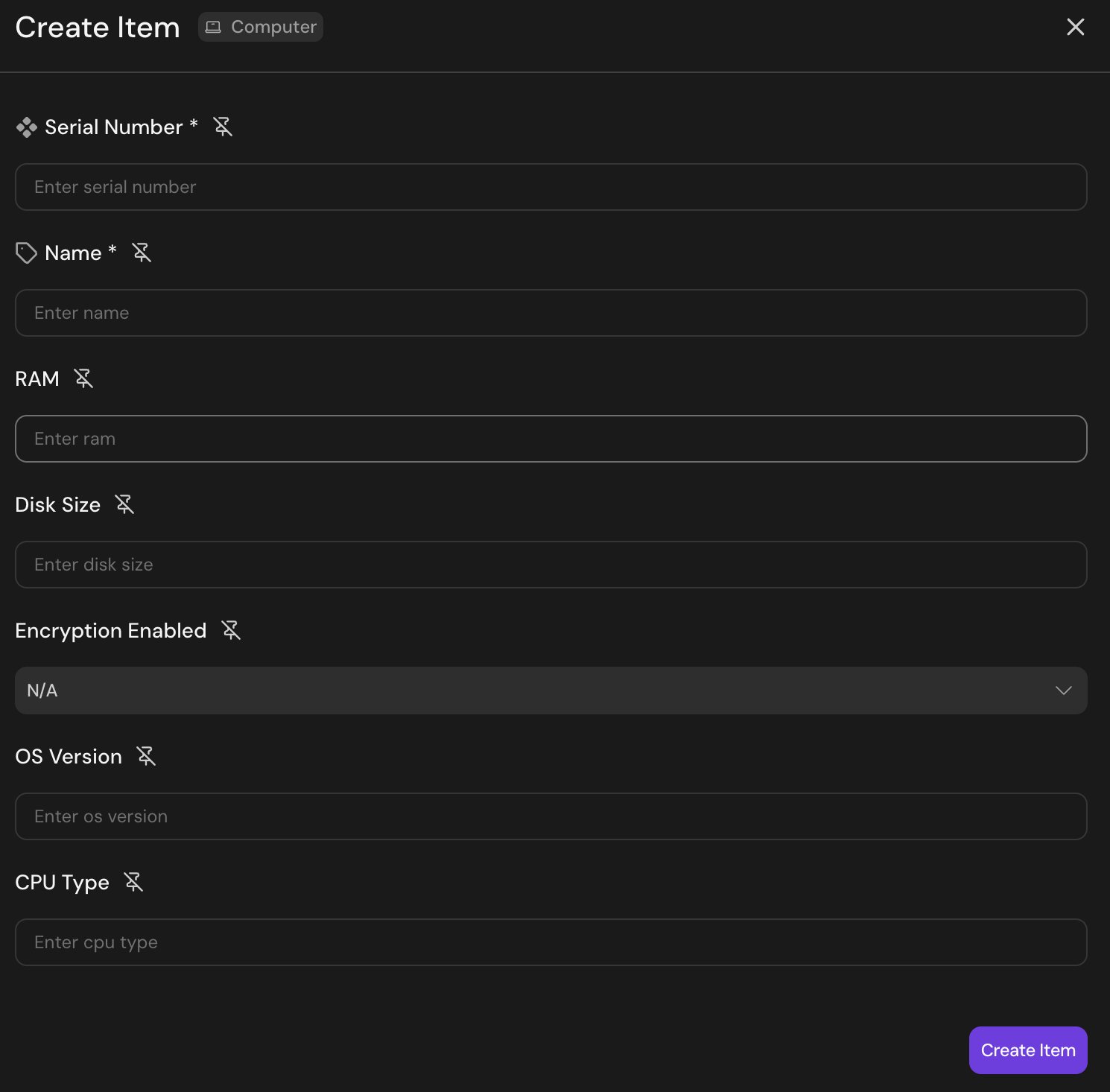
The Create Item dialog for a Computer item type
Edit field values
For an item reference field, select the item type if needed, then search for the item or scroll to load more options.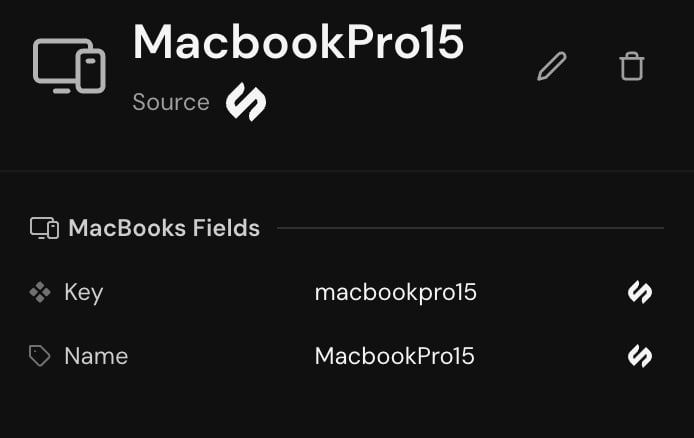
An item detail view
- Click any item to open its detail view.
- Click any field to edit inline, or click the edit (pencil) icon to edit all fields.
- Changes write through immediately. Every edit is recorded in the item’s history with author, timestamp, and the previous value. For more on item history, see Administration.
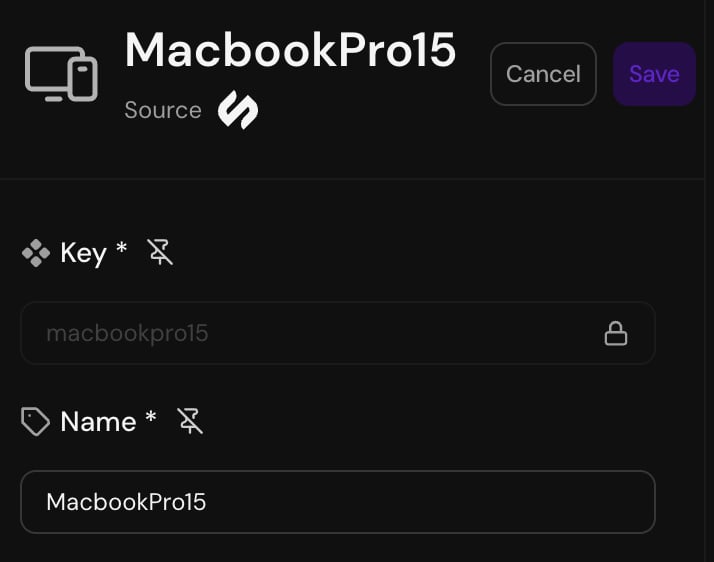
Editing an item's fields inline
Edits and ingestion
If a field is fed by an ingestion config, a manual edit gets overwritten on the next sync that maps to that field. To make a manual edit persist:- Pin the field when prompted, which keeps your manual value until you unpin it, or
- Remove the mapping for that field on the ingestion config, or
- Lower the ingestion mapping’s priority so manual entry wins, or
- Update the value at the source instead of in Serval.
Bulk import from CSV
Use CSV import for one-shot loads from a spreadsheet, vendor export, or migration from another system.CSV format
- The first row is a header row.
- Map a column to the item type’s key field. This is required for a successful import.
- All other mapped columns are optional.
- Columns you don’t map are ignored.
- Column order doesn’t matter.
Importing
- Open the item type in Databases.
- Click Add Item->Import from CSV.
- Upload the file. Serval validates the header row against the item type’s fields.
- Review the preview. Serval shows how many rows will be inserted, how many will update existing items (matched by key), and any parse errors per row.
- Confirm.
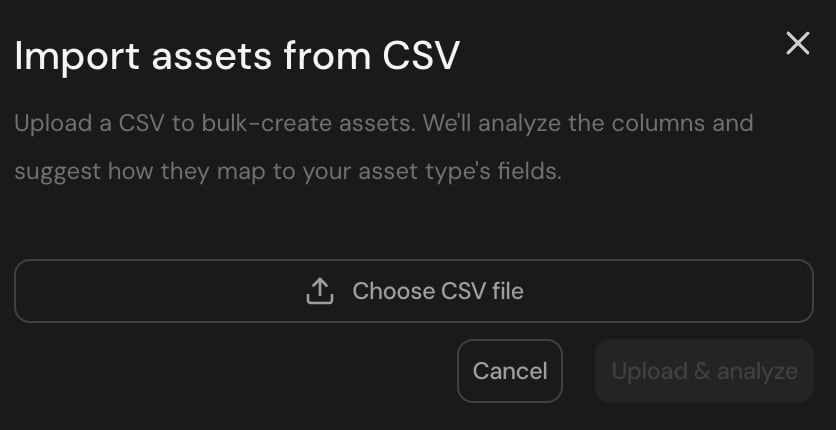
The CSV import dialog
Rows with parse errors are skipped, not retried. Fix them in the source CSV and re-import.
Matching by key means re-importing a corrected row updates the right item, not a duplicate