

Requesting Access
Request access through Slack, Teams, or app.serval.com. Serval guides you to the right access level, even if you don’t know the specific role you need. For example, you may know you need Figma access but not whether that’s Editor, Admin, or Group Admin. Request access two ways:- Natural language requests through a conversational portal (Slack, Teams, or any help desk portal). You can make imperfect requests and Serval guides you to the correct type of access.
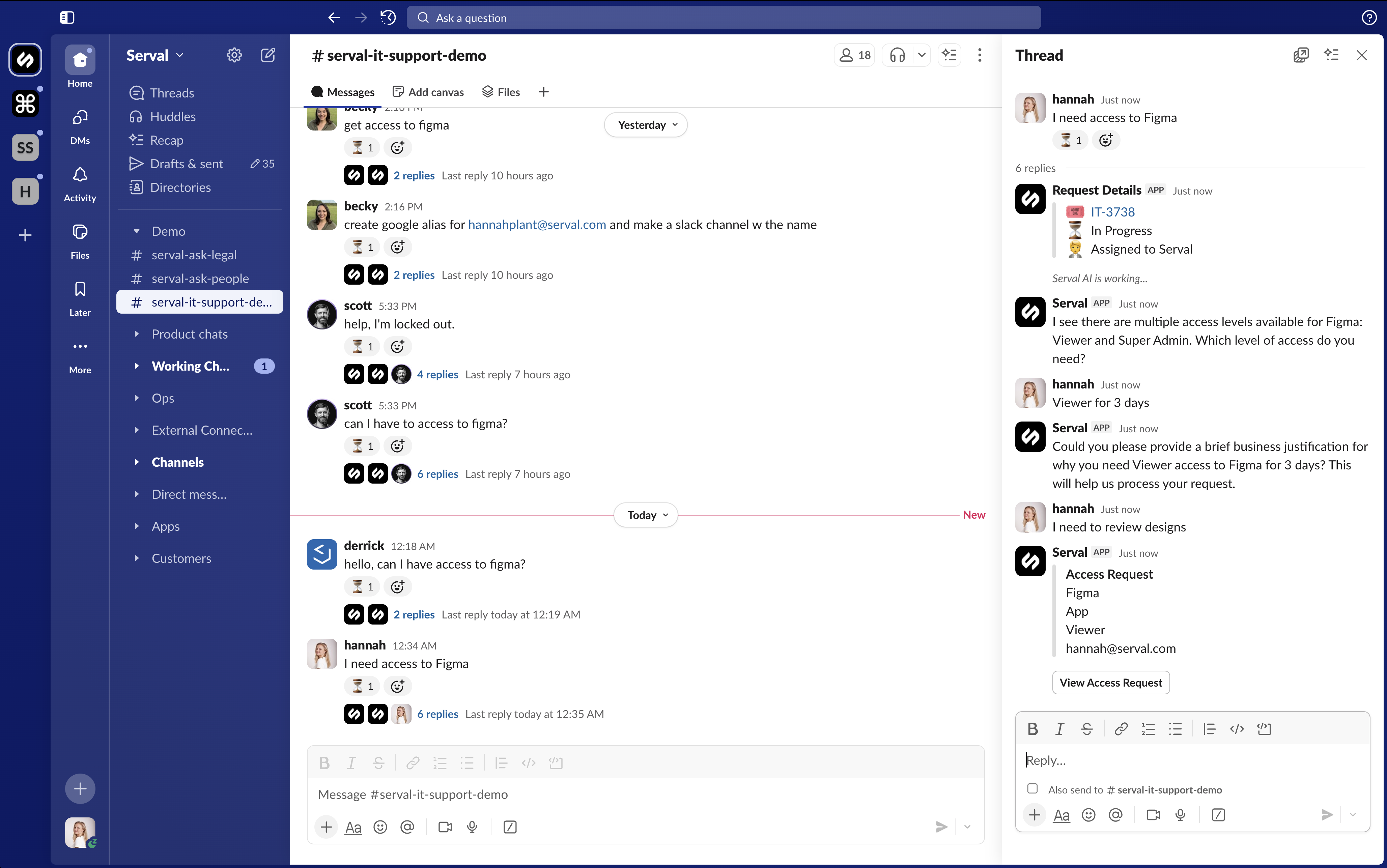
Request access via the help desk
- Catalog in app.serval.com: Click New Request → Browse Catalog → select Access → choose the application and role → fill in required details → click Request access
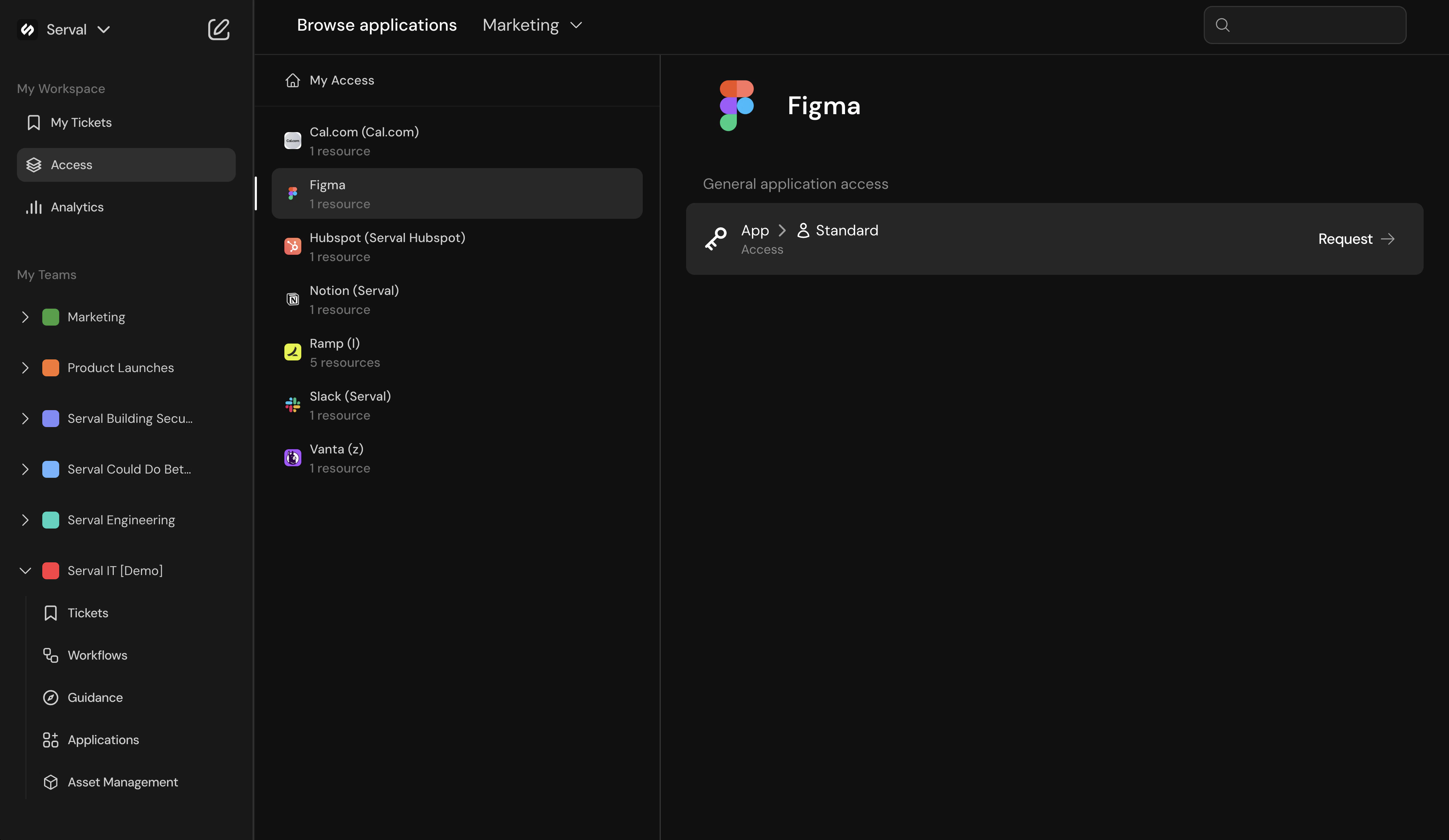
Request access in app.serval.com
Scheduling a Start Time
When you request access, you can choose a start time instead of right away. Set a start time on the request, and after it’s approved, Serval provisions the access at that time rather than immediately. You can schedule up to 90 days out, and the start time can’t be in the past. This is useful when you know you’ll need access on a specific future date, so the access is ready without anyone remembering to provision it manually. Common use cases include a project kickoff or a new hire’s start date.Managing Active Access
Once your access request is approved and provisioned, you can manage it throughout its lifecycle. View your current access duration, time remaining, and expiration time directly in the access request card.Extending Access
Need more time? Request an extension before your access expires:- Via Slack/Teams: Ask Serval to extend your access. For example: “Can I extend my AWS access for another hour?”
- Via app.serval.com: Open the ticket where you requested access and use the edit option to request more time.
Shortening Access
If you finish early and no longer need access, you can request to shorten it:- Ask Serval to reduce your access time, or edit the duration in the access request card.
- Shortening access helps maintain least-privilege principles.
Both extensions and shortenings may require approval depending on your organization’s access policies.
Amending Requests Before Approval
Changed your mind about how long you need access? You can amend your request before it’s approved:- Open the original ticket where you requested access.
- Request a different duration (longer or shorter).
- Your new request replaces the pending one.
Canceling Requests
You can cancel access requests at different stages:Cancel a pending request (before approval)
Cancel a pending request (before approval)
If you no longer need the access you requested, cancel it before approval:
- Ask Serval to cancel the request, or use the Cancel button in the access request card.
- The entire access request is concluded and no access is granted.
Cancel a pending extension
Cancel a pending extension
If you requested an extension but changed your mind:
- Cancel the pending extension using the Cancel button.
- Your original access remains active with its current duration.
- Only the extension request is canceled, not your existing access.
Reviewing Personal Access
View your personal access history from app.serval.com: Access sidebar → select “My Access” → View historical log of all access requests and relevant tickets.Admins can create a workflow that lets you request a CSV download of all your historical access requests.
Common Questions
What happens when my access expires?
What happens when my access expires?
When your access duration ends, Serval automatically revokes the access using the same method it was granted (removing you from a group, calling an API, etc.). You’ll need to request new access if you need it again.
Can I extend access after it expires?
Can I extend access after it expires?
If your access recently expired but hasn’t been fully deprovisioned yet, you may be able to extend it without starting a new request. Otherwise, you’ll need to submit a new access request.
Why was I approved for a different duration than I requested?
Why was I approved for a different duration than I requested?
Approvers can modify the duration when approving your request. For example, you might request 2 hours but be approved for 30 minutes based on policy or business needs.
How do I know how much time I have left?
How do I know how much time I have left?
The access request card shows your current duration, time remaining, and expiration time. You can also ask Serval about your active access.