

Finding open tickets
Start by locating tickets that need your attention.In the web interface
- Navigate to Tickets in the sidebar
- Use the “Involves” filter to find tickets assigned to you
- Filter by status (for example, “Open” or “In Progress”) to see active tickets
In Team Inbox channels
If your team has configured a Team Inbox channel in Slack, tickets assigned to your team will automatically appear as threads in that channel. This provides a centralized place to triage tickets without switching to the web interface.Team Inbox channels are private Slack channels where all escalated tickets for your team appear. See Configure Team Inbox Channels for setup instructions.
Ways to resolve tickets
There are a few ways to resolve tickets in Serval. Choose the method that best fits the situation.1. Manually resolve
Respond directly to the requester with answers, updates, or follow-up questions. Communicate with the requester and your team in the Activity thread. Forwarded messages (for example, from Slack) show a Forwarded message from line below the quoted content.Public response
Visible to the requester. Use for:- Answering questions
- Requesting more information
- Providing updates
- Confirming resolution
Internal note
Only visible to team members. Use for:- Documenting investigation steps
- Sharing context with teammates
- Handoff information when reassigning
- Notes that shouldn’t be shared with the requester

Internal note toggle in the reply chat
Translate the conversation
When a ticket comes in a language you don’t read, translate it into your own interface language without leaving the ticket.- A single message: Open the message’s actions menu and choose Translate. The translated text replaces the message, with a status label above it (Translating…, then Translated). Below the message, a Show original link reveals the untranslated source, and Hide original collapses it again.
- The whole thread: Click the Translate thread (languages) icon in the Activity bar to translate every eligible message at once. If some messages couldn’t be translated, the control offers Retry thread translation.
Messages from personal conversations
If your organization uses the personal help desk in Microsoft Teams, messages it forwards to a ticket keep the Microsoft Teams source indicator. This applies to the opening request and later forwarded replies. When a forwarded message differs from the requester’s words, expand Original requester message below it to read the original text, with their name and timestamp. If the request combines multiple messages, the section lists them in order. Original requester excerpt means only the part shared with your team appears. Click the original message’s timestamp to switch between the date and time and how long ago it arrived. The ticket’s other timestamps follow the same setting. Messages copied without changes don’t repeat the same text. If someone later edits the ticket message, you can still expand the original. Older forwarded messages may show Original messages are unavailable. Closing the personal conversation keeps the ticket’s provenance and shared originals. Deleting that conversation removes them from the ticket. The original-message section shows the text shared with your team; it doesn’t open the requester’s private conversation.2. Run existing help desk workflows
Automate actions directly from a ticket using organization-wide workflows.- In the reply chat, type
/or select Trigger a workflow (the/button). The button opens the workflow menu at the end of your draft, including after a mention or image. - Select from available Help Desk workflows
- Fill in any required inputs
- Execute the workflow
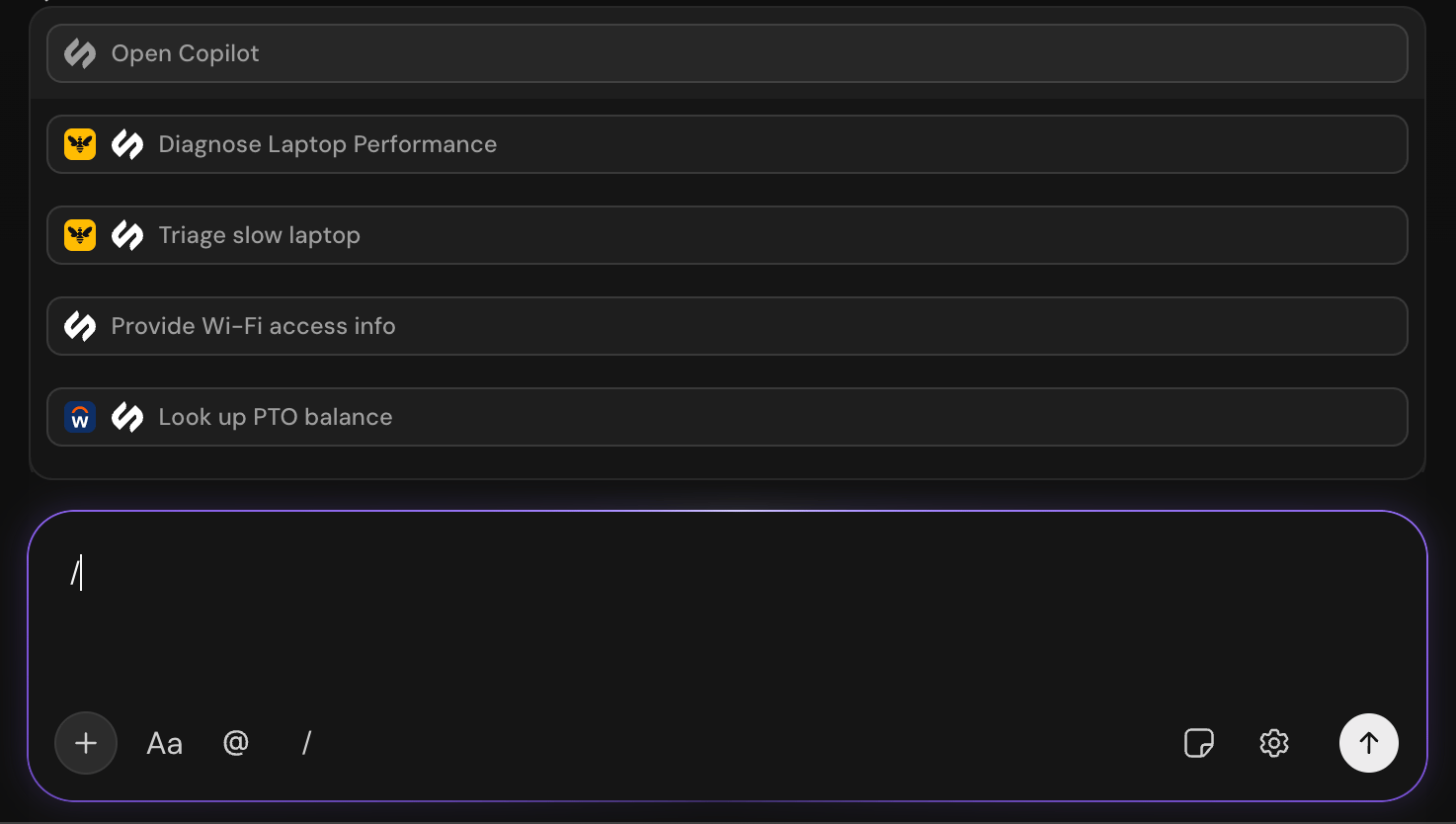
Running a workflow from ticket chat
Help Desk workflows are available to all users in your team and are designed for common support scenarios like password resets, software access requests, and IT troubleshooting.
AI agent after escalation
When a ticket is escalated to a human agent, Serval’s AI agent can remain active on the ticket. The AI continues to provide guidance, suggest knowledge base articles, and assist with resolution even while a human is working the ticket. This is configurable per team in Team Settings.3. Open Copilot to run team-only workflows
Use Copilot to access team-only workflows and get AI assistance for resolving tickets. Copilot uses context from your connected identity providers to enrich responses. It can retrieve a user’s department, job title, manager, and other organizational details automatically so you spend less time looking up user information. Copilot is your AI assistant for resolving tickets faster. Click Open Copilot above the reply chat to:- Run team-only workflows that aren’t available through the
/command - Draft responses based on ticket context and your knowledge base
- Summarize long ticket threads
- Find information in your Skills and knowledge base
- Get suggestions for next steps or escalation paths
How to use Copilot
- Open a ticket
- Click Open Copilot above the reply chat
- Ask what you need:
- “Run the employee offboarding workflow for john@company.com”
- “Draft a response explaining our refund policy”
- “Summarize this ticket”
- “What workflows can help with this?”
- “Find a Skill about password resets”
- Review and edit the response
- Send or use the suggestion
Team-only workflows are restricted to team members and are ideal for internal operations, sensitive data handling, and administrative tasks. They don’t appear in the standard
/ workflow menu but can be accessed through Copilot.Copilot uses your team’s skills and knowledge base. The more skills you add, the better Copilot performs.
Close tickets
When the requester’s issue is resolved:- Send a final response confirming resolution
- Update status to a “Done” status (for example, Resolved or Completed) - see Updating Ticket Properties for how to change status
- The requester may receive a feedback request
Delete archived tickets
If you have permission to delete tickets in the team, you can delete them directly from the archive:- Open the team’s Settings and select Archives.
- On the Tickets tab, select up to 100 tickets.
- Select Delete in the selection toolbar.
- Review the confirmation, including any child tickets, and confirm Delete.
Quick reference
Related
Updating Ticket Properties
Change status, priority, assignee, and labels
The Serval Ticket
Learn about all ticket properties and views
Workflows
Learn about team-only and organization-wide workflows
Team Inbox Setup
Configure Team Inbox channels in Slack