

Item types
An item type is the schema for one kind of thing you track, such as computers, software licenses, services, or cost centers. Each instance of the type is a single item. In other database architectures, an item type would correspond to a table, and each item would correspond to a row.Creating an item type
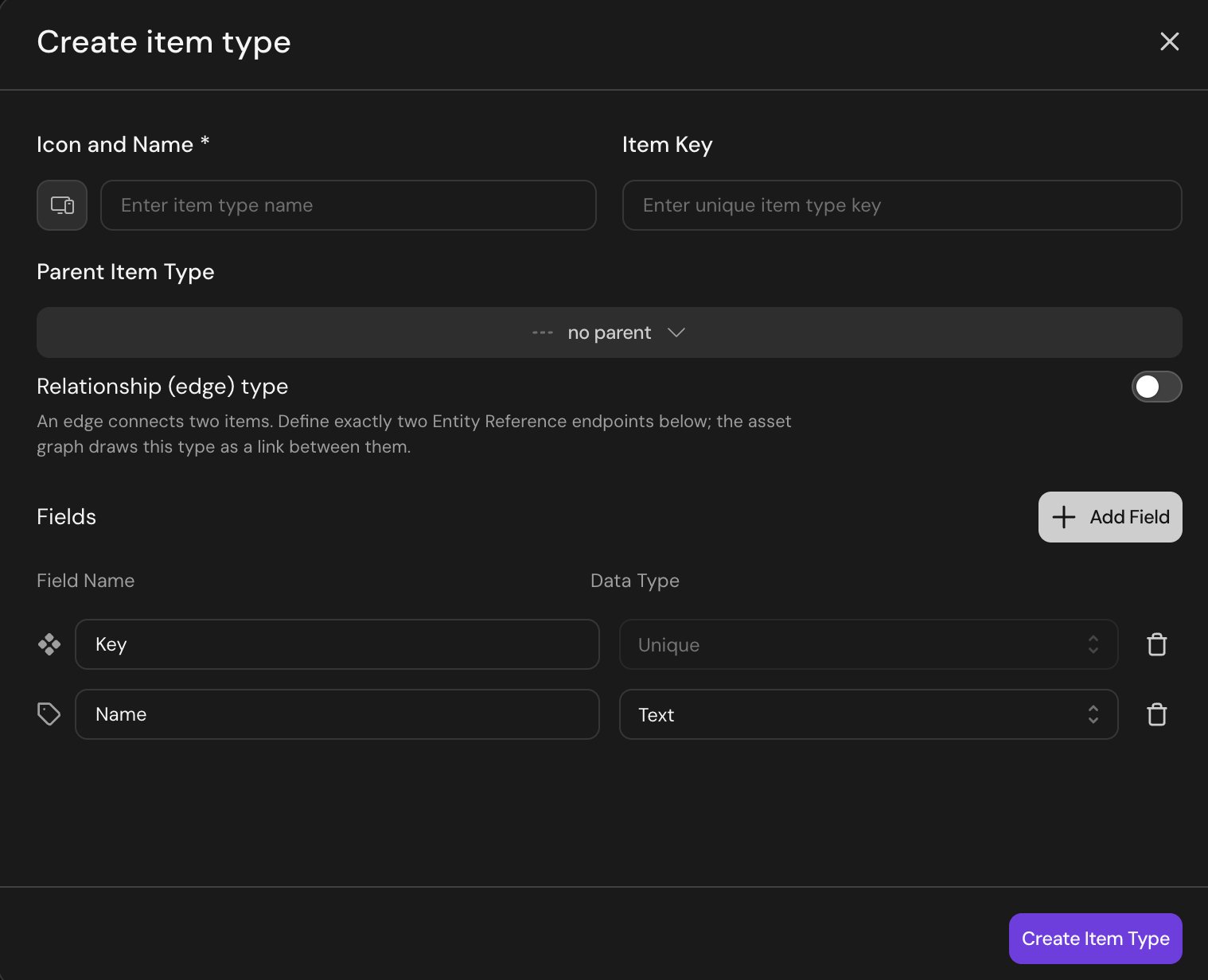
The Create item type dialog
- In a database, use the New table button to create a new item type. (Its chevron menu also offers New relationship — see Relationship (edge) types.)
- Enter a name for the item type.
- Optionally choose a parent item type. Use a parent when several related types share a base set of fields. For instance, setting “Asset” as the parent of “Computer”, “Phone”, and “Monitor” means you can query “all assets” without joining three tables, while each child still carries its own type-specific fields.
- Add additional fields as needed
Parent-child hierarchy
Child types inherit every field from their parent type. For instance, add a field to “Asset” and it appears on “Computer”, “Phone” and “Monitor” automatically. Child types can add their own fields as well. Multiple levels of nesting are supported, but deep hierarchies can make schema changes difficult to understand. One or two levels of inheritance should handle most real-world models.Fields
Fields are typed columns on an item type. The available field types:The key field
Every item type designates one field as the key field. The key is what Serval uses to deduplicate when syncing from external sources. If a sync sees the same key twice, it updates the existing item instead of creating a duplicate. Pick a stable and unique identifier from the source system. For example:- Computer: serial number, MDM device ID, or asset tag
- User: email address or IdP user ID
- Software License: license key
- Service: service code or CMDB
sys_id
The name field
The name field is the display label shown in the list view, ticket attachments, workflow output, and the context graph. Pick whatever a human would call the item: hostname for computers, full name for users, “Adobe Creative Cloud, Marketing seat” for licenses.Item reference field
Two item types can be linked with an item reference field. A computer can carry an “owner” field pointing at a user. A service can have a “depends_on” field pointing at other services. An incident can have an “affected_asset” field pointing at a computer. An item reference declares which item types it accepts: a single type, several types (an “affected item” field might allow both computers and software licenses), or Any item type to leave it open. When more than one type is allowed, picking a value starts with choosing one of the allowed types. Item references are first-class: queries traverse them, and the context graph visualizes the result.Reordering fields
When editing a type’s fields, you can drag them to reorder. The order becomes the default column order when you browse that type in a grid. The key and name fields stay pinned at the top, and inherited fields keep their parent’s order.Relationship types
When a relationship is many-to-many and carries information of its own (such as a software license assigned to a user with a start date, a seat ID, and an approver), an item reference field on one side isn’t enough. Create a relationship type: a type that exists to connect two others. An edge type has exactly two single-valued item reference fields, one for each endpoint. You name both directions when you create the relationship type. The field names become the direction labels in the context graph.Creating a relationship type
Relationship types have their own creation flow, separate from item types:1
Open New relationship
Open the New table button’s chevron menu and choose New relationship.
2
Name the relationship
Enter a name for the relationship type, such as Software access.
3
Choose the source and target
Choose the Source item type and Target item type, such as Employees and Software. Leave either unset to allow any type on that end.
4
Name the reference columns
Enter the two Label values. These name the relationship’s reference columns; they aren’t columns you select from either existing table. A live preview shows how the relationship reads in each direction.
5
Add optional fields
Use Add Field to store information about the connection, such as grant date or access expiration date.
6
Create the relationship type
Click Create relationship type.
7
Populate the relationship
Populate the relationship using an ingestion workflow, or open an item and select Related → Create relationship. Choose the Relationship type, Related item, and Direction if shown, then click Create relationship. If ingestion can’t find a linked item, see Relationship target not found.
- The relationship is many-to-many
- The relationship carries fields of its own (dates, seat IDs, justifications, costs)
- You want both endpoints queryable by relationship
Reference data schemas
Reference data schemas hold lookup values used by other item types: department codes, cost centers, region IDs, and ServiceNow reference rows. They’re queryable like any other item but don’t show up in asset-style browse experiences. Use a reference data schema when:- The data is a lookup, not a primary asset
- You expect to reference it from other item types via an item reference field
- You don’t want it cluttering the main asset list
Schema changes
Serval supports adding, renaming, retyping, and deleting fields after data is in place. Most changes run as asynchronous schema migrations; you can poll the migration to track completion.Adding a field
Adding a field is the safe operation. Existing items start with the field unset. New and updated items populate it. No data conversion runs.Renaming a field
Renaming a field updates the display name and regenerates the field key from the new name. Workflow code that references the old key needs to be updated. Existing field values are untouched.Changing a field’s data type
You can retype a field after the fact. The migration runs asynchronously and converts existing values where possible. Most type changes are attempted value-by-value and fail the migration on the first unconvertible value. Common conversions and how they behave:
The following conversions are always blocked:
A conversion to Unique fails validation when two or more items already share a value on that field. Values are compared the same way as key lookups, so
CAM-000004, cam-000004, and CAM 000004 count as the same value. The error reports how many values are shared. Make those values distinct, then retry.
If conversion fails for any row, the migration fails and the field stays at the old type. Fix the offending rows first, then retry.
Converting to Unique is the exception: two items can hold the same text, but only one can hold it once the field is unique. The migration completes, the first item to be converted keeps the value, and every later item that wanted the same value is left with the field empty. Each one is listed on the item type’s Issues tab as “Value already used by another record”, with a link to the item. Give those items a value of their own and the issue clears. Values match the same way keys do, so CAM-000004, cam-000004, and CAM 000004 count as the same value.
Saved views that filter on the field drop that filter, because its value was typed to the old type. If an audit plan’s scope filters on the field, the retype is refused until you edit the plan.