

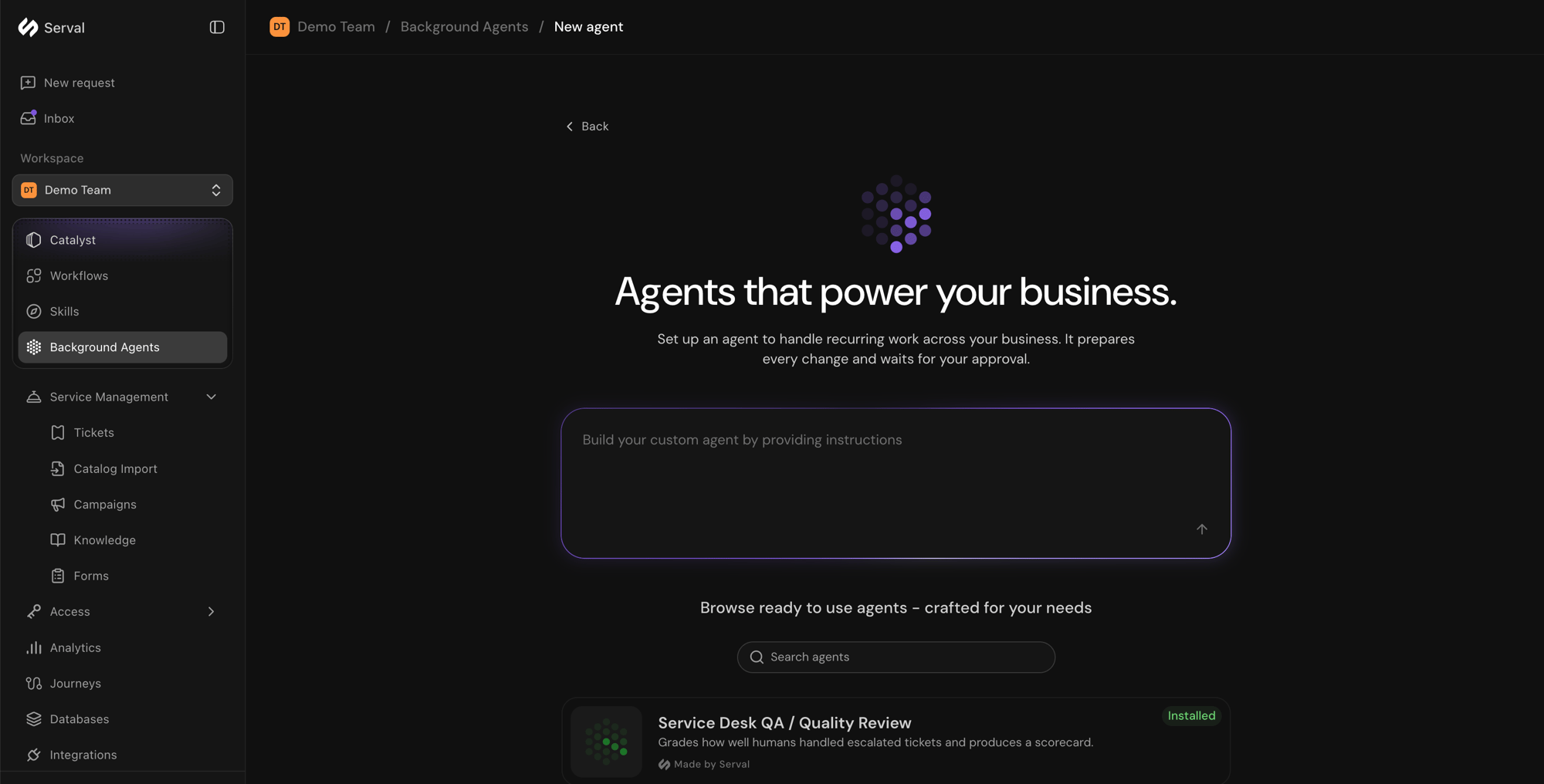
The New agent screen allows you to describe the agent you want to build, or install a ready-to-use one from the marketplace
How background agents work
- The agent runs on its schedule (or when you run it manually).
- Each run is a Catalyst session you can open to see exactly what the agent did.
- When a run produces something worth reviewing, it becomes a finding in the New findings feed on the Background Agents page.
- You review the finding and apply, propose, dismiss, or acknowledge it.
A run only becomes a finding when it produces reviewable substance: an action the agent took or a highlight worth surfacing. Runs that find nothing actionable complete without creating a finding.
Create an agent
You can start from a blank agent or install a prebuilt one.1
Open Background Agents
Go to Background Agents in the team sidebar. It opens to your findings feed; the top right has New agent, Agent library, and Past findings.
2
Start a new agent, or install one
Click New agent. In the Build your custom agent by providing instructions box, describe what you want the agent to do, and Catalyst opens a chat session and drafts it for you. Alternatively, install a prebuilt agent from Browse ready to use agents on the same screen (see Installable agents).
3
Review and publish
Catalyst drafts the agent and opens it in the resource panel marked Unpublished changes. Review the configuration (below), adjust anything you want, then click Publish to create it. Until you publish, the agent stays a draft.
Agent configuration
Catalyst writes a first draft of the agent from your description, and you refine it. The agent’s name appears as its title and can be edited. Review and change these settings in the resource panel while building, or later on the agent’s Agent configuration tab. The sections are the same in both places.The system prompt that runs every time the agent runs: what to look at, what to do, and what to produce.
Only when findings change keeps reports with new findings and is the default for existing and new agents. Choose Every run, even if unchanged to keep a fresh report across runs when the agent saves one, including an unchanged or clear change slate. Both options check for repeated findings within the same run. If the duplicate check is unavailable, the report is saved so its findings aren’t lost; you may receive a duplicate report and notification.
When the agent runs. Run manually is always available. Add a schedule to have it run on its own: hourly, daily, on weekdays, or weekly, with a time of day (and the days of the week for a weekly schedule). Start times may vary by a few minutes.
Run as sets the user whose permissions the agent uses while it runs, so it can only see and do what that user can. Choose an active member of the agent’s team; search stays within that team. Share runs with team controls visibility: when it’s off, runs are visible only to the run-as user and org admins.
Whether the agent asks before it changes anything. Manual asks for approval before running a workflow that makes changes; read-only workflows run without asking, and you can add Approved workflows that run without approval too. Bypass permissions lets the agent take any action on any connected integration without asking, including creating, changing or deleting data. It is not limited to existing workflows: the agent can write a new workflow and run it immediately. The agent still acts only with the Run as user’s permissions.
Who to notify, and when. Choose a Notification method (send to a Recipient, or use Custom agent instructions), then set the Notification conditions: Report ready (the agent produced a report), Action required (it needs your input to proceed), and Session completed (it finished, regardless of outcome).
Installable agents
Instead of writing instructions from scratch, install a prebuilt agent for a common use case and customize it. Each ships with a recommended schedule you can change. Find installable agents from the Background Agents page: click New agent, then look under Browse ready to use agents. Search the list, and each card shows whether it’s already Installed and who built it.Review findings
For recurring snapshots, ask the agent to produce a report and set Reporting to Every run, even if unchanged on its Agent configuration tab. Instructions alone don’t change this setting. A failed run, or a run that doesn’t save a report, won’t create one. Each finding is the agent’s pitch for a single run. The Background Agents page opens to your findings feed, split into New findings and Marked as read. Open a finding to see:- Highlights: the key points on why the run matters.
- Activity: the concrete actions the agent took during the run.
- Sources: the tickets, resources, and web pages the agent drew on.
- Changes to review: any staged changes (workflows, skills, knowledge) the agent drafted, ready to inspect before publishing.
- Apply the suggested changes, or Propose for review on teams that require approval before publishing (see Changes and reviews).
- Dismiss the finding when there are staged changes you don’t want.
- Acknowledge the finding to clear it when there is nothing to apply.
- Chat about this to open the agent’s session and continue the work in Catalyst.
Manage agents
Open Agent library (top right of the Background Agents page) to see your active agents, each showing its owner and its schedule or trigger. Open one to reach its Agent configuration and All runs tabs, where you can Run agent on demand, Pause schedule to stop scheduled runs without losing the agent or its history (resume it later), Open in Catalyst to keep working on it in a chat, or Delete agent. Every run, scheduled or manual, creates a Catalyst session you can open to inspect exactly what the agent did.Learn more
Catalyst workspace
The Catalyst chat surface and resource pane
Changes and reviews
How staged changes are reviewed and published
Building workflows
Build automations with Catalyst
Permissions
Who can create and manage agents