

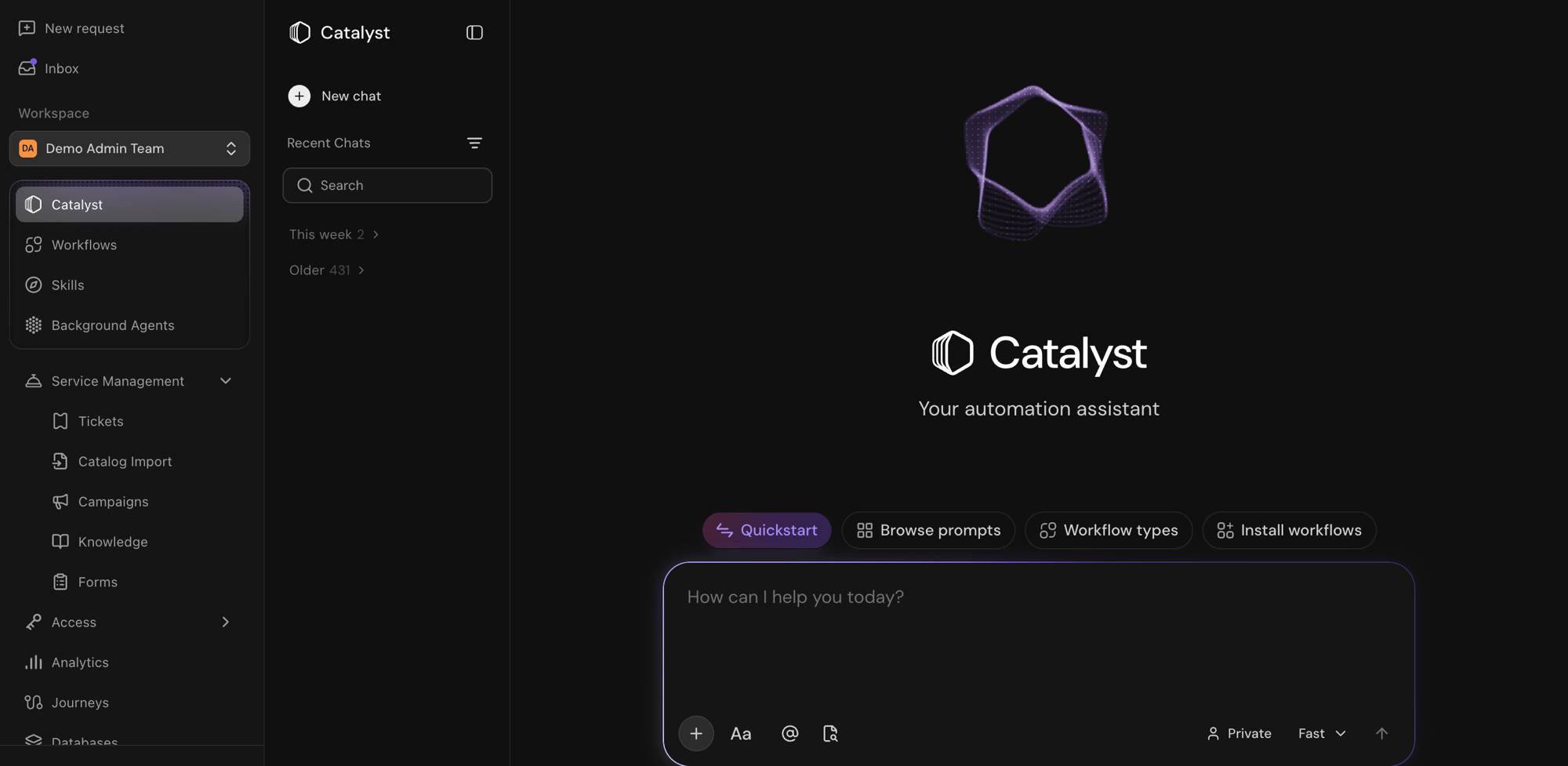
The Catalyst chat view with its new-session composer
Chat
Chat with Catalyst to build automations from natural language descriptions. Above the chat composer are a number of ways to get started quickly, including Quickstart, Browse prompts, Workflow types, and Install workflows.Team vs private chats
Every Catalyst chat has a visibility setting:- Team chat: Anyone on the team with Catalyst access
- Private chat: Only you
Fast vs thinking mode
Catalyst offers Fast and Thinking modes that trade off between speed and depth of reasoning:- Fast: Best for quick edits, small changes, or straightforward questions
- Thinking: Best for complex implementations and multi-step builds
Read responses while Catalyst works
Scroll up in the conversation to pause automatic scrolling. New output continues to arrive without moving the text you’re reading. Scroll back to the bottom or select Jump to bottom to follow new output again. Sending a message also returns you to the latest output. You can also scroll up inside an expanded Thinking panel to pause scrolling there. The panel stays open when thinking finishes so you can keep reading.Interactive cards in chat
Catalyst sometimes renders interactive UI in the message thread instead of plain text.Configure integrations
When a workflow needs an app that’s not connected, Catalyst shows cards with Connect, Configure, or Reconfigure actions. Complete setup using the card instead of pasting credentials in chat. See Connecting external apps.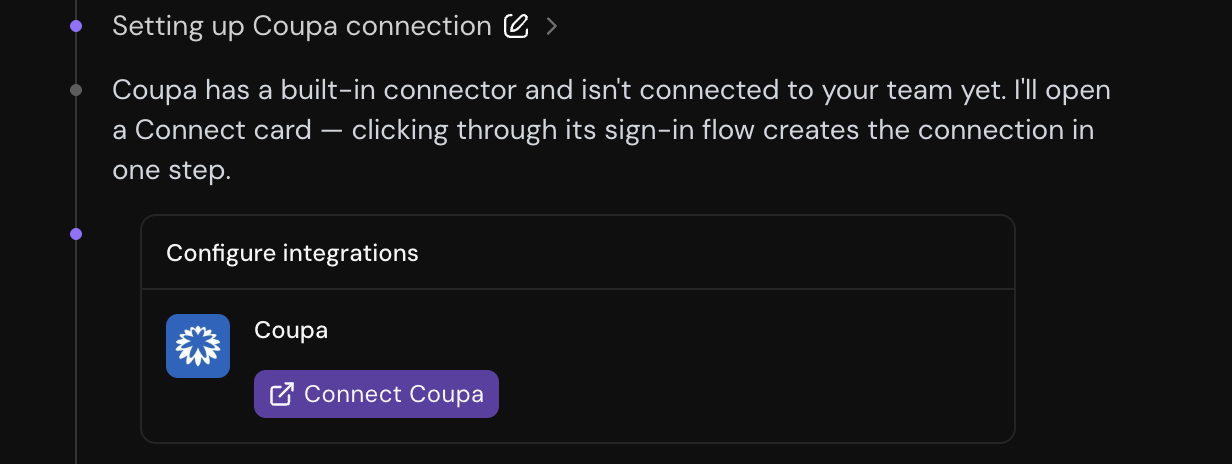
A Configure integrations card with a Connect action for an unconnected app
Questions
Catalyst may ask clarifying questions with selectable options (single or multi-select). When you pick an option and submit, Catalyst will note your answer and resume working.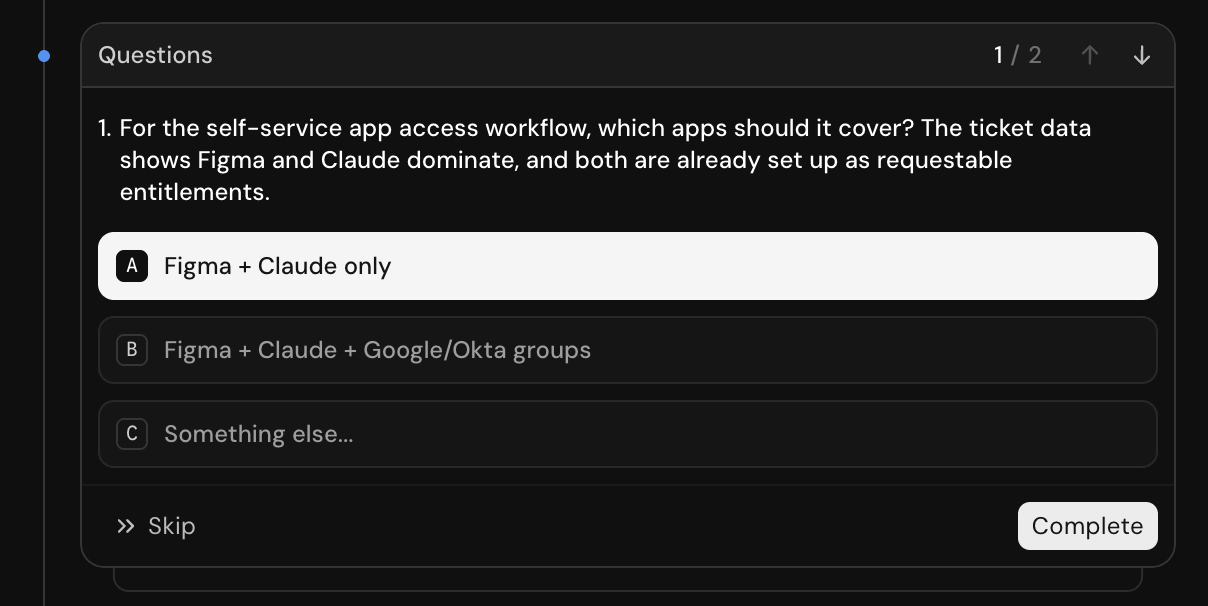
A structured questions card with single-select options
Temporary workflows
Catalyst may create a temporary workflow to probe an API, fetch data, or validate an integration in the process of completing a task. When Catalyst proposes a temporary workflow, a card appears in chat showing:- The workflow name and a link to open it in the resource panel
- Run and Reject actions (unless the workflow is read-only, in which case it may run automatically)
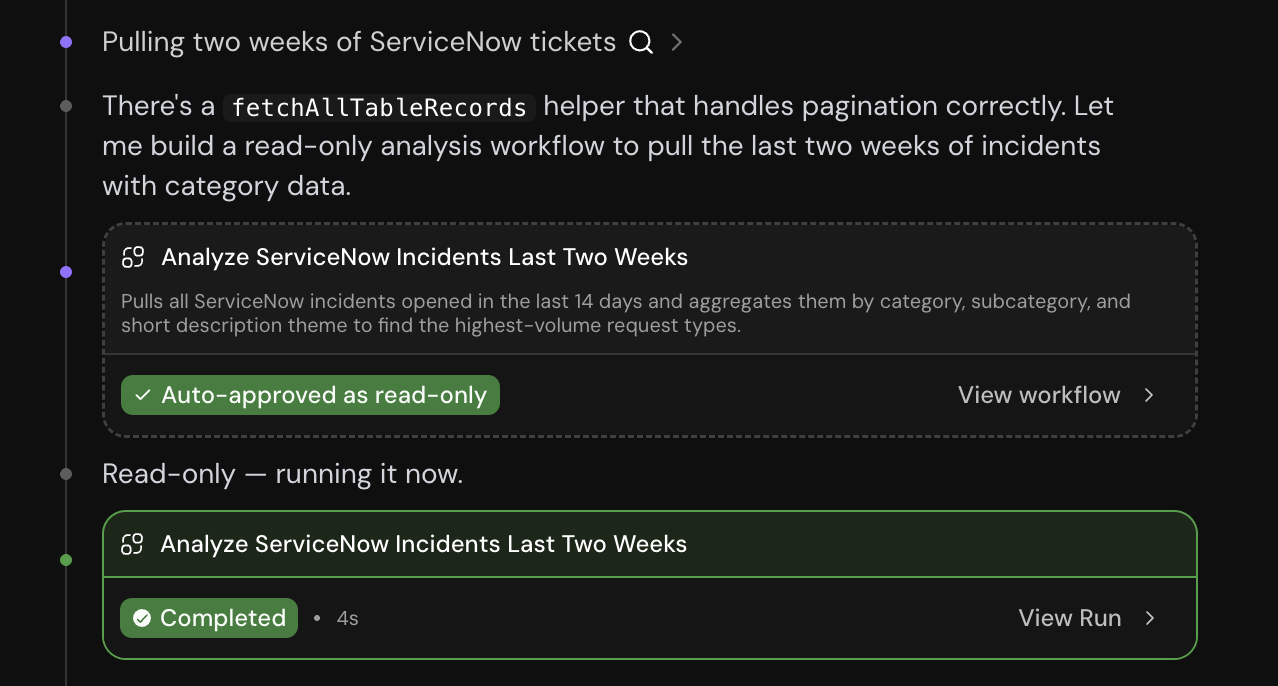
A read-only temporary workflow auto-approved and run in chat
@Mention resources
You can mention existing resources (such as workflows and Help Desk skills) when chatting with Catalyst. Type ”@” to see a list of existing resources, and keep typing to specify.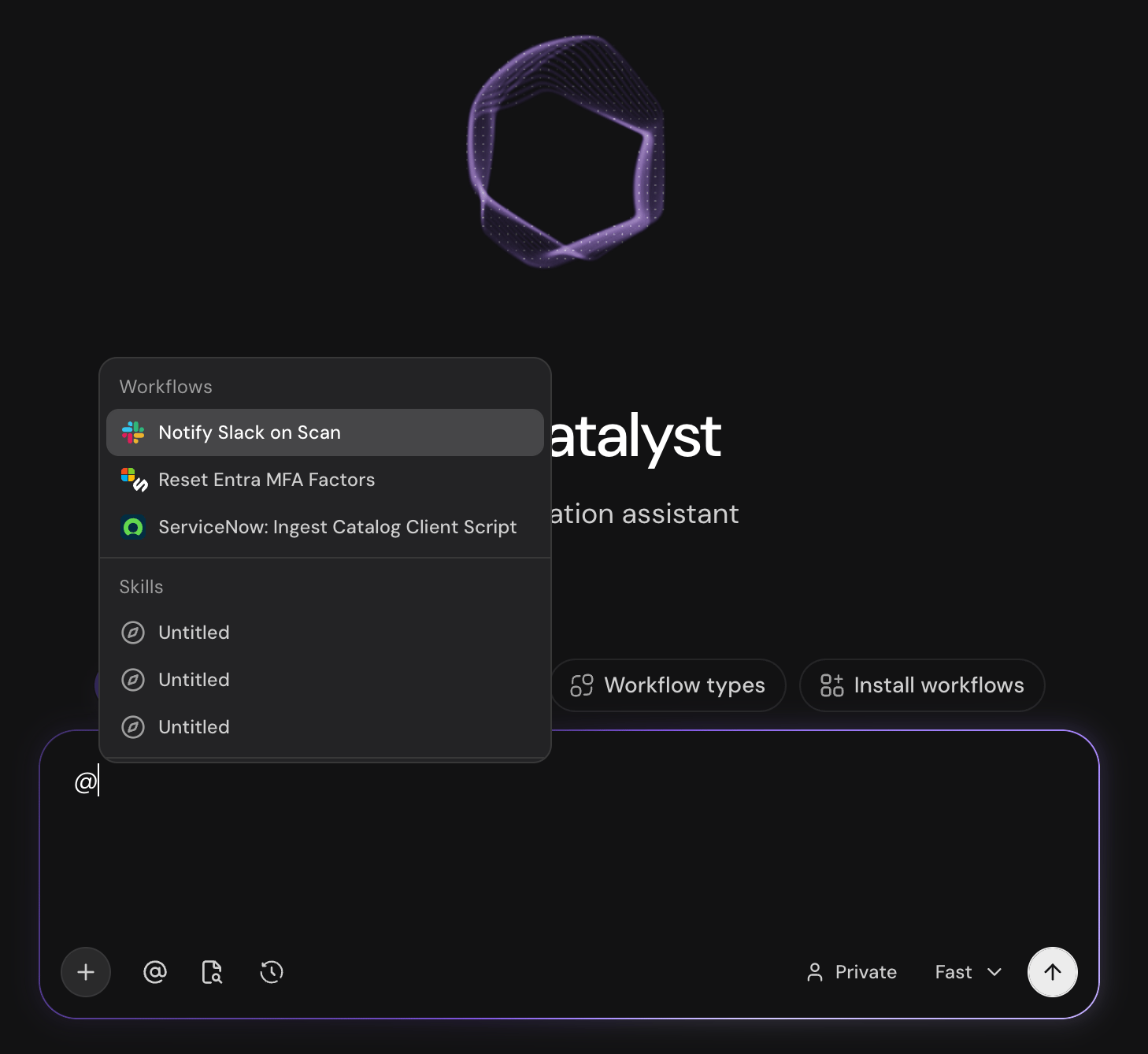
The @ mention menu for workflows and Help Desk skills
File attachments
Attach files to Catalyst messages to share screenshots, data, or other context.- Click the plus in the composer to pick files
- Drag files onto the chat area (a “Drop files to attach” overlay appears)
- Paste files from your clipboard when supported by your browser
Limits and supported types
- Maximum file size: 50 MB per file (under 25 MB recommended)
- Maximum attachments: 10 per message
- Supported file types:
- Images: PNG, JPEG, GIF, WebP
- Documents: PDF, DOCX, XLSX, Visio (.vsd)
- Text: CSV, TXT, Markdown, JSON
Resource panel
When Catalyst creates or opens a resource such as a workflow or skill, a tab appears in the resource panel on the right side of the chat. Edits made via chat or directly in the panel are not live until you publish or complete a review. Ticket labels also use this draft-and-publish flow. Click a label in the session resource list to open its resource tab and review its settings before publishing.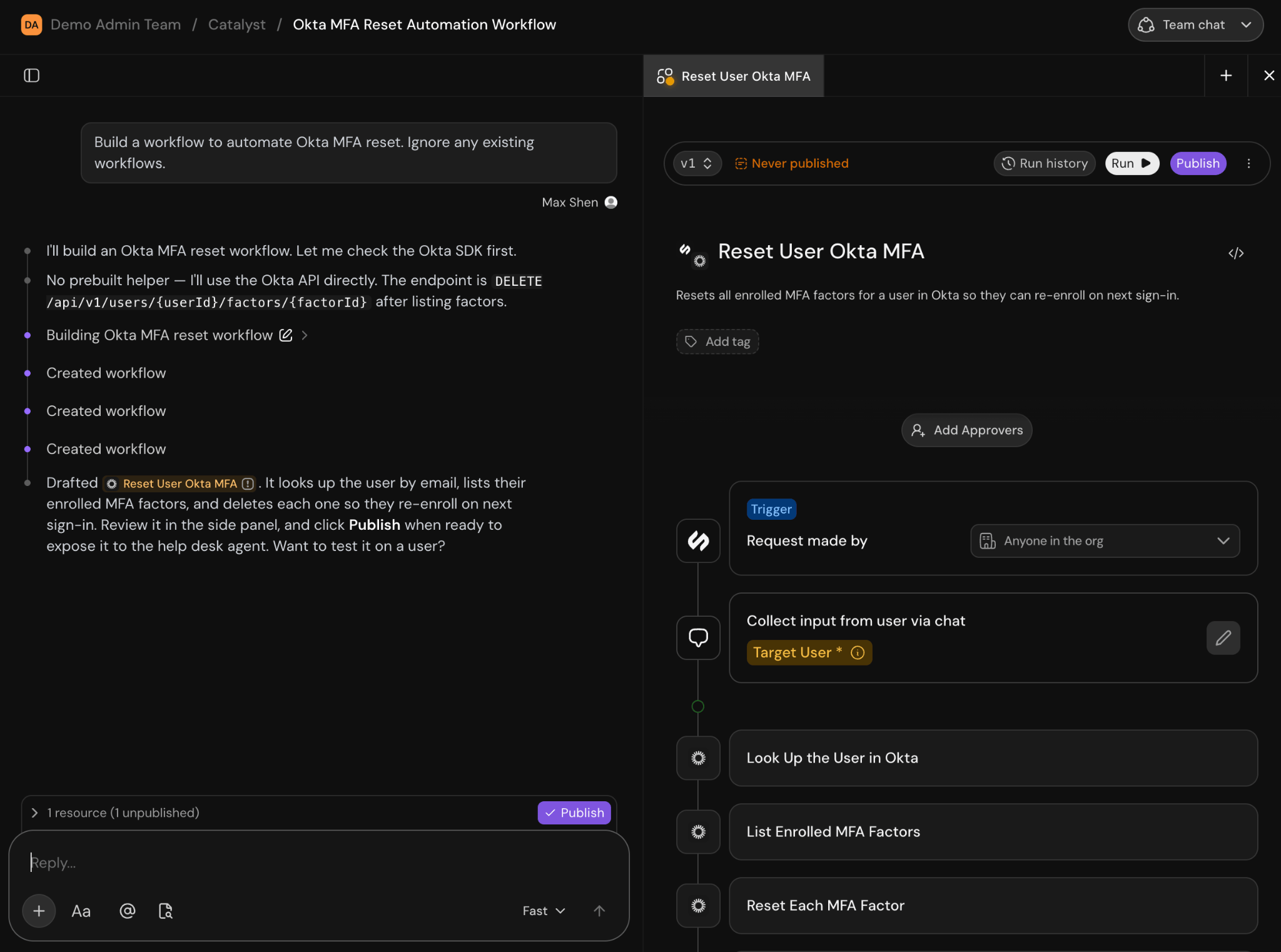
A workflow open in the resource panel with Publish and run controls
Learn more
Catalyst overview
What Catalyst can do
Getting started
Open your first session and publish a change
Tutorial
Using Catalyst to analyze ServiceNow tickets and build automations
Changes and reviews
Stage changes, propose reviews, and configure approvers
Building workflows
Natural language prompting, manual edits, versioning
Dashboards
Building analytics dashboards with Catalyst
Catalyst skills
Teach Catalyst how to build your workflows
Background agents
Scheduled agents that surface findings for review
Related links
Help Desk skills
Instructions for the help desk agent on end-user requests
Permissions
Builder access and team capabilities
Workflow versioning
Published versions and history for individual workflows