

Create your first item
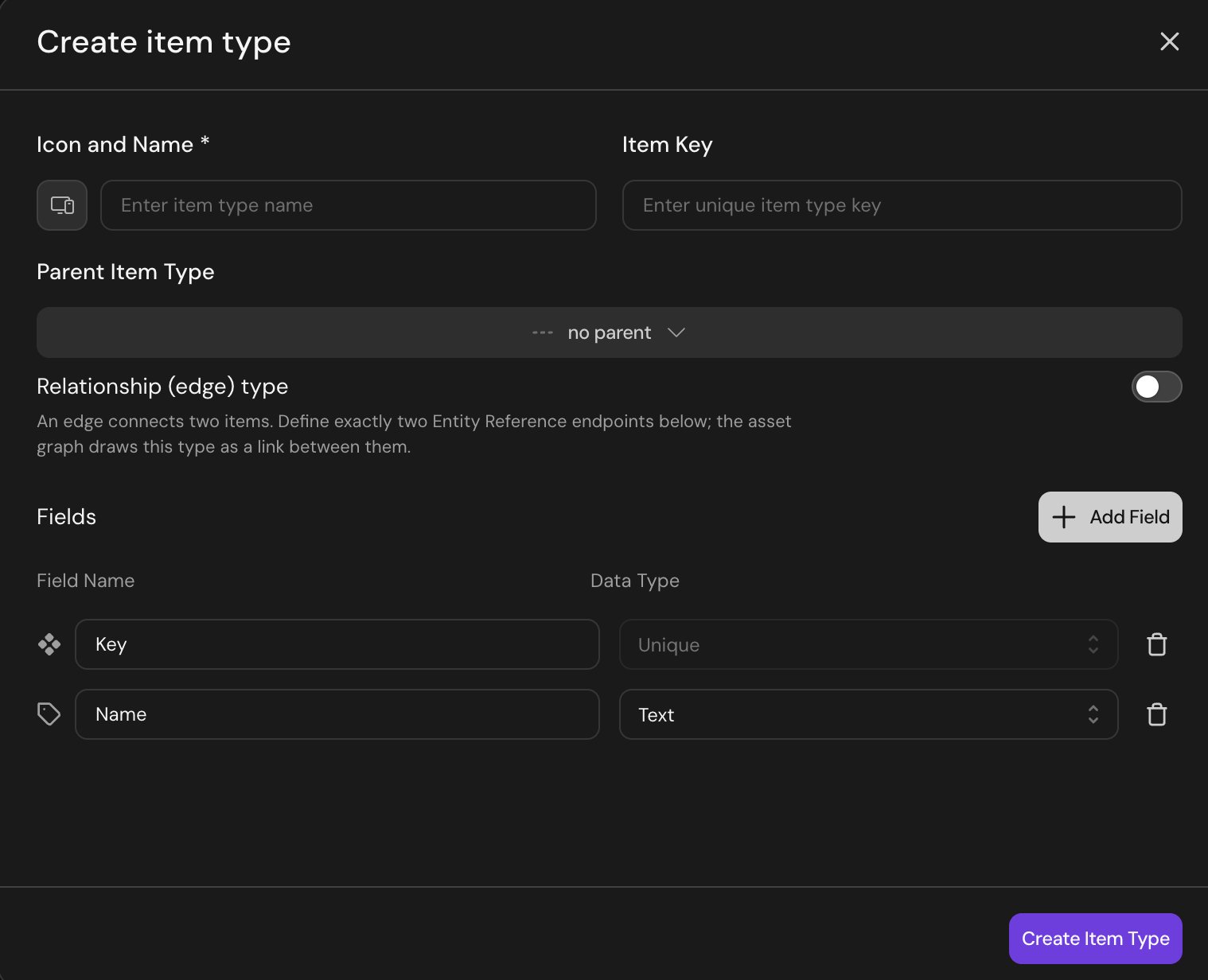
The Create item type dialog
- Navigate to your team in the left panel and select Databases
- Create the item type Click “New item type” in the top right. Name it after the thing you want to track. For this example, use “Computers.” For this example, skip the optional field Parent Item Type.
-
Add anchor fields
Every item type needs two anchor fields:
- A unique key field, used for deduplication when syncing from external sources. For this example, use “Serial Number.”
- A descriptive name field, used as the display label. For this example, use “Hostname.”
-
Add other fields
Add typed fields for everything else you want to track. For this example, add these:
- “OS Version” (text)
- “Cost” (number)
- “Owner” (user reference)
- “Status” (enum: Active, In Repair, Retired)
- Add a few items by hand Click New item and fill in the fields for two or three computers. Hand entry is fine for a quick test. Once you’re ready to sync from a real source, you will set up ingestion.
- Browse and filter Open the item type’s list view. Filter on any field. Sort on any field. Save the view if you’ll come back to it. Filters and saved views are private unless you share the view explicitly. Try filtering by “Status = Active” and sorting by “Cost” descending to see the most expensive active machines.
- Connect a source Once the schema is settled, replace manually-created items with a live ingestion. Click Connect a source on the item type. Pick an app you’ve already connected to Serval (your MDM, IdP, or procurement tool), choose an installable extraction workflow or write one in natural language, and accept the AI-suggested field mappings. Serval handles the first sync and keeps the item type fresh on the schedule you set. For more information on ingestion (including full setup, multi-source reconciliation, and troubleshooting), see Ingestion.