

Journeys is in open beta and the product is actively evolving.
The team Journeys page
Open Journeys in the team sidebar to see every journey for the team. It opens to the All journeys view, and you can save your own filtered views beside it. Use the search box to find a journey by name.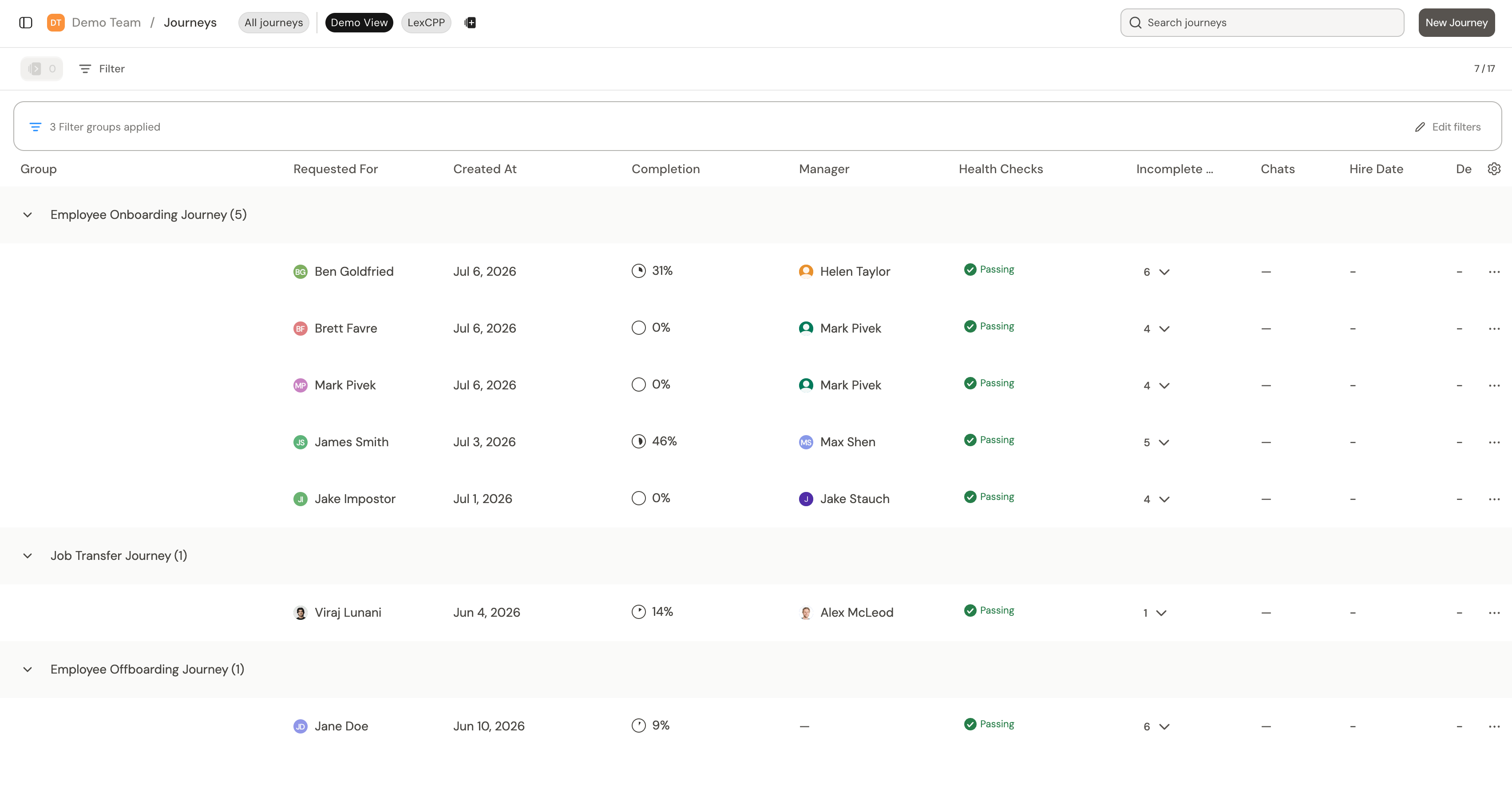
Default columns
The All journeys view shows these columns by default:Custom fields as columns
Since journeys are a type of ticket, you can add custom fields such as location, department, or cost center. Any custom field on the journey ticket type can appear as its own column in the All journeys view. Add these columns to sort and filter on data beyond the defaults. You configure custom fields for journeys under Settings → Ticket type → JourneysThe Journey Overview
Select a journey to open its overview page. The journey overview shows every task categorized under the requester, stakeholders, and teams involved.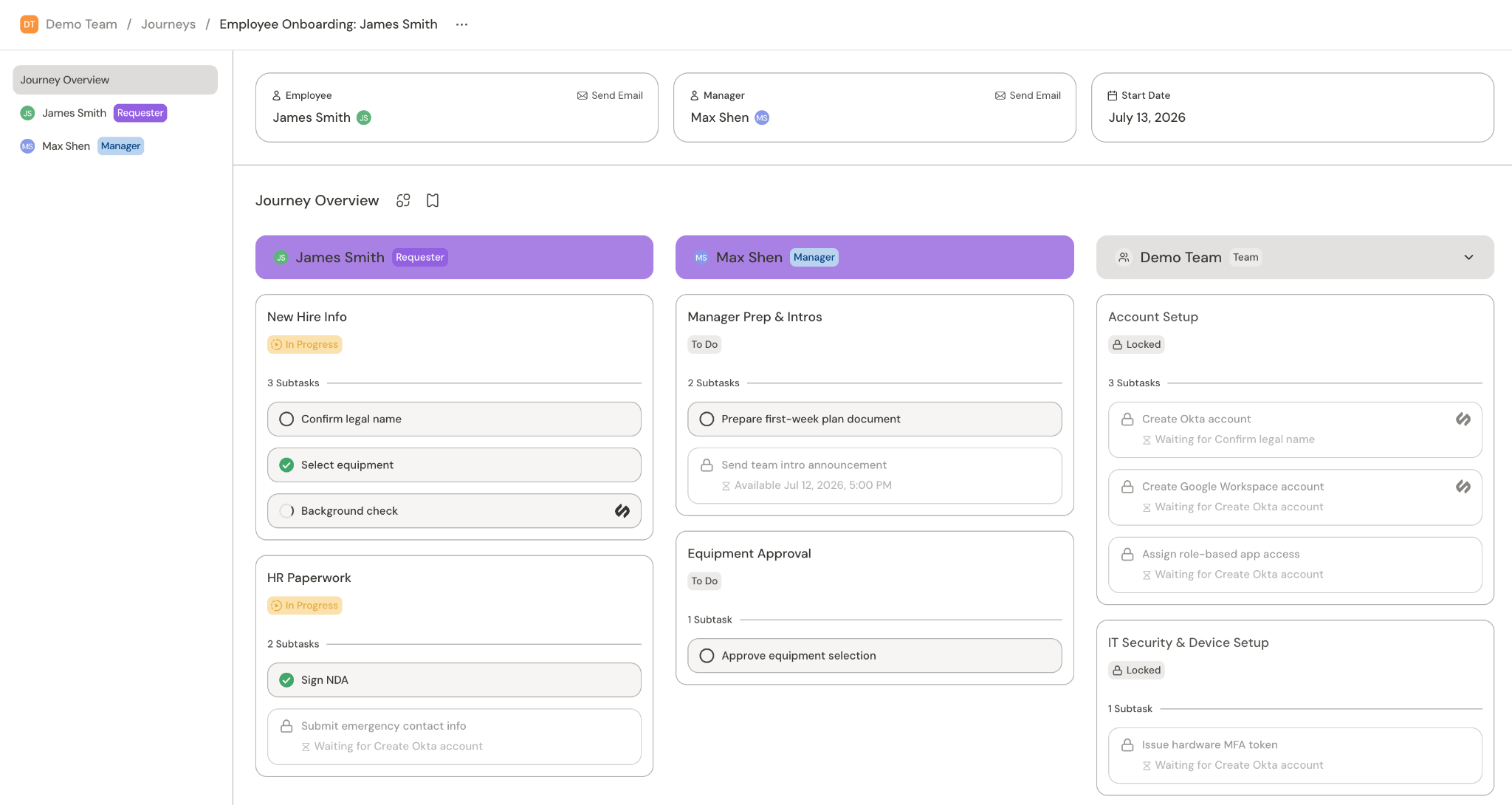
For more information, see Admin and end user views.
The ticket that started a journey
When a journey is created by a workflow running on a help-desk ticket, the journey links back to that originating ticket: the journey heading shows a Created from link to the ticket, and the originating ticket lists the journeys it created in its details panel. Use these links to move between an intake request and the journey it kicked off.Manage tasks
Select any task to open it. A task with subtasks expands to its steps, and each step opens to its own detail.Manage workflow runs
When a task runs a workflow, its detail gives you controls for that run. Hover over the task to reveal them: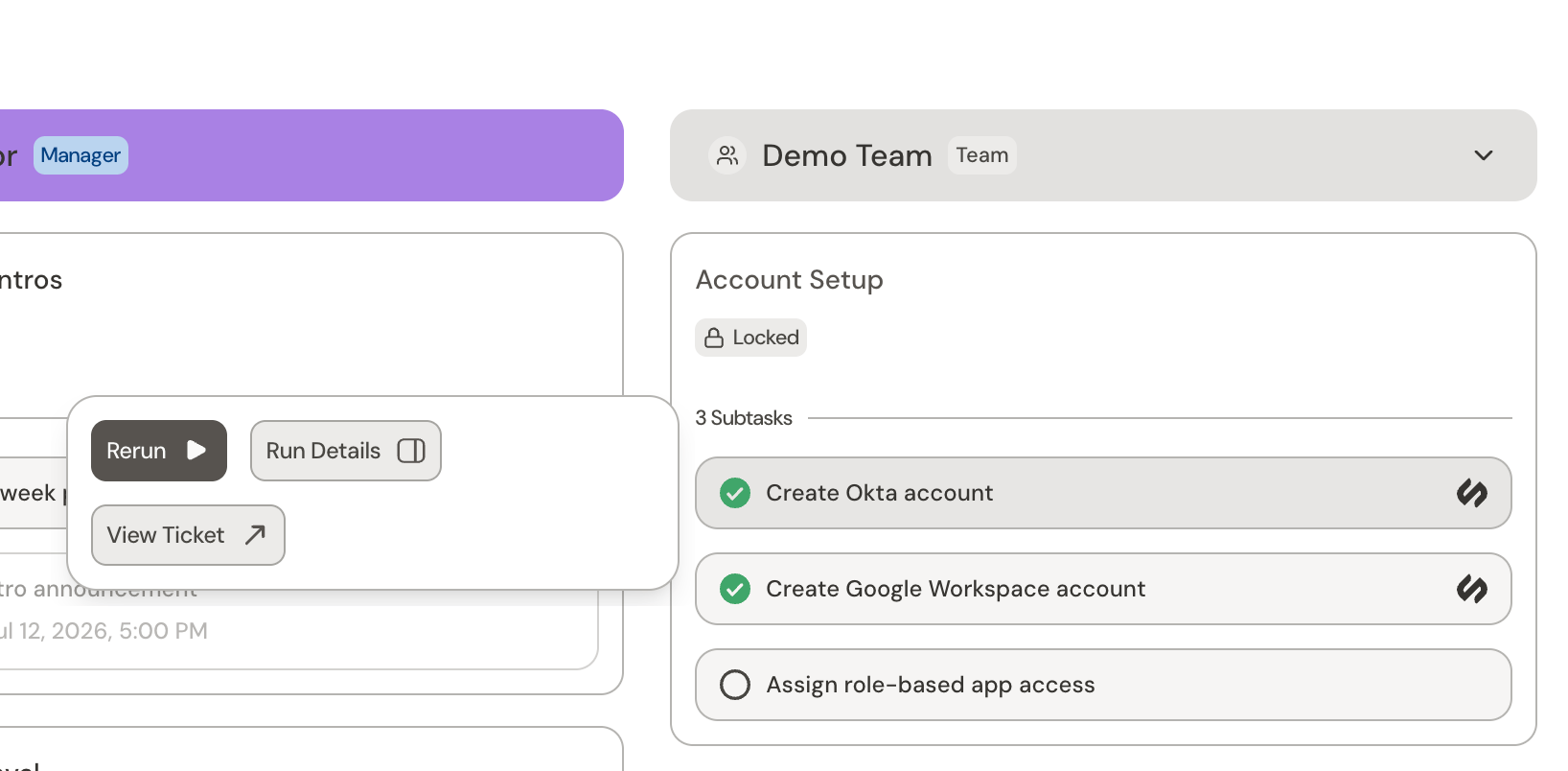
- Run Details opens the workflow run so you can see what happened.
- Retry re-attempts a failed or canceled run after you fix the cause.
- Rerun runs a finished workflow again from the start.
Rerun starts the workflow over from the beginning, and any actions it already took may happen again.
Complete a manual task
A manual task has no attached workflow, so the assignee completes it by hand. Use Mark complete to finish it, and Reopen to reverse that.Only admins can mark a workflow-driven task done by hand. Its status follows the workflow.
Open the underlying ticket
Every task has an underlying ticket. Use View Ticket from the task to open it when you need the full conversation, custom fields, or history behind a step.Reading task status
For more information, see Task statesRelated
Journeys
What journeys are and how the pieces fit together
Journey tasks
Overview of journey tasks
Journey admin and end user views
How admin and end users view journeys
Cross-team journeys
Use a journey to manage tasks for a team
Workflows
The automations behind form and automated tasks
Building journeys
Design and build journeys in Catalyst