

Journeys is in open beta and the product is actively evolving.
When to use a journey
Use a journey to manage a process when that process has one or more of these characteristics:- Multiple tasks in a specific order: steps that must happen in sequence, not all at once.
- Different inputs at different times: information that’s collected in stages rather than up front.
- Multiple stakeholders/teams: work that’s split across an employee, their manager, IT, and other teams.
- Time-based steps: a task that shouldn’t start until a certain date (for example, “send first-day instructions the morning they start”).
- Dependent tasks: a task that can’t begin until another one finishes, whether that earlier task has the same assignee or a different one.
If the process is a single thread of actions, a workflow is usually the better fit.
Example use cases
Onboarding
Provision accounts, assign equipment, schedule training, and walk a new hire through first-week
tasks.
Offboarding
Revoke access, collect devices, and hand off responsibilities when someone leaves.
Job changes
Manage access, tooling, and the overall process for promotions or internal transfers.
Key concepts
A journey consists of tasks split among multiple parties, including the requester (e.g. the new hire), stakeholders (e.g. their hiring manager), and Serval teams (e.g. IT and HR teams). More complex employee onboarding journeys may include additional stakeholders, such as a skip-level manager. A task could be a form submission (e.g. filling in contact info), an automated workflow (e.g. creating an Okta account for a new hire), or a manual step (e.g. verifying I-9 documentation). Tasks can be gated by time (e.g. I-9 verification is gated by the employee’s start date) or dependent tasks (e.g. Okta account creation is gated on contact info). Where the stakeholder checklist is enabled, journey admins with access to inspect tasks use the arrow on a task group to open task details, including locked groups and groups assigned to other participants or System. Participants use the play button to continue their own available tasks; a disabled lock appears when all remaining tasks in their group are locked. In the redesigned Others’ tasks checklist, all assignees appear together, with their names inside each task group. Use Filter tasks to open the Status and Assignee submenus. You can select multiple options and combine them with search. The browser remembers your filters for this journey. Reset filters clears status and assignee selections while keeping your search text. If no tasks match, Clear filters also clears the search.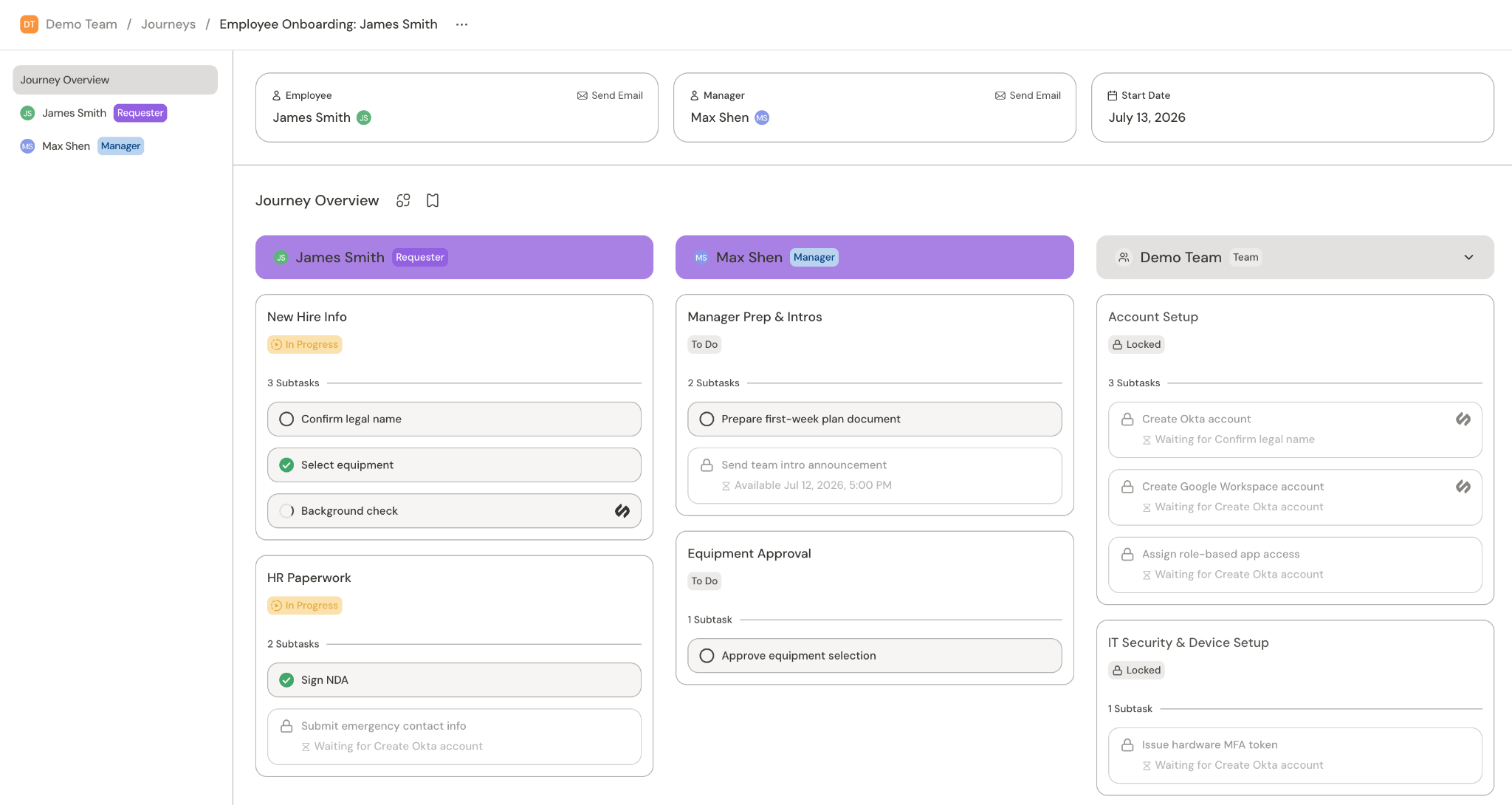
How to get started
Enable Journey under Settings → Capabilities → Ticketing. Turning it off hides the Journeys section from the team’s sidebar.
Install a pre-built journey
Serval offers Installable journeys out of the box.- Navigate to Journeys from the team sidebar
- Click New Journey
- Click Installable Journeys and add them to your environment
Build a new journey
We recommend using Catalyst to build new journeys that can be triggered by your team or an HRIS event. Open a chat directly from the Catalyst tab, describe the journey, and Catalyst drafts it for you. For more information, see Building journeys with Catalyst.Running journeys
From a trigger: A journey can be triggered automatically by an event from an external system, such as a new-hire record appearing in Workday. For how to set up an automated trigger, see Building journeys with Catalyst. From the UI: Whether you installed a pre-built journey or built your own, they will appear in the New Journey dialog. Select any available journey, fill in any required inputs, and submit. When you run an existing journey workflow, a Creating your Journey… page shows progress and opens the new journey automatically when it’s ready. If the workflow stops or takes longer than expected, you can open the original request to review its progress or select Check again. Checking again doesn’t submit another request. From a catalog form: If a catalog form is configured to create a journey, submitting it creates the journey and saves your answers on its initial ticket. The form’s submit workflow adds tasks under that journey. Finishing the setup workflow doesn’t complete the journey while its tasks remain open.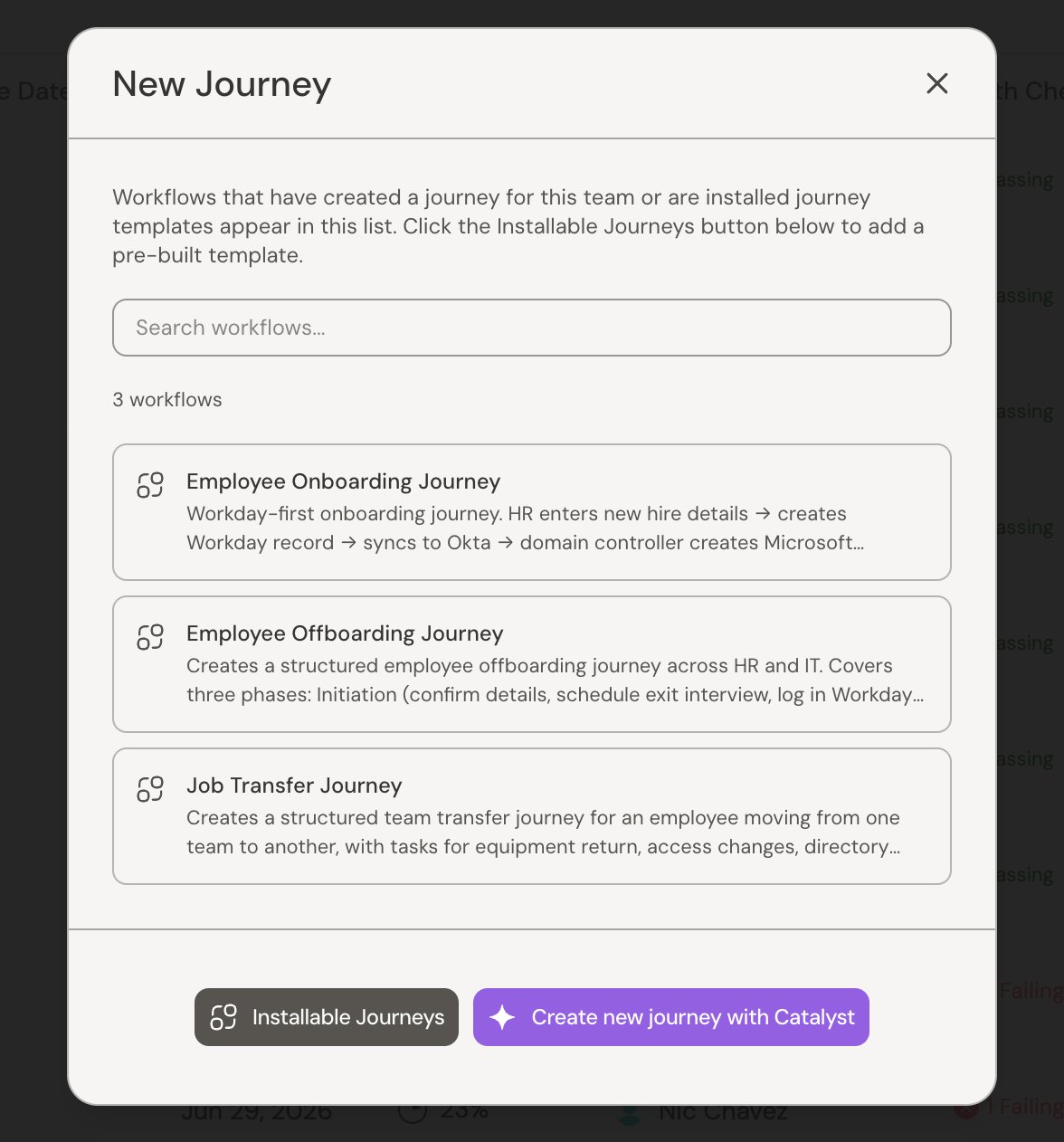
Archive a journey
To take a finished or abandoned journey off the active list, use Archive journey from the journey’s actions or from its row actions in the list. An archived journey shows a banner and stays available to Unarchive later.Related
Journey tasks
Overview of journey tasks
Journey admin and end user views
How admin and end users view journeys
Cross-team journeys
Use a journey to manage tasks for a team
Serval for People teams
Onboarding and offboarding patterns for HR and People teams
Building journeys
Design and build journeys in Catalyst