

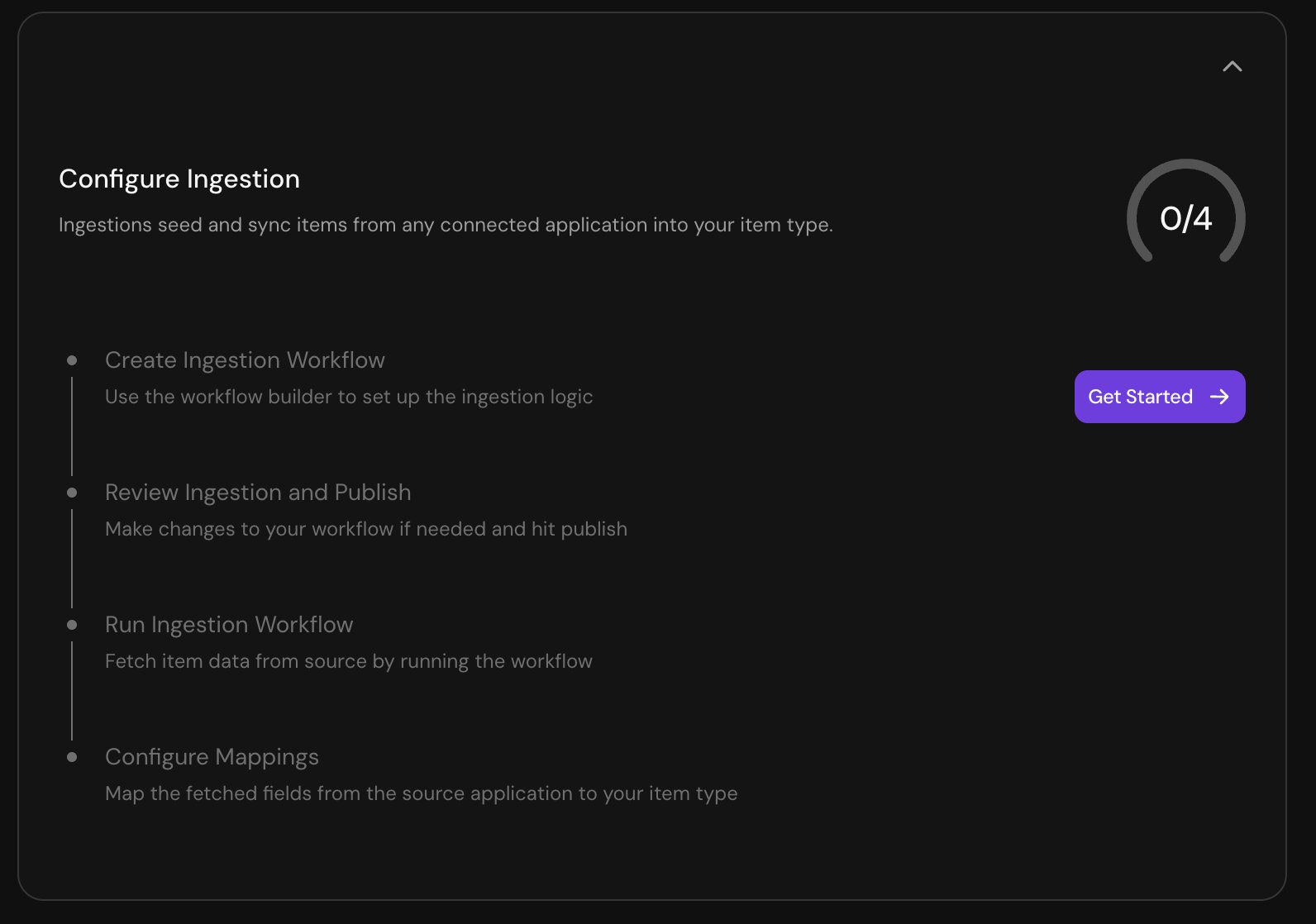
The Configure Ingestion setup checklist
Connect a source
Before you connect a source:- Create the item type (see Schema design)
- Connect to the source app (see Connect an application)
- Open the item type in Databases.
- Click Configure Ingestion.
- Select your source app.
- Pick or build the ingestion workflow (Installable ingestion, Natural language, or Custom code). See below for details
- Run the first sync. Serval extracts a sample of raw external records.
- Review the AI-suggested field mappings. Accept, adjust, or add to them.
- Save. Subsequent syncs run on the schedule you set.
Three ways to build the ingestion workflow
- Installable ingestion: Use when an off-the-shelf workflow for your source exists in Serval’s gallery (Jamf, Iru, Okta, ServiceNow, Workday, AWS, and others).
- Natural language: Use when no installable exists, but the source has a documented API. Describe what you want to ingest (“Ingest all cards from Ramp.” “Pull all active employees from BambooHR.”) and Catalyst generates the ingestion workflow.
- Custom code: Use when you want full control: complex pagination, custom auth, conditional logic, or a source that needs special handling.
Installable ingestions
Browse the installable gallery filtered by your connected apps. Each entry lists the source, what it pulls, and the expected fields. Install with one click and skip to mapping review.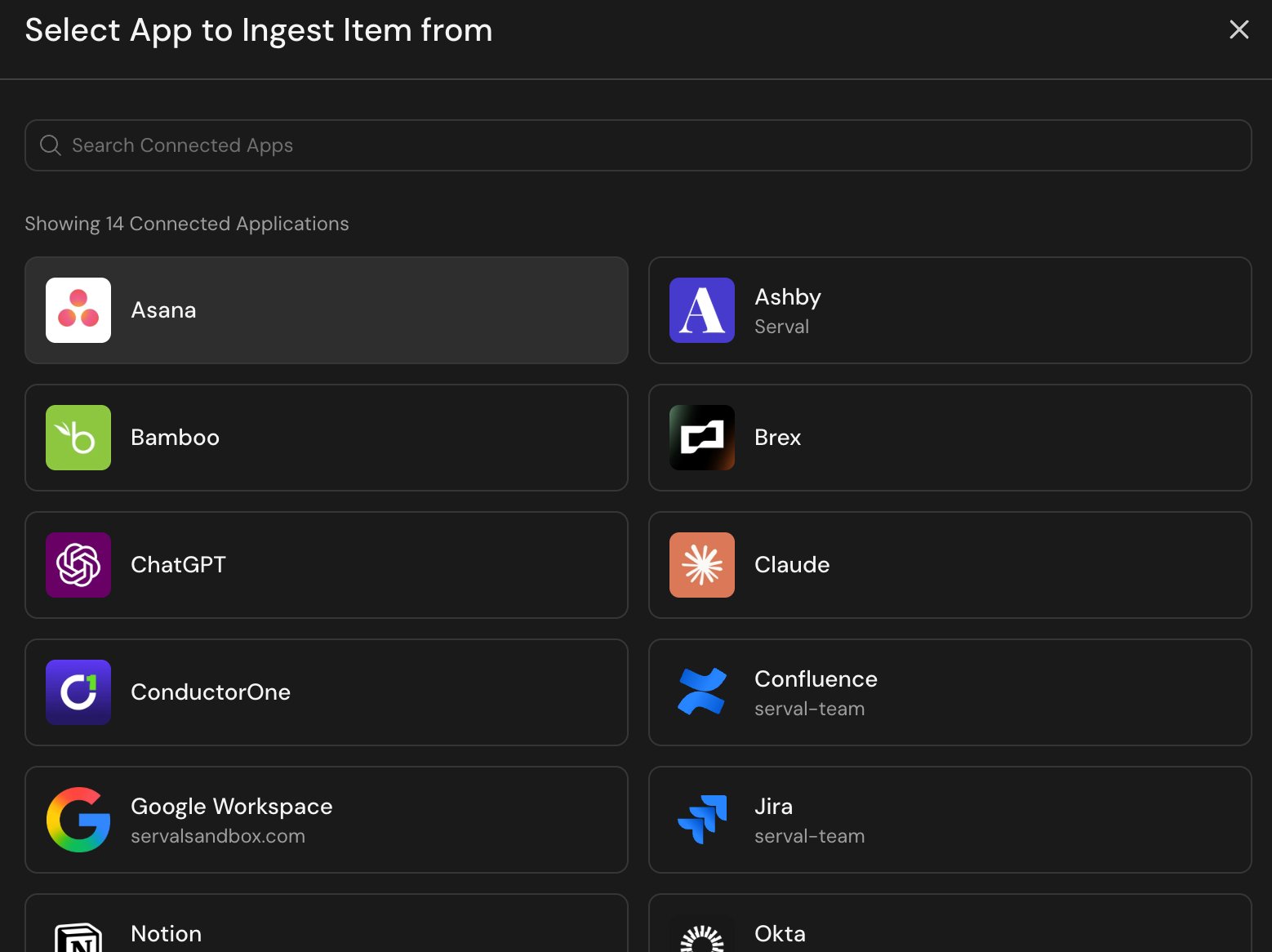
Selecting a connected app to ingest from
Natural-language ingestions
Describe what you want to ingest in plain English. Be specific about the source, the resource, and any filters:- “Pull all active users from Okta, including their group memberships.”
- “Ingest all open expenses from Brex in the last 90 days.”
- “Pull every device from Intune, only Windows machines.”
Custom-code ingestions
Write the workflow yourself when the source needs handling the natural-language builder can’t infer: cursor-based pagination with state, multi-step ingestion (list IDs, then fetch each), conditional filtering, or auth beyond what the integration template handles.Review the AI-suggested mapping
After the first sync brings back a sample of raw external records, Serval analyzes them and proposes mappings between external field paths and internal fields on your item type. The review screen shows each suggestion alongside a sample value:
For each row you can:
- Accept the suggestion as-is.
- Adjust the external field path. Pick a different field from the raw record.
- Add a mapping for an internal field the AI didn’t catch.
- Skip an internal field that doesn’t have a matching source field.
Fields likely to require intervention
Keep an eye on the following situations, as they may require adjusting or overriding AI suggestions.- Ambiguous source fields. A source field named
serialmapped to Serial Number is usually correct. A source field namedidmapped to Serial Number probably isn’t. - Computed fields. If your item type has a derived field (Total Cost = Unit Cost * Quantity), the AI can’t compute it. Map only what the source provides, and build derived fields with a workflow that runs after sync.
- User references. Serval will look for fields that look like an email address, but the email must match an existing Serval user. When ingesting user reference, be sure that the source uses the same email domain.
Multiple sources for one item type
An item type can have any number of ingestion workflows, each writing different fields from a different source. This is the canonical CMDB and ITAM setup: hardware specs from your MDM, financial data from procurement, ownership and employment data from your HRIS, all written into one Computer item type. Every item is deduplicated by its key field. Each source contributes the fields it maps.Picking the source of truth per field
When two sources both map to the same internal field, you can order them by priority to decide which source is more authoritative. The lower priority source still feeds the field if the higher priority source doesn’t have a value. A common pattern for a “Computer” item type:Sync schedules and deletions
Schedule
Each ingestion runs on its own interval. Set sync frequency explicitly, or leave it on Default (4 hours). Manual sync is always available via the Sync now button on the ingestion config.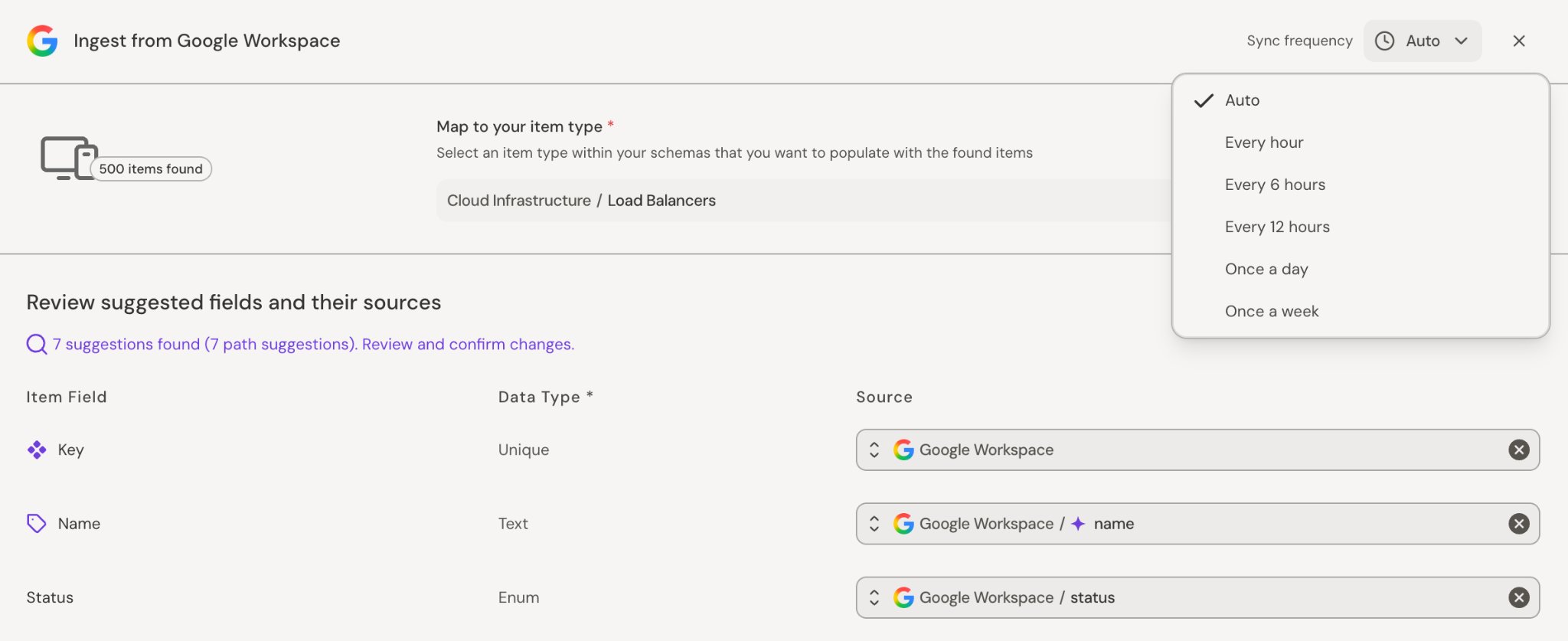
Setting the sync frequency and reviewing field mappings on an ingestion
Deletions
The Delete missing items toggle controls whether Serval propagates deletions from the source:- On: When a record disappears from the source, the corresponding item in Serval is deleted.
- Off (default): Disappeared records are left in place. Use this when you want to retain history of devices that left the fleet, or when the source has known cases of records flickering in and out.
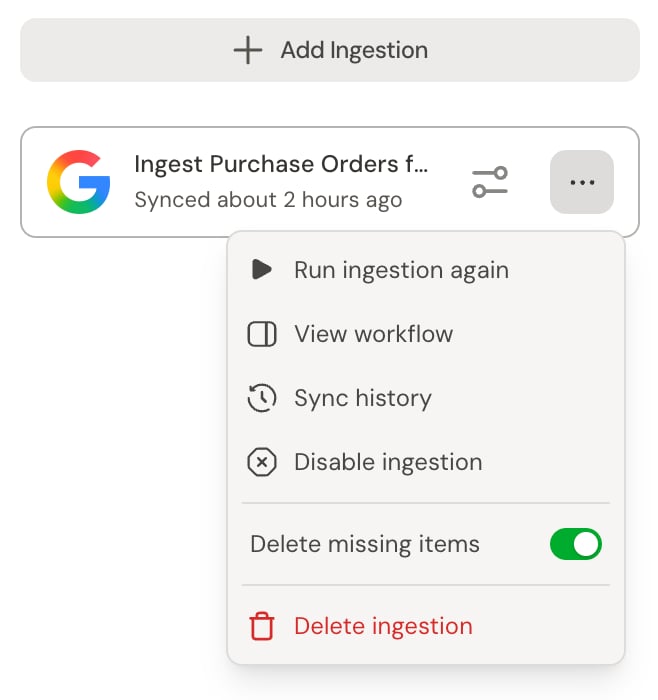
The ingestion menu, including the Delete missing items toggle
Troubleshooting
Reading sync status
Each ingestion shows its last sync time, current phase, and whether the most recent run succeeded. The sync history lists every sync with start and end time, records added, updated, or deleted, and any failure details. A run that stored records but published none readsIngested, not published: the source has no field mappings yet. For what each status and failure cause means, and for the records a sync couldn’t publish, see Issues.
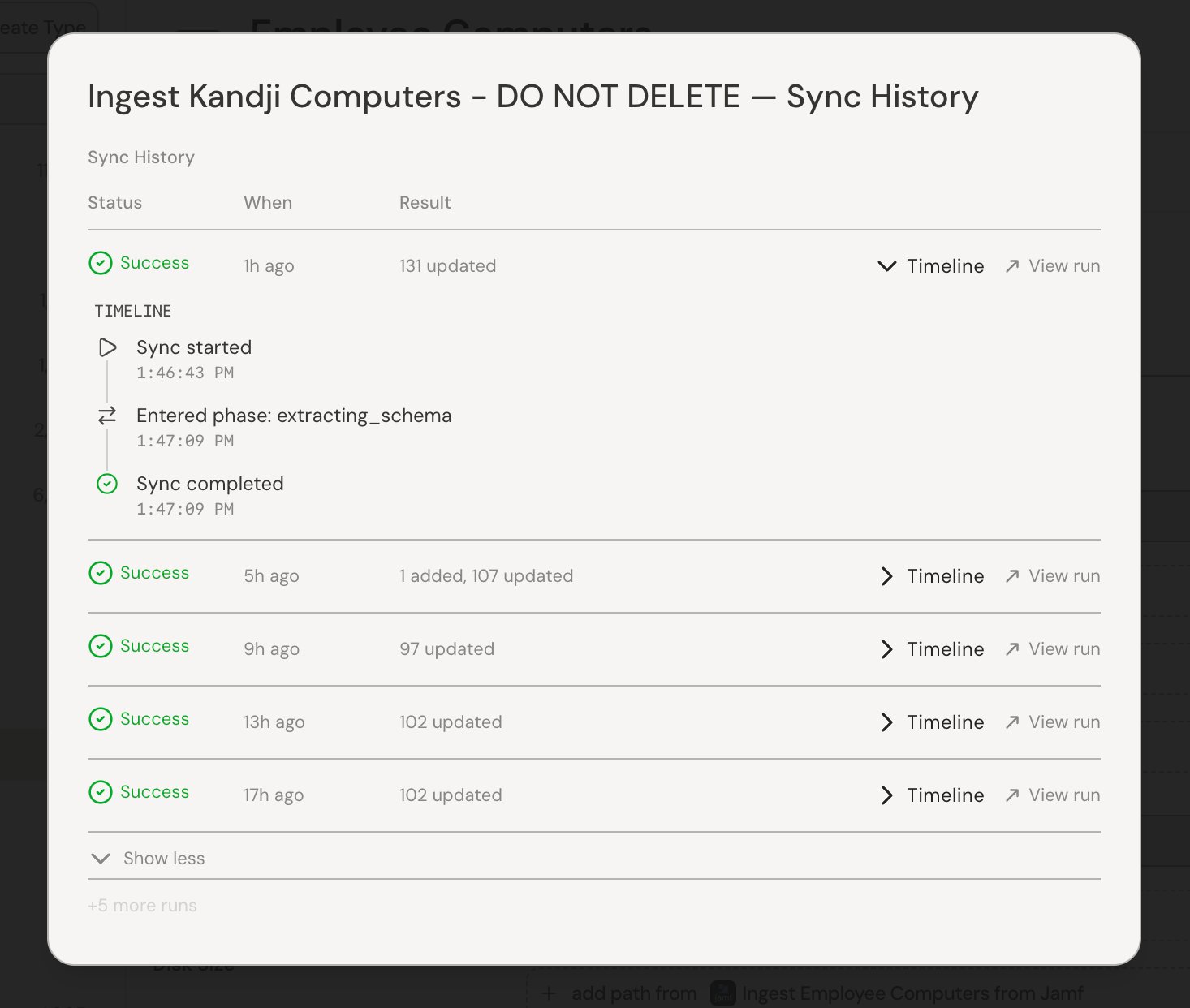
An ingestion's sync history, with per-run timelines
Sync failed
A failed sync could stem from a number of reasons:- Workflow error: Auth expired, source API returned 5xx, pagination broke, etc. Open the failed run and investigate with Catalyst.
- Field mapping error: An external field path no longer exists in the source, or a value doesn’t match the internal field’s type (e.g. string where number expected). Fix the mapping, then re-sync.
- Schema drift: The item type schema changed in a way that breaks the workflow. Update the schema to match what the workflow submits, or update the workflow to match the current schema. See Schema changes.
Sync runs forever
Long-running syncs usually mean pagination is broken. The best troubleshooting step is to investigate the failed workflow run with Catalyst.Items disappearing
If items are getting deleted unexpectedly:- Verify the Delete missing items toggle matches your intent.
- Ask Catalyst to investigate the ingestion workflow and why items are disappearing
- Cross-check the source. Is the record actually gone, or is the source paginating differently than the workflow expects?