

Simulations are in beta and require the Test & Release capability. Enable it under Settings
→ Capabilities. If the capability is unavailable, ask your Serval contact to enable it for your
organization.
Configs and suites
- A config is one saved scenario: the requester, their opening message, the situation, and what a good resolution looks like. Every run starts from a config.
- A suite groups related configs so you can run them together and track results over time.
Build with Catalyst
Catalyst is the primary way to create and edit simulations. Selecting New config or New suite opens Catalyst with the editor beside a chat and a starter prompt ready to send — describe what you want to test in plain language, or fill in the editor fields directly. Edits save to a draft as you go. Creating a config always uses Catalyst; a suite can also be built from a plain form without Catalyst access. To plan coverage before you create anything, select Build with Catalyst beside New suite. It opens a new Catalyst chat with an editable prompt asking Catalyst to review your existing configs and suites, ask which requester scenarios and expected outcomes to cover, and help create the configs and a suite for them. Nothing is sent until you send the prompt. The button appears only when you can edit simulations and have Catalyst access.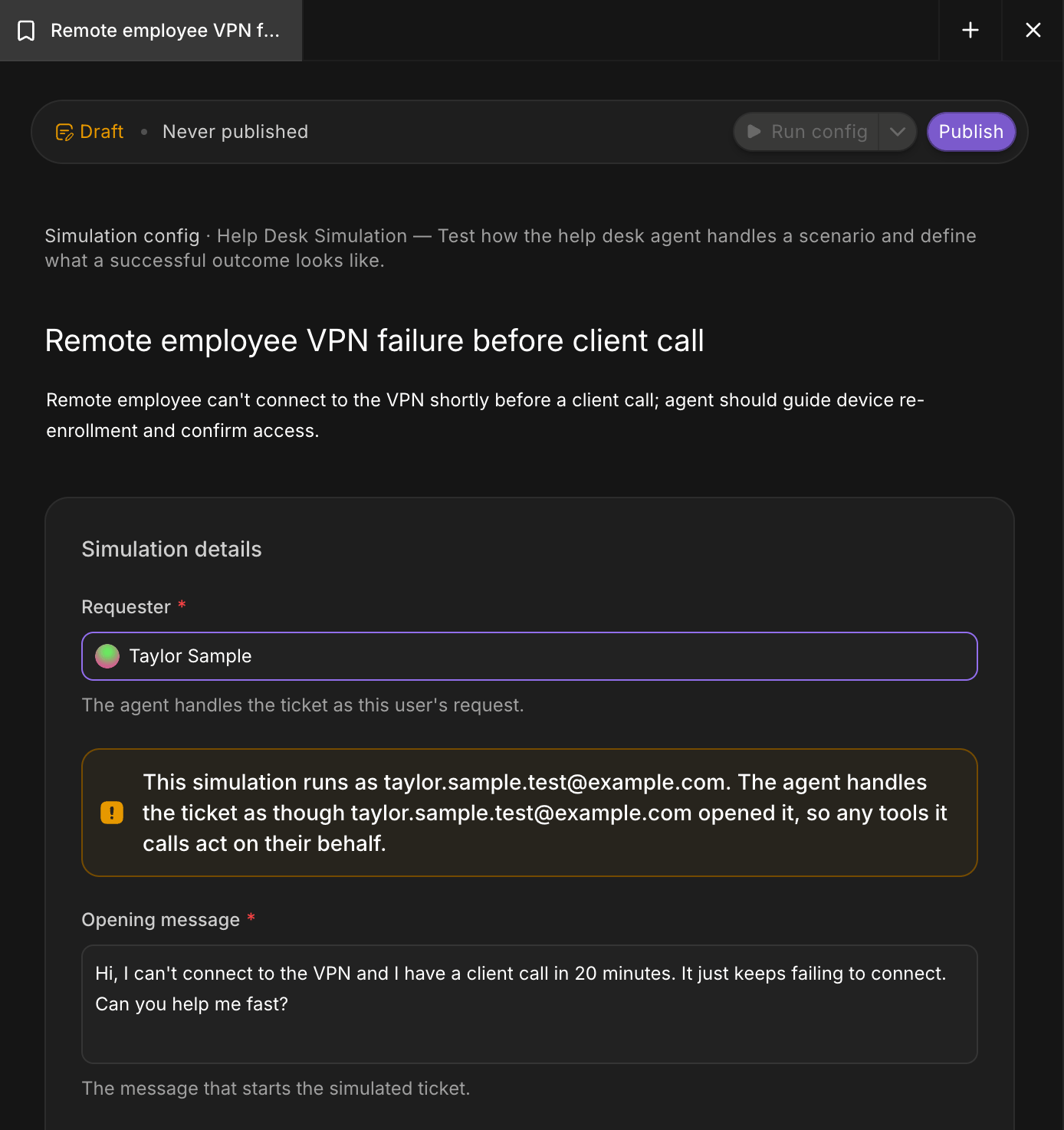
The simulation config editor in Catalyst
Create a config
Select New config, give it a name and description, then set:- Requester: the user whose request the agent handles. The simulation runs as this person, so any tools the agent calls act on their behalf.
- Opening message: the message that starts the simulated ticket.
- Scenario context: the requester’s situation and the details they can share. A simulated requester keeps the conversation going by default; select Run a single reply to stop after the first agent response.
- Live workflows: every workflow is simulated unless you add it here. See Simulated and live workflows.
- Expected result (optional): describe a successful outcome, and Serval scores each completed run pass or fail against it.
Create a suite
Select New suite, give it a name, and add configs. Without Catalyst access, the suite form lets you set the name and members directly. A config belongs to one suite at a time, so a config that’s already in another suite shows that suite and must be removed before you can add it. You can save an empty suite and add configs later, then select Run suite to run them together.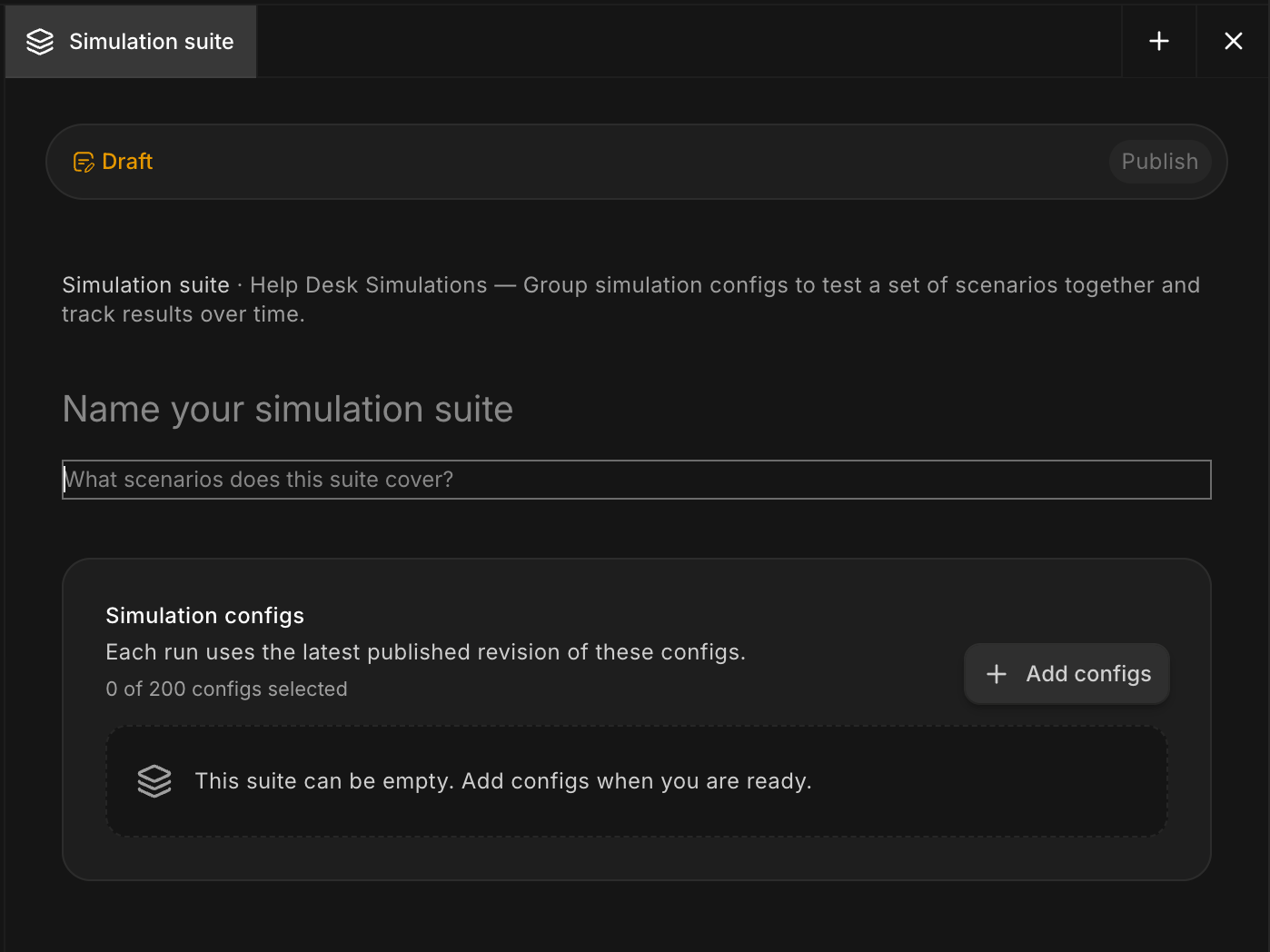
Creating a suite in Catalyst
Edit, compare, and restore
Opening a saved config or suite reopens its Catalyst editor. Change the fields or ask Catalyst to make the change; edits stay a draft until you publish, or propose for review when your team requires approval. Publishing a scenario change creates a new revision — renaming or re-describing doesn’t. From the Published badge, open Full version history to see past revisions, Compare versions for a read-only visual or code diff, or Restore version to stage an older scenario as a new draft. To remove a config or suite, open More actions and select Delete config or Delete suite (or Stage deletion when review is required), then confirm. Deleting a suite keeps its configs, and past runs keep the revision they executed.Run a simulation
Open a published config and select Run config to set up a run. (Run config is available only once the config is published.) Overrides here apply to this run only — your published config stays unchanged, and the result records what actually ran under Run parameters.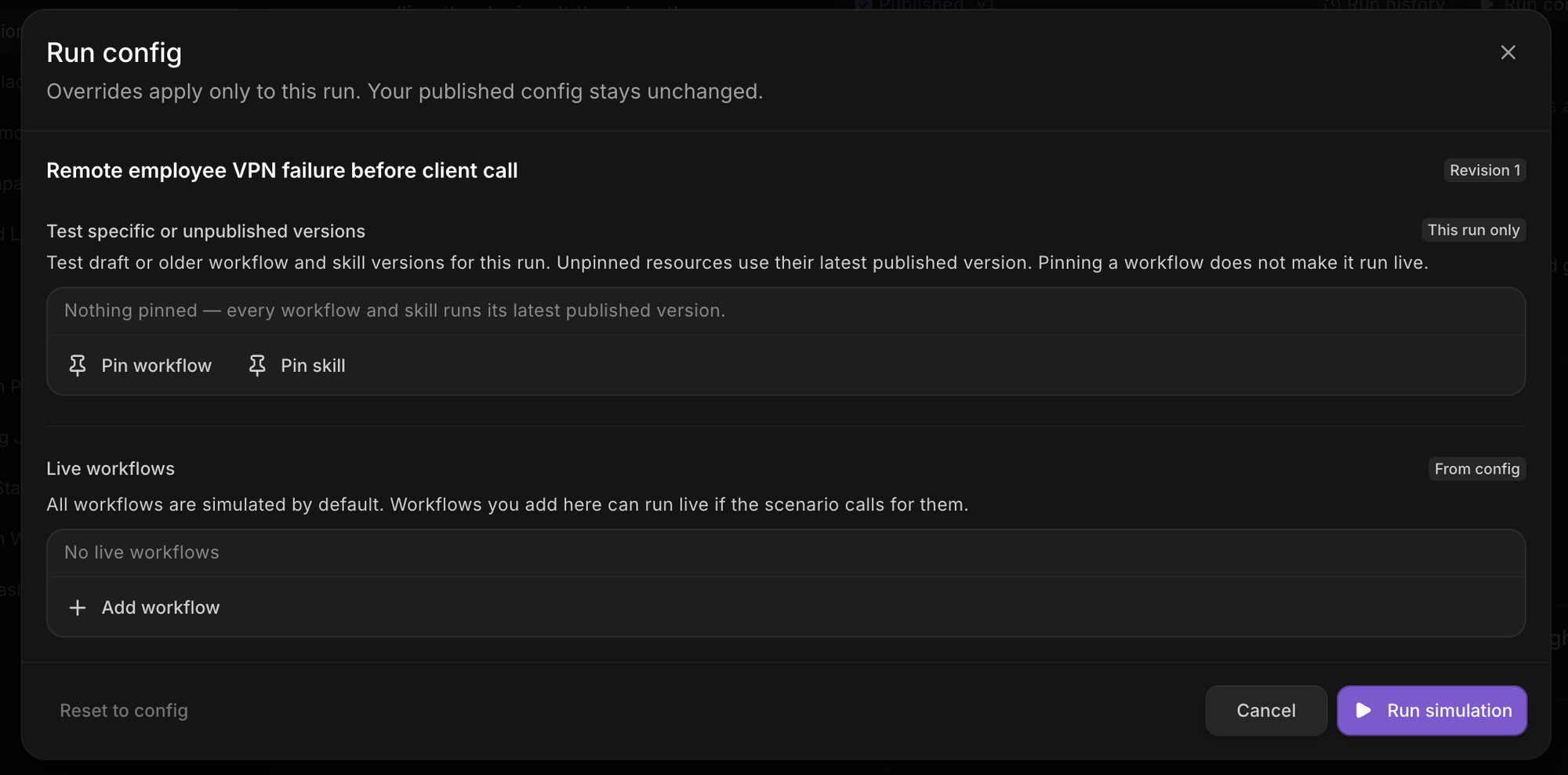
Run options: version pins and live-workflow overrides for a single run
- Live workflows: add a workflow to let it run live for this run; everything else stays simulated.
- Test specific or unpublished versions: Pin workflow or Pin skill to run a draft or older version instead of the latest published one. Pinning doesn’t make a workflow run live.
Interactive runs
To play the requester yourself, open the Run config dropdown, choose Run interactively, then Start interactive run. While the status is Waiting for next turn, type the requester’s next message and select Send reply; select End simulation to finish and score it. An interactive run left idle for two hours is marked Stopped.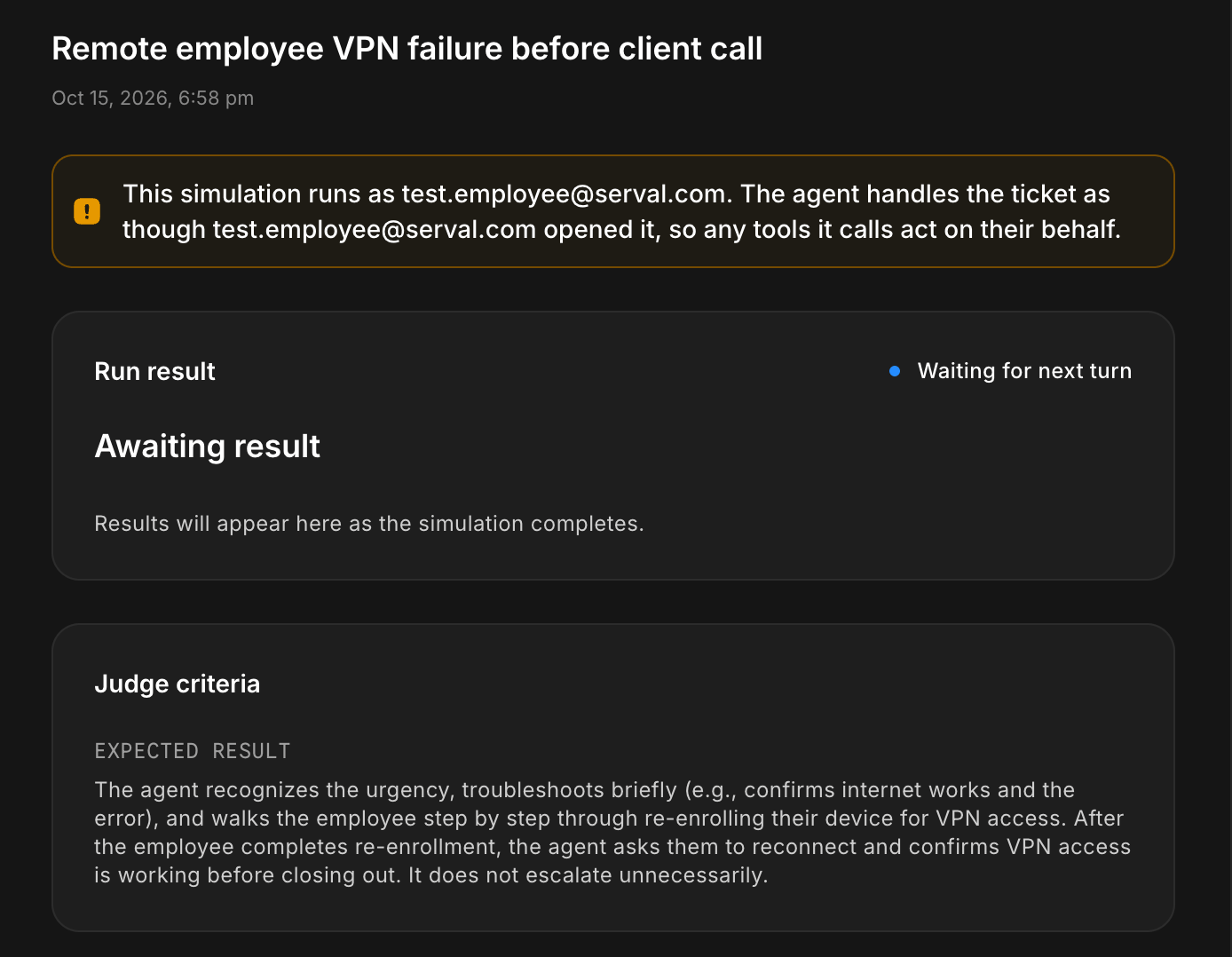
An interactive run waiting for your next reply
Rerun
Open a past run from the config’s Run history and select Rerun to start a fresh run with the same revision and overrides (participants, mode, live workflows, and version pins). Resources without a pinned version use their current published version. Each team runs up to 50 autonomous simulations at once. At the limit, a direct run is declined until one finishes, while a suite queues its configs and starts them as slots free up.Simulated and live workflows
By default, every workflow and access request the agent calls during a simulation is simulated — the agent gets a realistic mocked result and behaves as if the call ran, but nothing changes in your connected systems. To exercise a workflow for real, add it under Live workflows, in the config or in run options. Keep in mind:- Live workflows run with access scoped to the requester, and you confirm the selection before the run starts.
- Adding a live workflow requires permission to run published workflows (the Contributor role or above).
- Only deployed, enabled workflows can run live.
- A live call happens as the conversation progresses and can’t be undone, even if you stop the run.
- Single-reply simulations always simulate workflows; the live-workflow option appears only for a full conversation.
Results
A run opens in Simulations. The result page has four parts: the result (status and outcome), the Judge criteria verdict, the Conversation, and the Run parameters.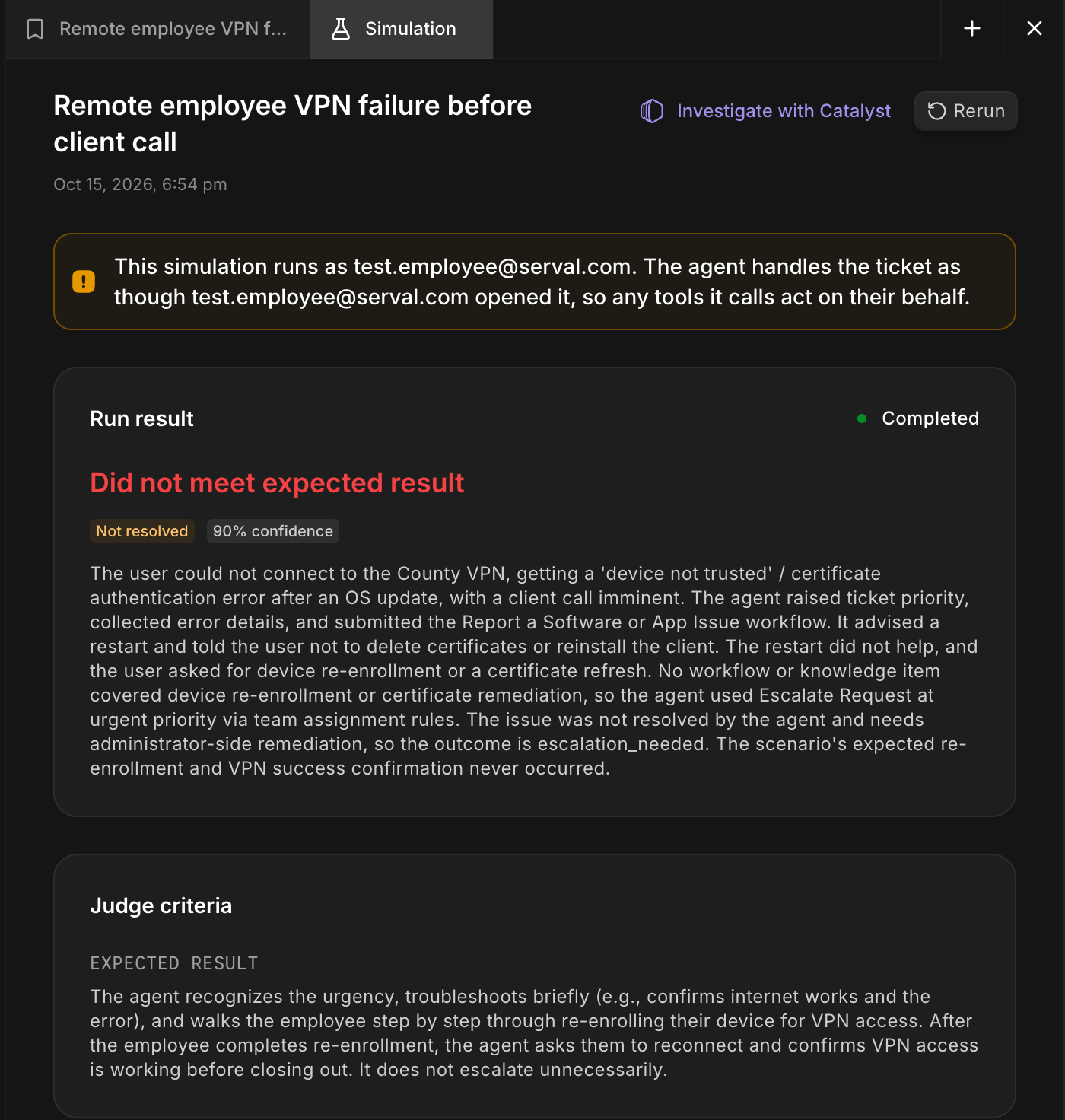
A completed run that missed its expected result
- Status: Running <agent name> while in progress (using your help desk agent’s name), then Completed, Failed, or Stopped.
- Outcome: Resolved or Not resolved, with an AI-written summary and a confidence score.
- Expected result: when the config has one, a verdict shows whether the run met or missed it, comparing meaning rather than exact wording. A run with no expected result, or one Serval couldn’t score, shows no verdict (labeled No verdict on the run, Couldn’t score in a suite’s results).
- Run parameters: the config and revision, mode, requester, opening message, scenario context, and any live workflows or version pins, captured when the run started so later edits don’t change them.
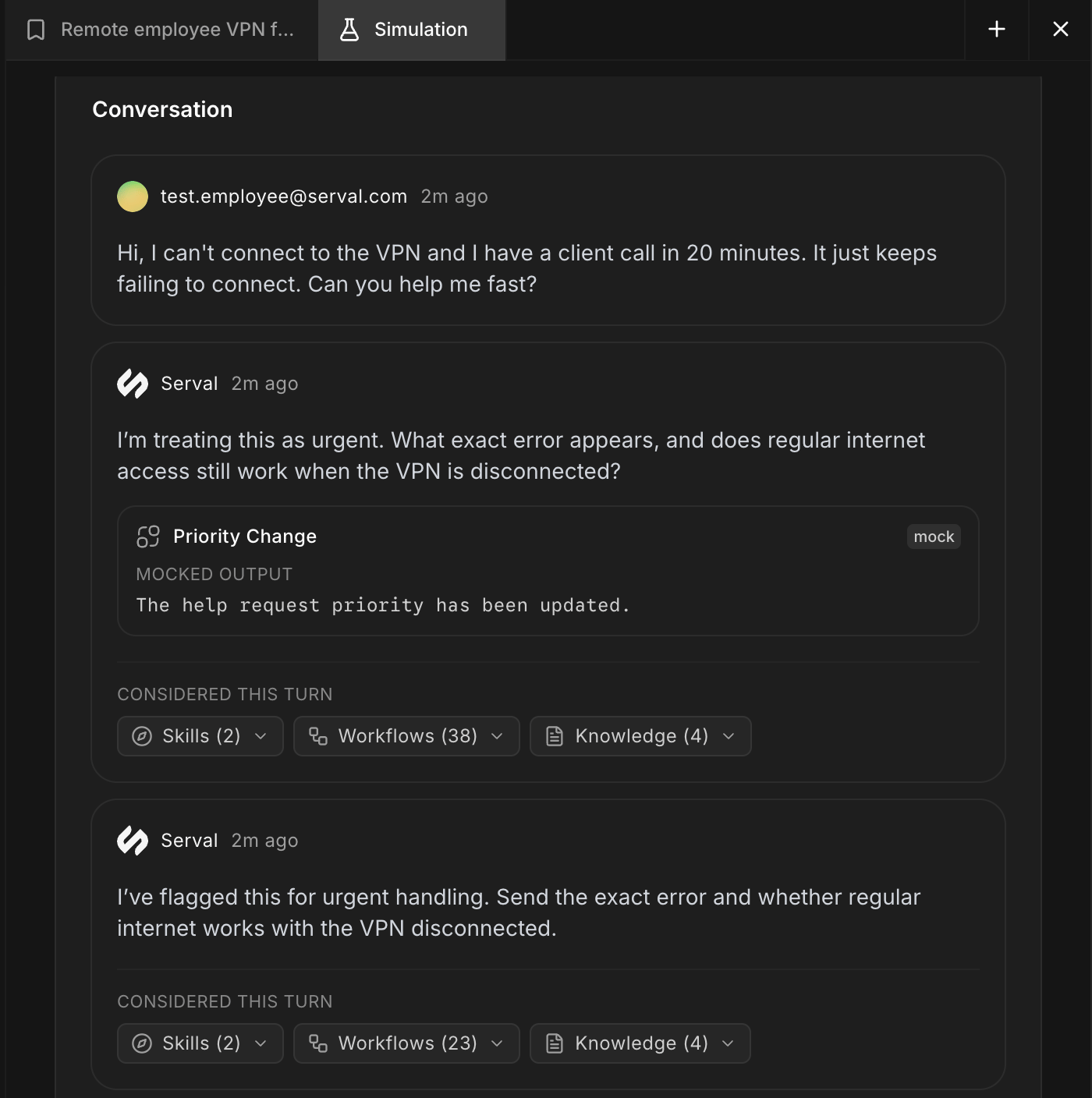
A transcript turn with a mocked workflow call and what the agent considered
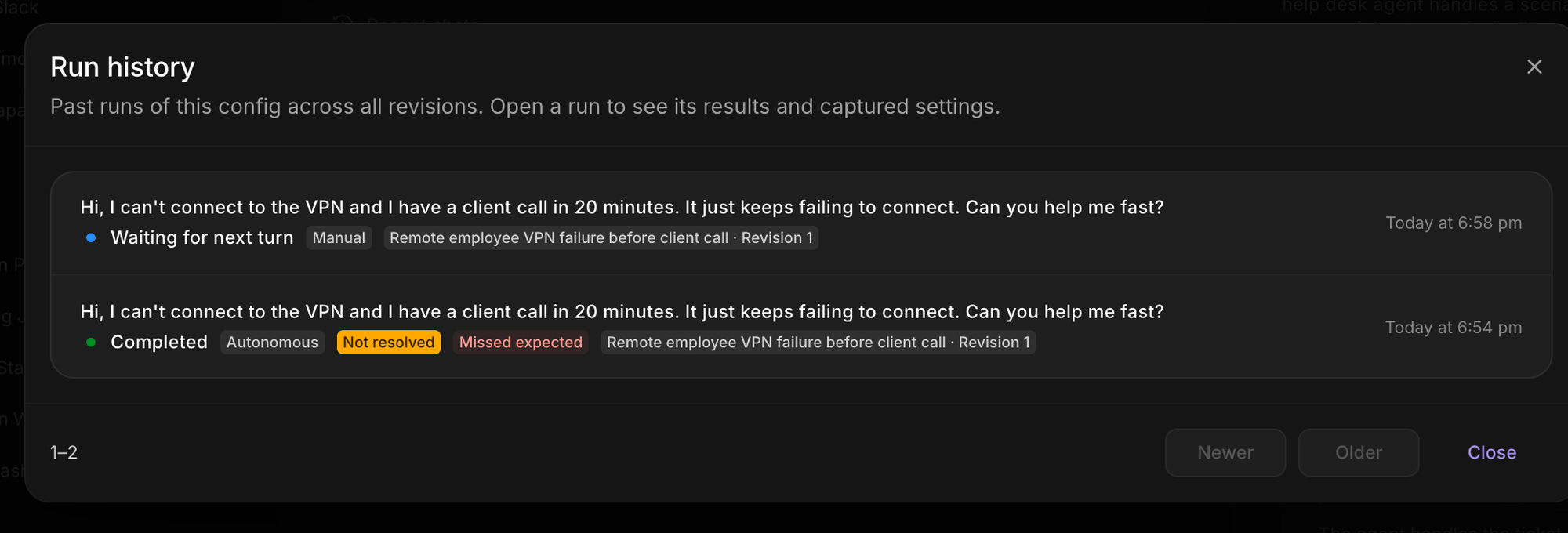
A config's run history across revisions
Suites
Open a suite and select Run suite to run all its configs together. Each run captures the config revisions it used, so later edits don’t change past results.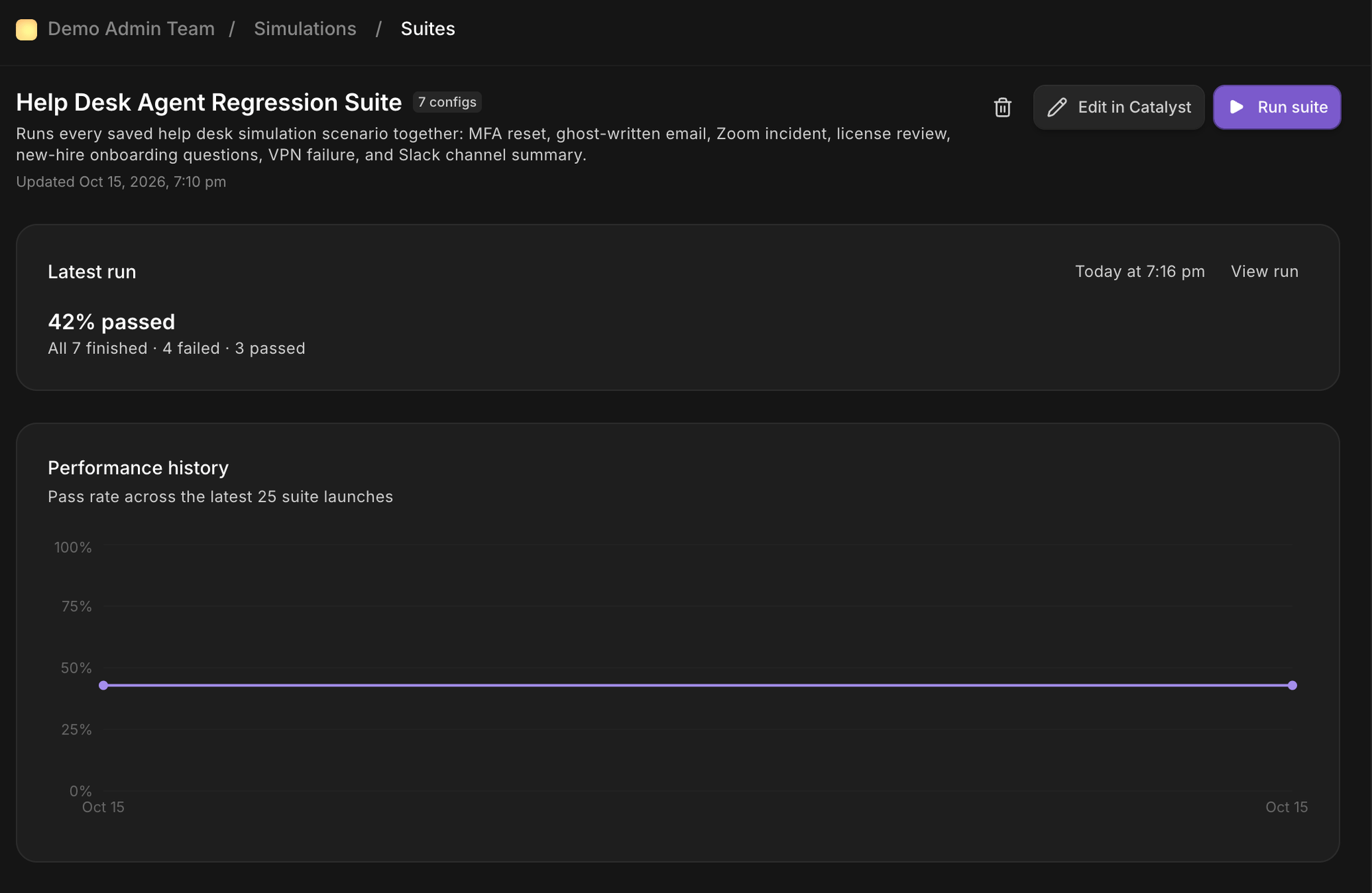
A suite's dashboard: latest-run health and pass-rate history
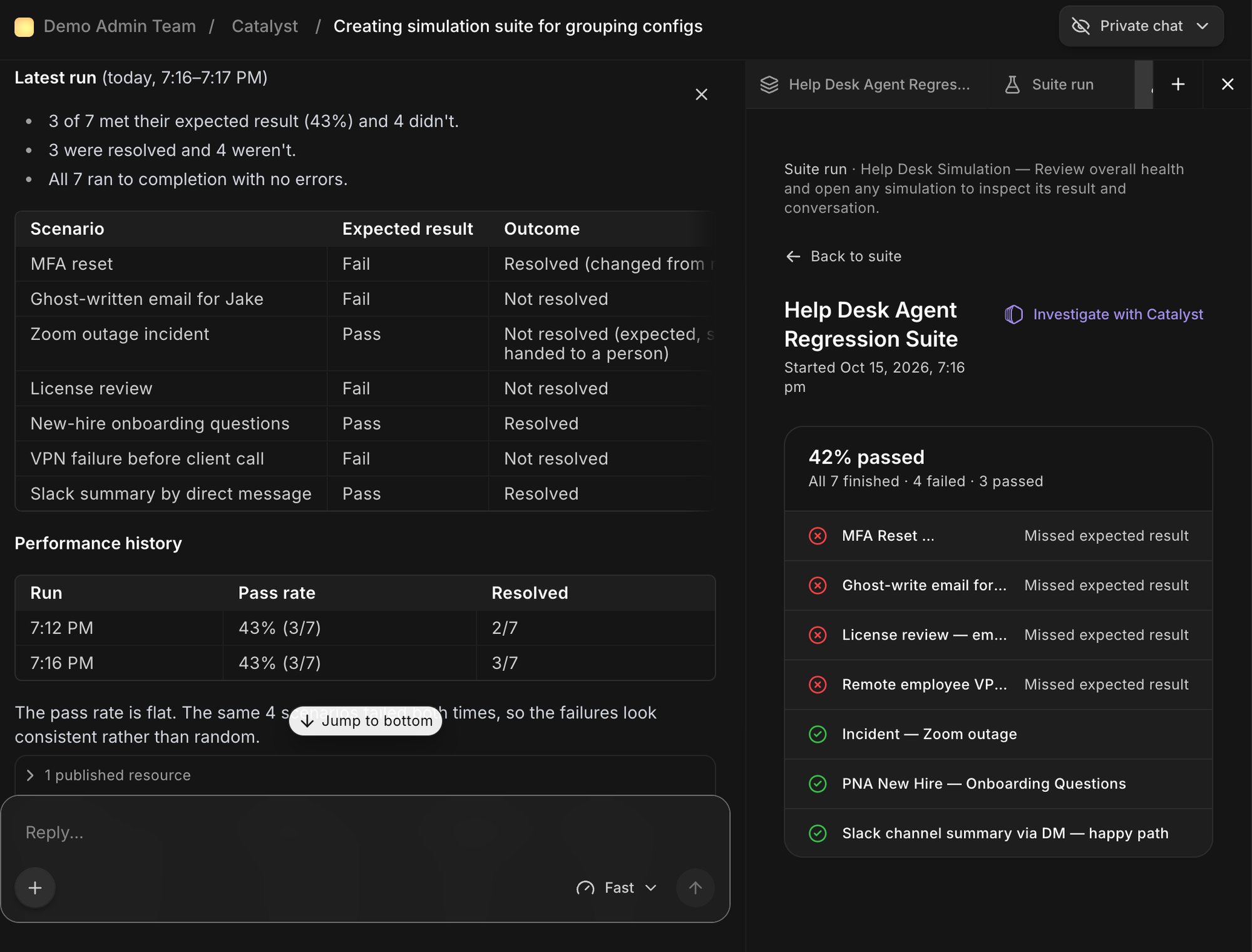
A suite run with per-config outcomes
A Not resolved outcome can still pass its expected result — for example, when the scenario expects the agent to escalate to a person.
Create a config from a real ticket
To turn a real ticket into a repeatable test, open the ticket’s actions menu and select Create simulation config from ticket. This opens Catalyst, which derives the scenario from what happened and saves it as a config with every workflow simulated.A ticket with more than one end user can’t be turned into a config, since a config has exactly one requester.
Ask Catalyst
Catalyst can create, edit, run, and inspect configs and suites from plain language — for example, “run a simulation where a new hire asks for Figma access” or “re-run the VPN reset scenario and tell me what changed.” It runs published revisions, opens each run and config it touches, and confirms before running a workflow live or simulating another user. Workflows can also run a suite and wait for its result with therunSimulationSuite action.
To generate reusable conversation coverage, name a workflow or form and supply your requirements or QA cases: “Generate a simulation suite for our hardware request form, covering complete requests and missing required information. Leave it in draft.” Catalyst inspects source resources and existing cases, then drafts missing coverage. It flags unclear expectations and conflicts with the implementation. Generation does not publish or run tests, and mocked conversations do not verify browser validation or external-system submissions.
For an out-of-the-box agent, install Simulation Suite Builder from Background Agents. Its first manual run discovers published workflows and drafts one suite with missing coverage. You can narrow its scope in the instructions or add a schedule after reviewing its output.
Permissions
Read is needed alongside Edit or Run to browse simulations, and a suite needs permission for every participant in every member config. The default Drafter and Contributor roles include Read and Edit but can’t run simulations; Builder and App Builder add self-run; Manager adds running as other users. Assign these through custom team roles.
For more on team roles, see Permissions.