Highlights
- Control integration access within a workspace
- Create custom task types
- Add custom task statuses
- Sync SharePoint site pages as knowledge
Control integration access within a workspace
You can now lock down sensitive integrations, such as production AWS or Okta, so that only workflows in specific packages can use them. Only the people on a package’s access list can publish changes to those workflows. Create a package in Settings → Packages and add the people who can publish to it. Then, on the integration’s Settings tab, choose Only workflows in these packages. A preview shows which workflows would lose access, so you can move them into the package first. Integration access scoping is opt-in. Every workflow starts in its team’s Default package and every integration starts open, so nothing changes until someone with the Manage Integration Access permission restricts a connection. For example, restrict your production AWS connection to an Infrastructure package so that your platform team can build workflows that can act on it.Create custom task types
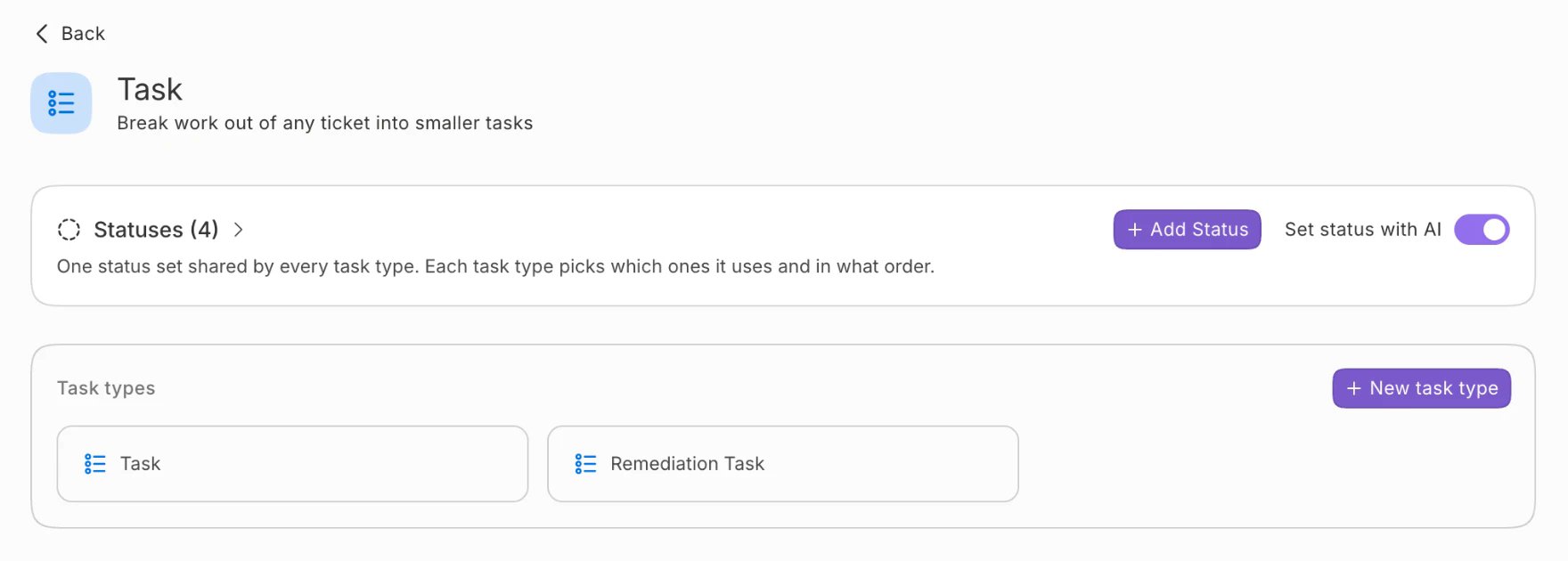
By default, tasks are built-in ticket types. Now, you can create custom task types with their specific status lifecycle and fields. Each task type can be a child of specific parent ticket types. When you add a task to a ticket, select from the custom task types allowed under that ticket type. For example, a security team adds a Remediation custom task type that can only be a child ticket of incidents and problems.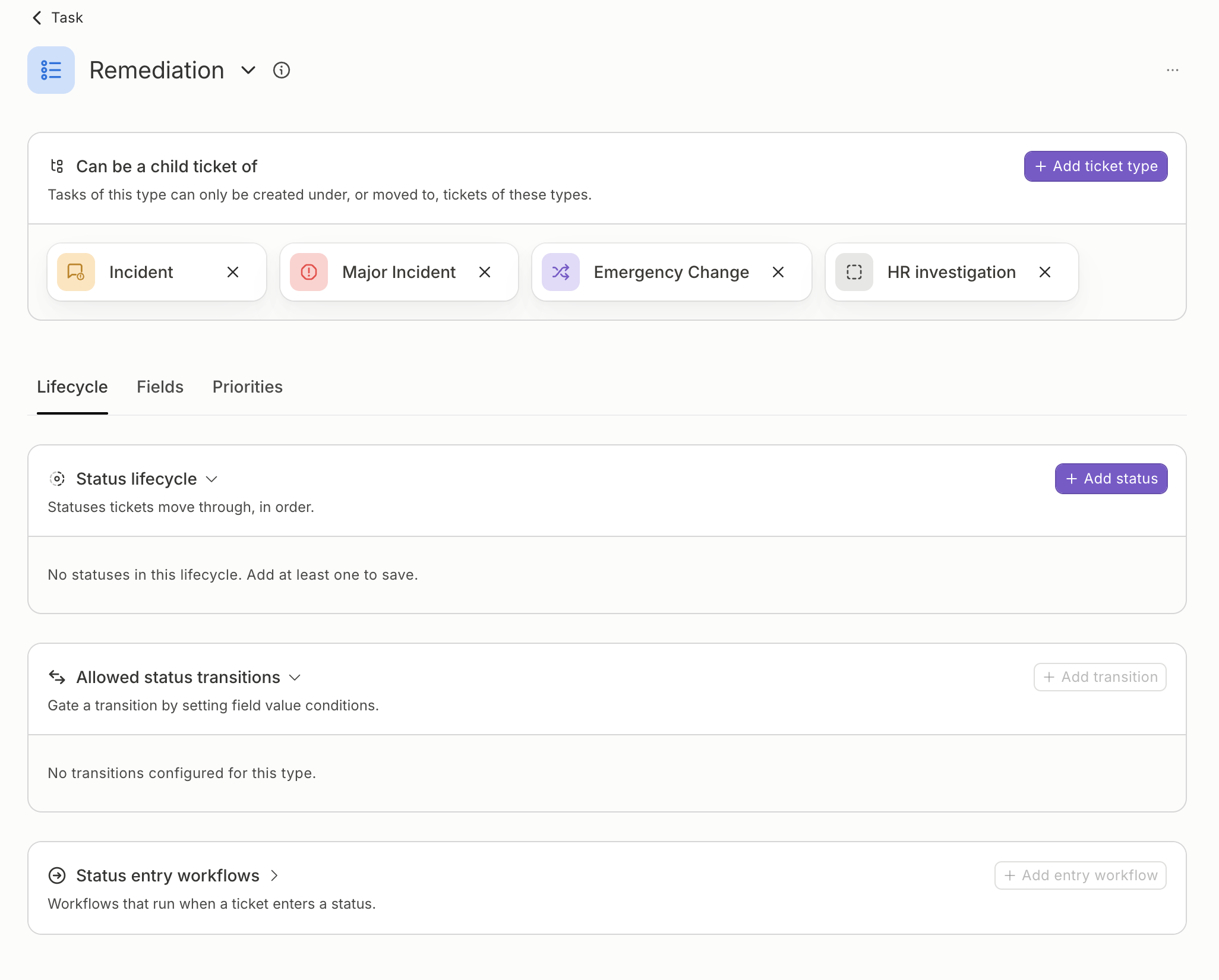
Add custom task statuses
Tasks are no longer limited to a fixed set of statuses. Add your own and edit them in Team Settings → Ticket Types → Task, the same way as for requests and incidents. Tasks of the built-in Task type can use every task status, and each custom task type picks the ones it moves through. For example, add a “Waiting on vendor” status so tasks blocked on a third party stand out from tasks in progress.