

Overview
Every Serval workflow has an execution scope that determines who can run it:Anyone in the org
Team members
Understanding the Two Visibility Options
Anyone in Organization
Workflows set to Anyone in the org are available to all users in your Serval organization. These workflows are:- Discoverable by the Serval help desk agent when handling requests from any user
- Triggerable from Help Desk or Silent Mode channels
- Visible to users requesting help via DMs,
/serval helpcommand, or help desk channels - Designed for common support scenarios that benefit all employees
- Password reset assistance
- Software access requests
- IT equipment troubleshooting
- General onboarding tasks
- Standard service requests
Team Members Only
Workflows set to Team members are restricted to members of your specific Serval team. These workflows are:- Only available to team members and Serval agents in Team Only Mode channels
- Hidden from users outside your team
- Designed for internal team operations or sensitive actions
- Protected from accidental execution by unauthorized users
- Internal team reporting and analytics
- Sensitive data operations
- Administrative tasks
- Cleanup and maintenance operations
- Team-specific integrations
How Visibility Connects to Slack Channels
Your workflow visibility setting directly determines which Slack channel modes can trigger those workflows.Help Desk Mode and Silent Mode Channels
These channels serve end users across your organization. When Serval processes a request in these channels, it only has access to workflows marked Anyone in the org.- The help desk agent evaluates incoming requests
- If a matching organization-wide workflow exists, Serval triggers it automatically
- Team-only workflows are never executed in these channels
Team Only Mode Channels
Team Only Mode channels are designed exclusively for your team members. In these channels:- Serval has access to all team workflows, including team-only workflows
- The AI helps resolve requests but does not escalate to a human
- Both organization-wide and team-only workflows can be triggered
- Ideal for internal team channels like
#it-internalor#devops-team
Team Only Mode channels should only include members of your Serval team, as anyone with access to the channel can trigger team-only workflows.
Setting Workflow Visibility
When Creating a New Workflow
New workflows default to Anyone in the org. Catalyst doesn’t infer the scope from your description, so set it explicitly if the workflow should be restricted to your team.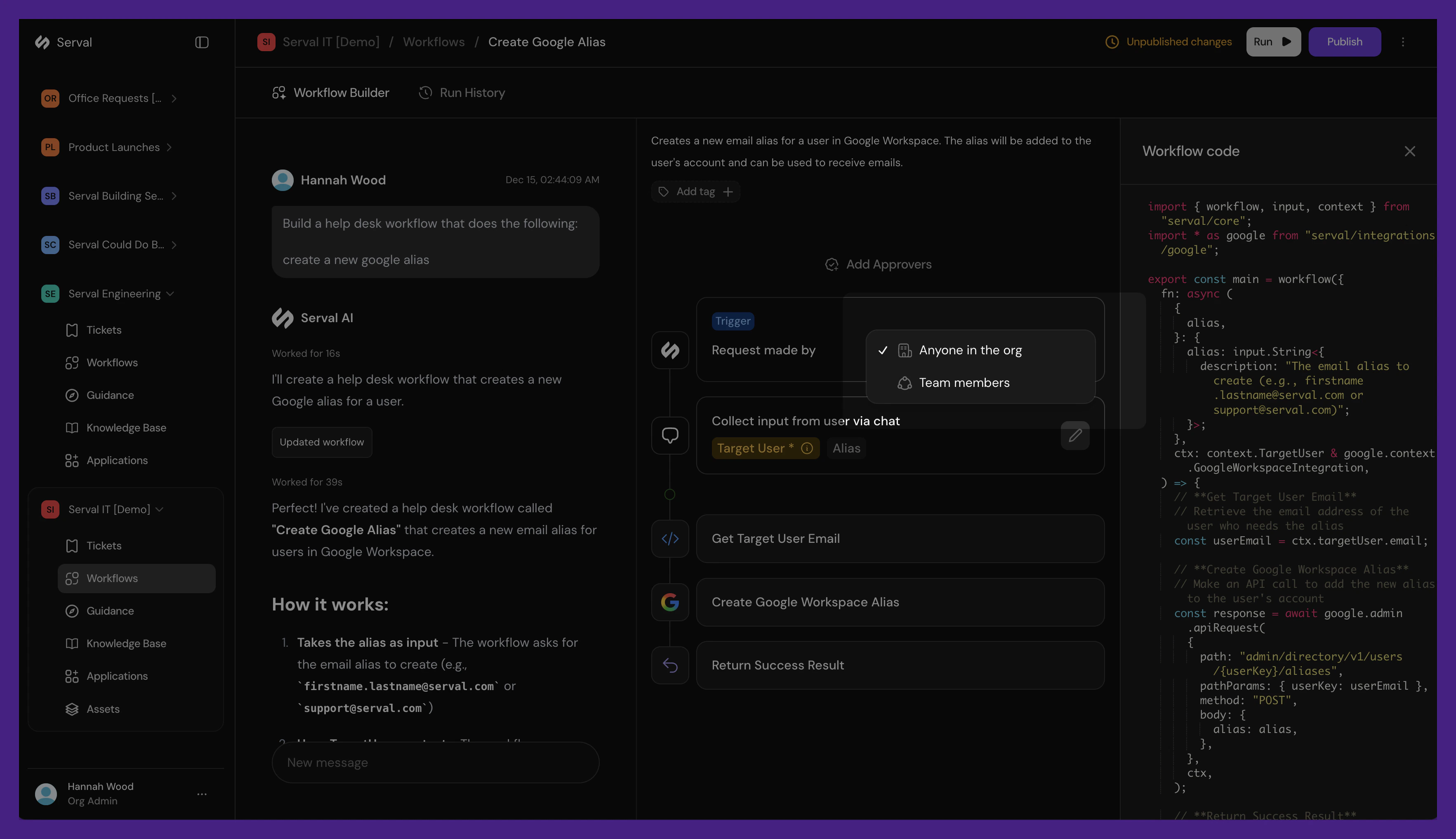
Set workflow visibility during creation
After Workflow Creation
You can change the visibility at any time:1
Open the workflow
Navigate to Workflows and select the workflow you want to modify.
2
Find the visibility selector
On the workflow’s Trigger node, find the Request made by dropdown. It shows either Anyone in the org or Team members.
3
Select the new visibility
Choose the appropriate option from the dropdown. The change takes effect immediately for future workflow runs.
Best Practices
Default to organization-wide for support workflows
Default to organization-wide for support workflows
If a workflow helps users resolve common issues, make it available to the entire organization. This enables Serval to automatically assist users without requiring escalation.
Use team-only for sensitive operations
Use team-only for sensitive operations
Workflows that modify critical systems, access sensitive data, or perform administrative actions should be restricted to team members. This provides an extra layer of protection.
Match channel mode to workflow visibility
Match channel mode to workflow visibility
Configure your Slack channels to match your workflow strategy:
- Use Help Desk Mode for user-facing channels where organization-wide workflows should run
- Use Team Only Mode for internal team channels where you need access to all workflows
Add approvals for sensitive organization-wide workflows
Add approvals for sensitive organization-wide workflows
Even organization-wide workflows can include approval steps. If a workflow performs sensitive actions, consider adding an approval requirement so a manager or team member must authorize execution before it runs.
Review visibility during workflow creation
Review visibility during workflow creation
When building a new workflow, pause to consider: “Should anyone in the organization be able to trigger this?” If the answer is no, set it to team-only.
Common Scenarios
Scenario 1: Password Reset Workflow
A workflow that helps users reset their password should be Anyone in the org:- Any employee might need password help
- No sensitive administrative access required
- Triggered via DMs,
/serval help, or help desk channels
Scenario 2: User Account Cleanup Workflow
A workflow that deactivates accounts and removes data should be Team members:- Only IT admins should trigger this
- Sensitive operation with irreversible effects
- Run from Team Only Mode channels or directly by team members
Scenario 3: Daily Ticket Summary Workflow
A scheduled workflow that summarizes open tickets should typically be Team members:- Internal team operations and reporting
- Contains information that may not be appropriate for all users
- Could be organization-wide if the summary is designed for broader visibility
Related Documentation
- Slack Integration - Configure Slack channels and modes
- Create Your First Workflow - Workflow creation guide
- Comprehensive Guide to Slack - All Slack interaction methods