

How Categories Are Set
There are two ways a ticket gets a category:- Manually — You can set or change a ticket’s category from the ticket side panel at any time.
- Automatically on escalation — When a ticket is escalated to a human agent, Serval reads the ticket content and assigns the most appropriate category from your configured list. Serval will not override a category you have already set manually.
- Ticket assignment — Assignment rules use categories as one of several conditions to determine ticket assignment
1
Open category settings
Go to Team Settings → Categories
2
Add a category
Click New Category and provide a name and description. The description helps Serval’s AI accurately match tickets, so be specific about what kinds of requests belong in each category.
Example Categories
Managing Categories
Editing Categories
Category names and descriptions can be created and updated on the Categories tab.Deleting Categories
When you delete a category, any assignment rules that use it as a condition may be affected. You’ll see a confirmation warning before the deletion goes through.Best Practices
Make categories disjoint
Create categories that are sufficiently different from one another to avoid confusion.
Write descriptive names and descriptions
Include specific keywords and examples in your category descriptions. This helps Serval accurately infer the category from ticket content.
Match categories to subject-matter expertise
Align categories to your team’s areas of expertise so they pair naturally with assignment rules.
Review and iterate
Periodically check whether tickets are landing in the right categories. Adjust descriptions or add new categories as request patterns evolve.
Viewing and Changing a Ticket’s Category
A ticket’s category is displayed in the ticket side panel under Properties. You can click on the category to change it or select No category to clear it.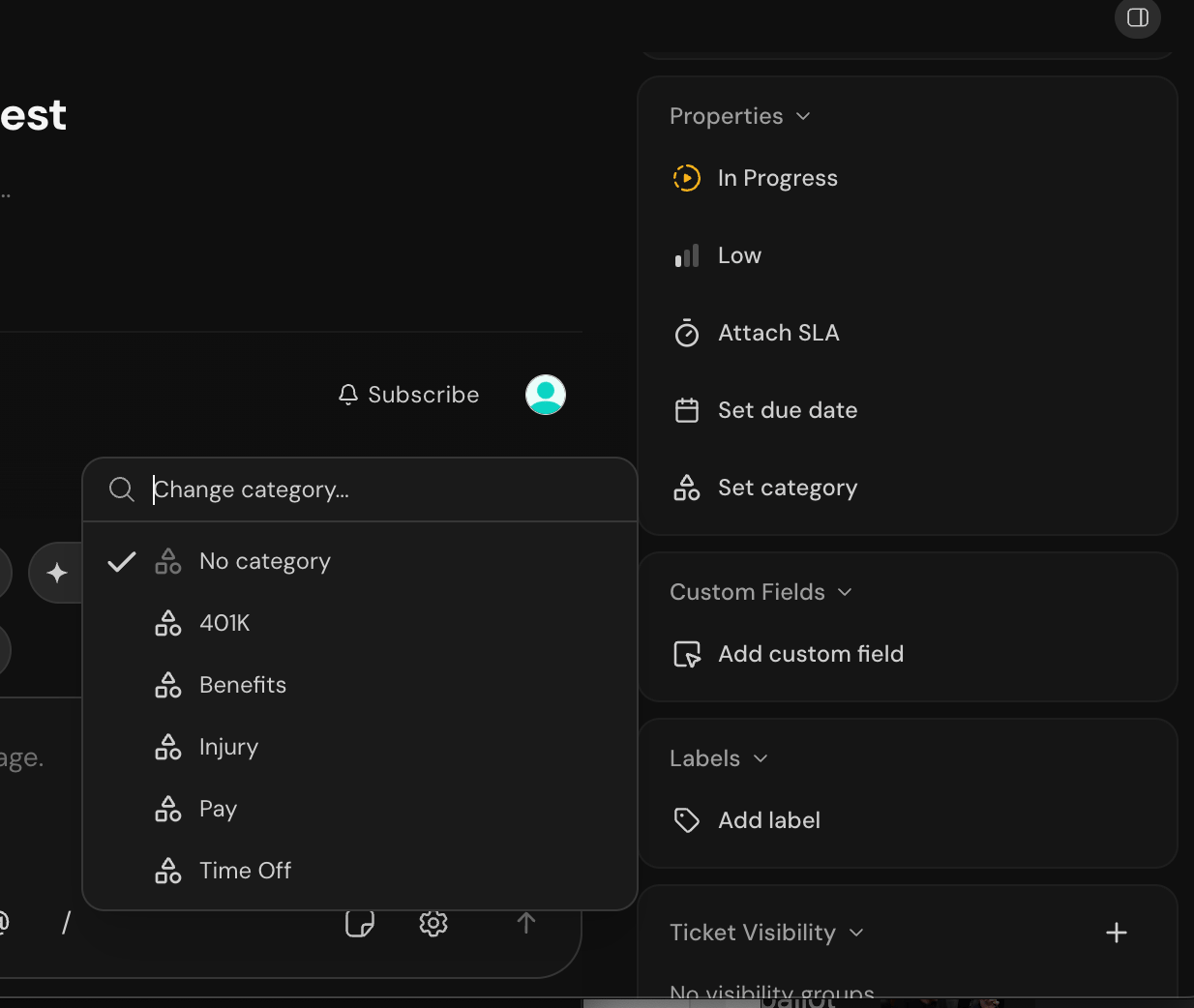
The ticket side panel showing the category selector
Ticket Activity
Category changes are logged in each ticket’s activity section, whether set manually or by Serval.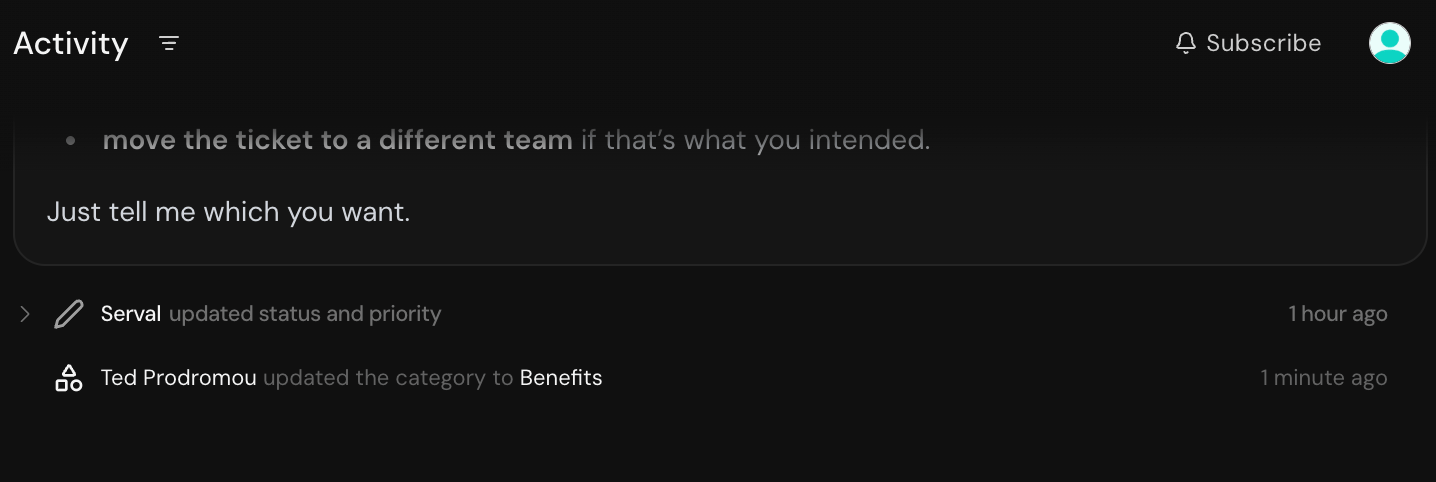
Category change event in the activity feed
Related
Assignment Rules
Use categories as conditions in assignment rules for automatic ticket assignment
Labels
Add flexible tags to tickets for filtering and reporting