

Understanding Access Profiles
Access profiles answer the question: “Who is allowed to request this role?” They work by mapping Serval groups to roles. When a user requests access, Serval checks whether they belong to a group that’s allowed to request that role. A role can be linked to more than one access profile. A user who matches any linked profile can request the role, so linking additional profiles widens who is allowed to request it. Configure the following settings to define which users can request specific roles:Name
The user group identifier from Serval. Must match existing Serval group naming conventions.
Description
Optional context about the profile’s purpose, target user population, or usage guidelines.
Associated Groups
Additional Serval groups included in this access profile. Use this to combine multiple groups under a single access policy.
Associated Roles
IdP groups linked to this profile. These determine which roles become requestable for users matching this profile.
User fields
Match users by a user profile field. Built-in fields (Department, Job title, Email, Timezone, and Locale) are available alongside your custom fields. Pick a field, then choose the values that qualify (for example, everyone whose Department is Engineering).
Profile Configurable in the Application
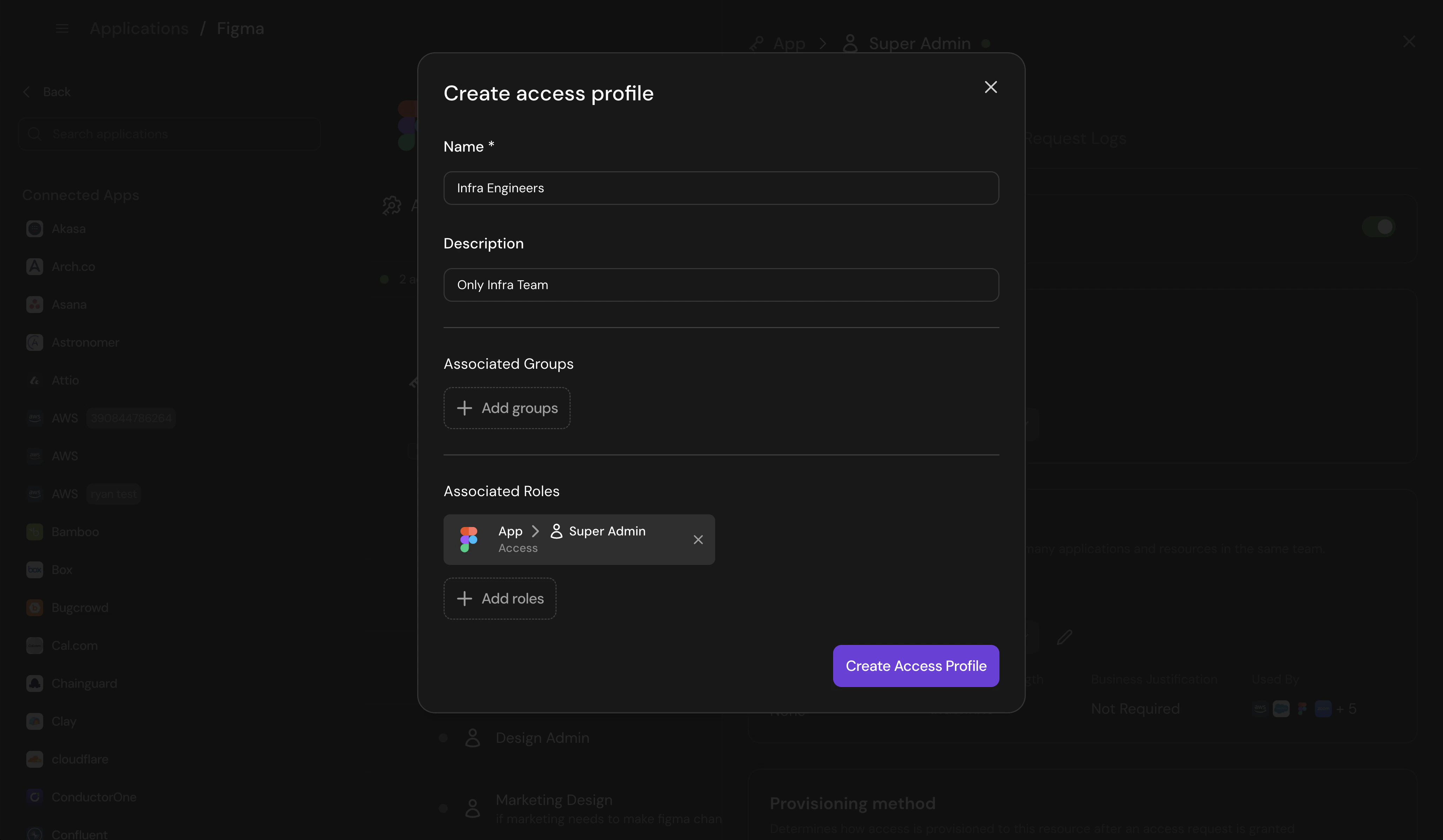
Configure access profile settings
Create an Access Profile
1
Name the profile
Name: The user group identifier from Serval. Must match existing Serval group naming conventions.Description: Optional context about the profile’s purpose, target user population, or usage guidelines.
2
Add associated groups
Associated Groups: Additional Serval groups included in this access profile. Use this to combine multiple groups under a single access policy.
For example, combine “Engineering-Frontend” and “Engineering-Backend” groups into a single “Engineering” profile.
3
Link IdP groups
Associated Roles: IdP groups linked to this profile. These determine which roles become requestable for users matching this profile.
4
Save the profile
Click “Save profile” to make it available for role configuration
Manage Access Profiles
Once created, access profiles can be managed centrally and applied to multiple roles across your organization. To access profile management, open the team in the sidebar, then go to Settings → Access Profiles.What You Can Do
Set a default profile
Set a default profile
Choose a default profile that applies to new roles automatically. This is typically your broadest user group (e.g., “All Employees”).
Edit existing profiles
Edit existing profiles
Modify profile settings. Changes apply to all roles using that profile, making it easy to update access permissions organization-wide.
View profile usage
View profile usage
See which roles currently use each profile. This helps you understand the impact before making changes.
Apply profiles to roles
Apply profiles to roles
Add or remove roles that the profile should apply to. Reuse profiles across similar access patterns for consistency.
Profile Examples
All Employees
Groups: company-all-employees
Purpose: Standard company-wide applications like Slack, Google WorkspaceUse for: Access that every employee should be able to request
Purpose: Standard company-wide applications like Slack, Google WorkspaceUse for: Access that every employee should be able to request
Engineering
Groups: eng-frontend, eng-backend, eng-infrastructure
Purpose: Engineering tools and production accessUse for: Developer tools, code repositories, staging environments
Purpose: Engineering tools and production accessUse for: Developer tools, code repositories, staging environments
Finance Team
Groups: finance-accounting, finance-payroll
Purpose: Financial systems and sensitive dataUse for: Accounting software, payment processors, financial dashboards
Purpose: Financial systems and sensitive dataUse for: Accounting software, payment processors, financial dashboards
Contractors
Groups: contractor-engineering, contractor-design
Purpose: Limited access for external workersUse for: Non-sensitive tools and resources appropriate for contractors
Purpose: Limited access for external workersUse for: Non-sensitive tools and resources appropriate for contractors
Best Practices
Map to org structure
Create profiles that mirror your actual organizational structure. This makes it intuitive for admins to assign the right profiles.
Use broad profiles for common access
Create an “All Employees” profile for widely-used applications. This reduces administrative overhead.
Combine groups thoughtfully
Group teams with similar access needs together. For example, all engineering groups can share an “Engineering” profile.
Document profile purposes
Write clear descriptions so admins understand when to use each profile when configuring new roles.