> ## Documentation Index
> Fetch the complete documentation index at: https://docs.serval.com/llms.txt
> Use this file to discover all available pages before exploring further.
# Categories
> Define and assign ticket categories to classify requests manually or with AI
Categories allow you to define the different kinds of requests your team handles. You can set a ticket's category at any time from the Serval UI. If a ticket does not have a category set, Serval can also automatically classify it on escalation.
***
## How Categories Are Set
There are two ways a ticket gets a category:
1. **Manually** — You can set or change a ticket's category from the ticket side panel at any time.
2. **Automatically on escalation** — When a ticket is escalated to a human agent, Serval reads the ticket content and assigns the most appropriate category from your configured list. Serval will not override a category you have already set manually.
Categories are used for:
* **Ticket assignment** — [Assignment rules](/sections/documentation/ticketing/ticket-configuration/assignment) use categories as one of several conditions to determine ticket assignment
Go to **Team Settings** → **Categories**
Click **New Category** and provide a name and description. The description helps Serval's AI accurately match tickets, so be specific about what kinds of requests belong in each category.
Think about how your team naturally segments incoming requests. Common patterns include segmenting by topic.
### Example Categories
| Category | Description |
| -------------------------------- | ------------------------------------------------------------------------------------- |
| **Billing and Finance** | Questions about invoices, payments, refunds, pricing, or subscription changes |
| **Design Apps Access** | Access requests for design tools like Figma, Sketch, or Adobe Creative Cloud |
| **Device Issues** | Laptop problems, peripheral malfunctions, hardware troubleshooting, equipment repairs |
| **Password Reset Requests** | Password resets, account lockouts, credential recovery |
| **Onboarding Processes** | New hire setup, orientation questions, first-day logistics |
| **Device and Computer Requests** | New laptop orders, monitor requests, equipment returns, device upgrades |
***
## Managing Categories
### Editing Categories
Category names and descriptions can be created and updated on the Categories tab.
### Deleting Categories
When you delete a category, any assignment rules that use it as a condition may be affected. You'll see a confirmation warning before the deletion goes through.
Deleting a category may affect assignment rules that use it as a condition.
***
## Best Practices
Create categories that are sufficiently different from one another to avoid confusion.
Include specific keywords and examples in your category descriptions. This helps Serval accurately infer the category from ticket content.
Align categories to your team's areas of expertise so they pair naturally with assignment rules.
Periodically check whether tickets are landing in the right categories. Adjust descriptions or add new categories as request patterns evolve.
***
## Viewing and Changing a Ticket's Category
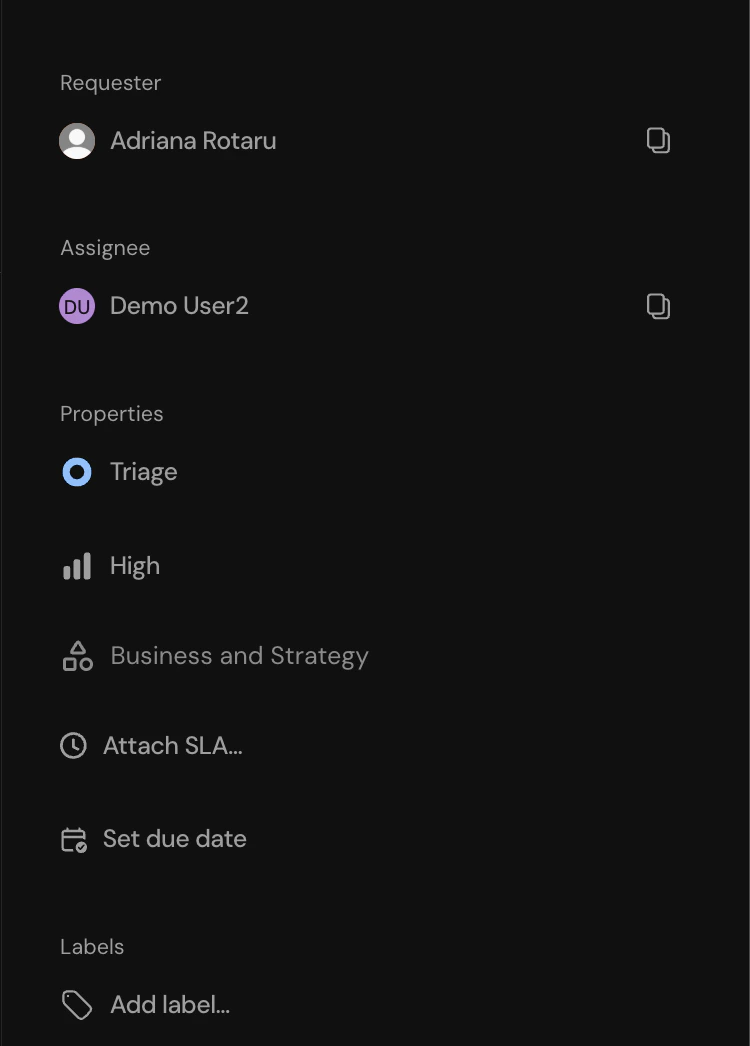
A ticket's category is displayed in the ticket side panel under **Properties**. You can click on the category to change it or select **No category** to clear it.
 ### Ticket Activity
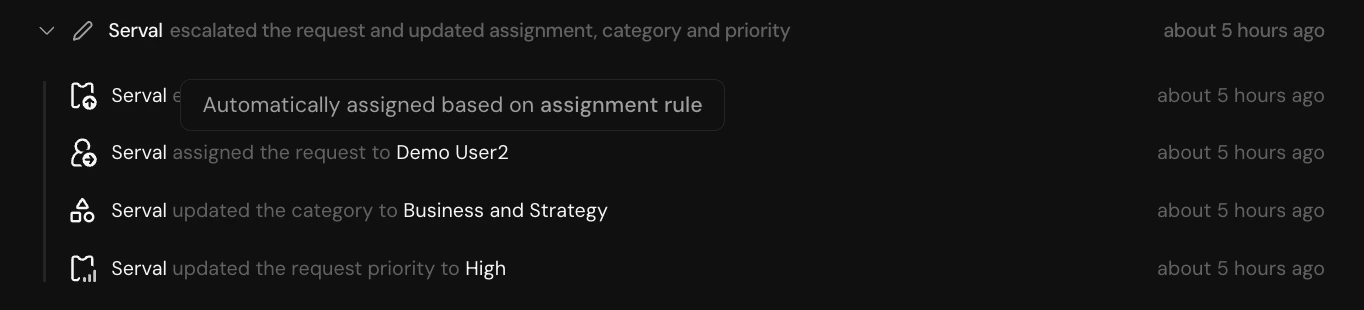
Category changes are logged in each ticket's activity section, whether set manually or by Serval.
### Ticket Activity
Category changes are logged in each ticket's activity section, whether set manually or by Serval.
 ***
## Related
Use categories as conditions in assignment rules for automatic ticket assignment
Add flexible tags to tickets for filtering and reporting
***
## Related
Use categories as conditions in assignment rules for automatic ticket assignment
Add flexible tags to tickets for filtering and reporting