> ## Documentation Index
> Fetch the complete documentation index at: https://docs.serval.com/llms.txt
> Use this file to discover all available pages before exploring further.
# Tasks
> The types of tasks that make up a journey, and how dependencies and task states work.
**Journeys is in open beta** and the product is actively evolving.
A journey consists of one or more **tasks**, which can optionally split a task into **subtasks.** Completing every subtask completes the task. Tasks and subtasks are [Serval tickets](/sections/documentation/ticketing/ticket-configuration/serval-ticket) under the hood. You can leverage all the properties of Serval tickets such as due dates, SLAs, assignment groups, visibility groups and custom fields.
Each task/subtask can have an **attached workflow** that runs automatically or upon form submission.
## Manual tasks
Manual tasks have no attached workflow. The assignee completes the task with **Mark complete** and can **Reopen** it if needed. An example of a manual task is I-9 document verification for a new employee.
## Form tasks
Form tasks render a form for the assignee to fill in. Submitting the form runs the attached workflow with those inputs. For example, you can have a task that collects emergency contact info and runs an attached workflow to populate the info in Workday.
## Automated tasks
Automated tasks run on their own with no humans involved. Some run a workflow as soon as they're ungated (e.g. Okta account creation on start date, Google account creation post Okta account creation), while others are status checks that periodically poll an external system and complete once it reports back (e.g. a background check task that polls Checkr). Automated tasks display a Serval icon.
> Only admins can mark a workflow-driven task done by hand: its status normally follows the workflow. The Building journeys guide covers how tasks get their workflows and inputs (see [Creating a journey](/sections/documentation/catalyst/journeys#create-a-journey-in-catalyst)).
## Task dependencies
Tasks can be gated by dependent tasks or time-based conditions. A locked task will indicate the condition it's waiting on, and will unlock automatically when those conditions are satisfied.
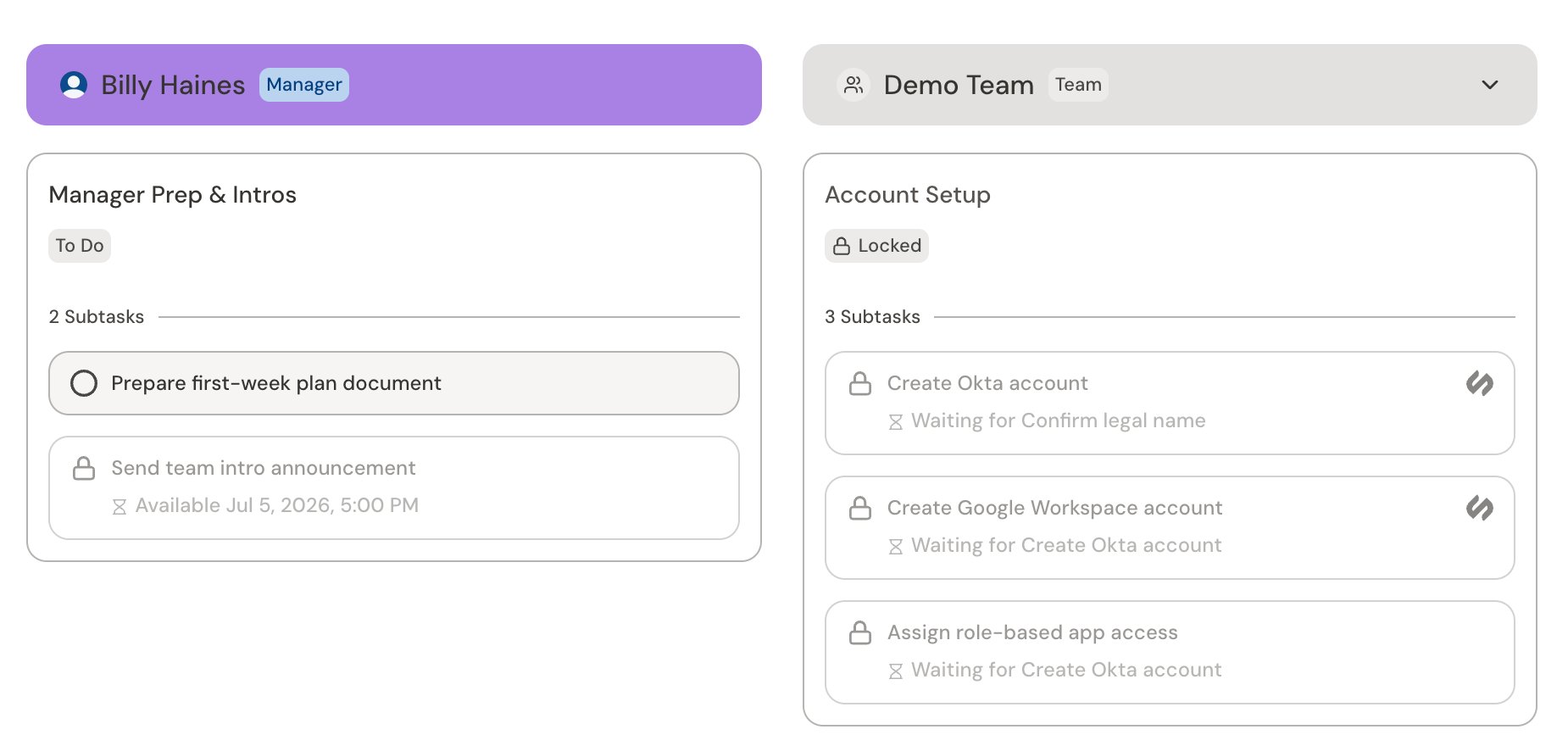 ## Task states
Each task shows its current state:
| State | Meaning |
| :-------------- | :-------------------------------------------------------------------------------------------------- |
| **Locked** | Waiting on dependent tasks or a time-based condition (see [Task dependencies](#task-dependencies)). |
| **To Do** | Ready to start and waiting on action. |
| **In Progress** | Someone is actively working on it. |
| **Processing** | An attached workflow is running. |
| **Done** | Complete |
A task can also surface an **Error** or **Warning** when a run needs attention. These roll up into the journey's **[Health Checks](/sections/documentation/journeys/monitor-and-manage#the-team-journeys-page)**.
## Related
What journeys are and how the pieces fit together
How admin and end users view journeys
Track journeys and their tasks as an admin
Use a journey to manage tasks for a team
Overview of workflows
Design and build journeys in Catalyst
## Task states
Each task shows its current state:
| State | Meaning |
| :-------------- | :-------------------------------------------------------------------------------------------------- |
| **Locked** | Waiting on dependent tasks or a time-based condition (see [Task dependencies](#task-dependencies)). |
| **To Do** | Ready to start and waiting on action. |
| **In Progress** | Someone is actively working on it. |
| **Processing** | An attached workflow is running. |
| **Done** | Complete |
A task can also surface an **Error** or **Warning** when a run needs attention. These roll up into the journey's **[Health Checks](/sections/documentation/journeys/monitor-and-manage#the-team-journeys-page)**.
## Related
What journeys are and how the pieces fit together
How admin and end users view journeys
Track journeys and their tasks as an admin
Use a journey to manage tasks for a team
Overview of workflows
Design and build journeys in Catalyst