> ## Documentation Index
> Fetch the complete documentation index at: https://docs.serval.com/llms.txt
> Use this file to discover all available pages before exploring further.
# Share and fill forms
> Where published forms reach employees, how each surface renders them, and who's allowed to open one.
Build a form once. Serval renders it wherever it's opened.
## The service catalog
Every published, enabled form is a catalog item employees can find under **Browse Catalog**. From the workspace, **Open in service catalog** shows exactly what they see, and its link is stable enough to share directly or pin in a channel.
The link is unavailable until the form has a published version, and while the form is disabled or you're viewing an older version. The tooltip says which applies.
## In a ticket, offered by the Help Desk Agent
When somebody describes a request one of your forms handles, the Help Desk Agent opens that form in the ticket thread. The requester never has to know it exists.
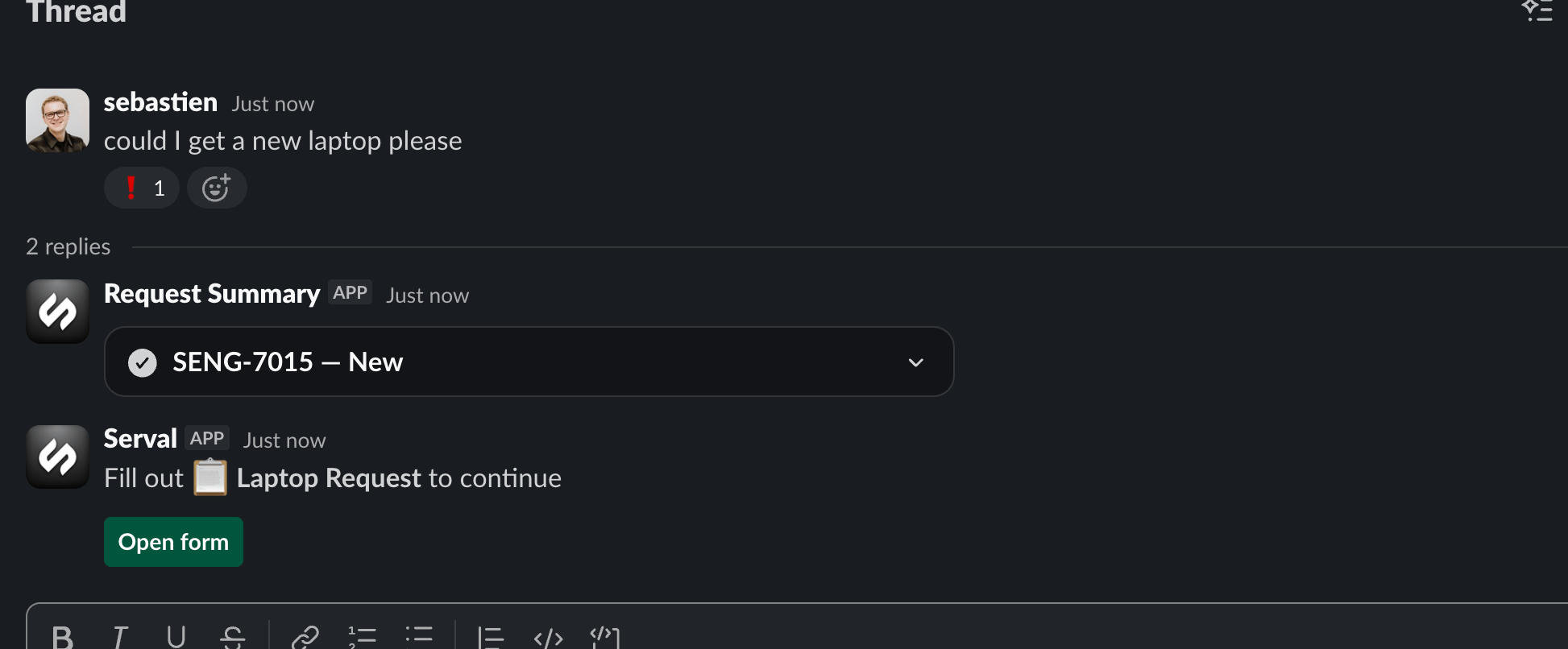 The agent picks the form by name and description, so write both for a reader: "Laptop Request: request a new laptop from IT" tells the agent and the employee when it applies. The agent doesn't narrate the form, because the form is the message. Submitted answers come back into the ticket and the agent picks up from there.
## Slack modals
**Open form** renders the form as a native Slack modal.
The agent picks the form by name and description, so write both for a reader: "Laptop Request: request a new laptop from IT" tells the agent and the employee when it applies. The agent doesn't narrate the form, because the form is the message. Submitted answers come back into the ticket and the agent picks up from there.
## Slack modals
**Open form** renders the form as a native Slack modal.
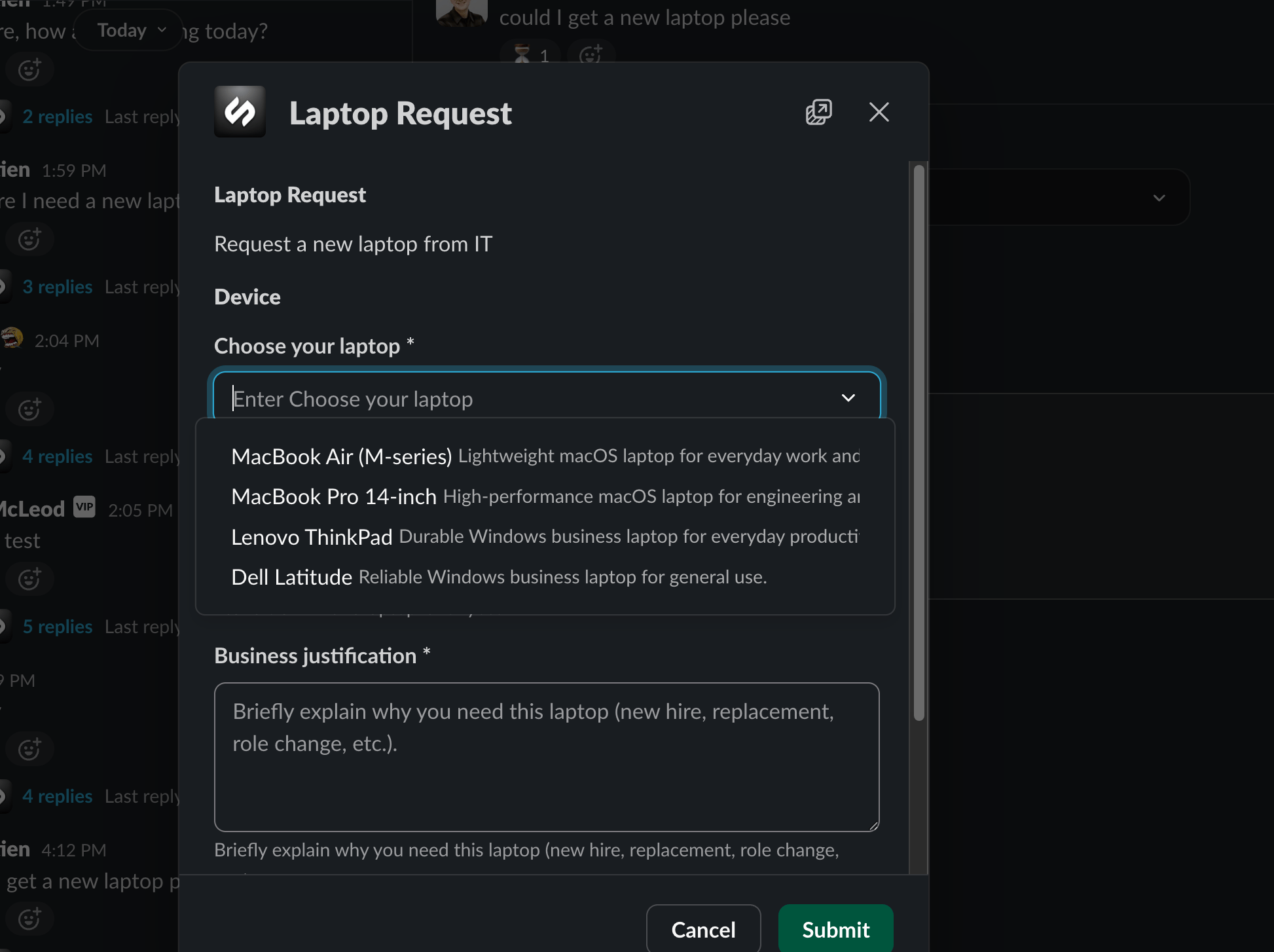 Serval adapts the form to what Slack can do:
| Aspect | In Slack |
| :------------------ | :--------------------------------------------------------------------------- |
| Live updates | Reactive fields update after a round trip rather than instantly |
| Form length | Up to 50 fields fit a modal. Longer forms link out to Serval |
| File uploads | Supported. The file-type filter is advisory: Slack filters by extension only |
| Option descriptions | Shown as secondary text, truncated after 75 characters |
| Styling | Accents, densities, and surfaces are Serval-only |
Anything Slack can't render links out to the full form rather than dropping a question.
For forms mostly filled from Slack, keep them short and the questions independent. Twelve fields with a couple of conditionals is a good Slack experience. Sixty fields will link out.
## Control who can open a form
**Can be opened by**, in the workspace, sets the audience:
* **Anyone in the org** (the default): every employee can find and submit it
* **Selected access profiles**: only people matching those [access profiles](/sections/access-management/configuration/access-profiles)
The gate covers every route to the form: the catalog, a direct link, and the set of forms the Help Desk Agent may offer. Someone outside the audience isn't offered it and can't open a link to it.
The audience controls filling, not building. It has no effect on who can edit the form, and previewing your own draft is never gated, so you can always test a restricted form yourself.
## What the requester experiences
* **Errors are specific**, on the field that caused them, in your wording
* **Only relevant questions appear**, as they become applicable
* **Progress survives a publish.** Someone mid-form finishes on the version they opened, never reset
* **Submitting starts the work**, and the outcome appears where they filled the form
## Permissions
| Role | Can do |
| :------------------------- | :--------------------------------------------------------- |
| Anyone in the organization | Fill and submit the team forms they're in the audience for |
| Team agents and managers | The above, plus build, preview, publish, and manage forms |
See [Permissions](/sections/documentation/platform/permissions) for role assignment.
***
Versions, run history, folders, copies, disabling, deleting.
Conditional questions and workflows that run inside the form.
Serval adapts the form to what Slack can do:
| Aspect | In Slack |
| :------------------ | :--------------------------------------------------------------------------- |
| Live updates | Reactive fields update after a round trip rather than instantly |
| Form length | Up to 50 fields fit a modal. Longer forms link out to Serval |
| File uploads | Supported. The file-type filter is advisory: Slack filters by extension only |
| Option descriptions | Shown as secondary text, truncated after 75 characters |
| Styling | Accents, densities, and surfaces are Serval-only |
Anything Slack can't render links out to the full form rather than dropping a question.
For forms mostly filled from Slack, keep them short and the questions independent. Twelve fields with a couple of conditionals is a good Slack experience. Sixty fields will link out.
## Control who can open a form
**Can be opened by**, in the workspace, sets the audience:
* **Anyone in the org** (the default): every employee can find and submit it
* **Selected access profiles**: only people matching those [access profiles](/sections/access-management/configuration/access-profiles)
The gate covers every route to the form: the catalog, a direct link, and the set of forms the Help Desk Agent may offer. Someone outside the audience isn't offered it and can't open a link to it.
The audience controls filling, not building. It has no effect on who can edit the form, and previewing your own draft is never gated, so you can always test a restricted form yourself.
## What the requester experiences
* **Errors are specific**, on the field that caused them, in your wording
* **Only relevant questions appear**, as they become applicable
* **Progress survives a publish.** Someone mid-form finishes on the version they opened, never reset
* **Submitting starts the work**, and the outcome appears where they filled the form
## Permissions
| Role | Can do |
| :------------------------- | :--------------------------------------------------------- |
| Anyone in the organization | Fill and submit the team forms they're in the audience for |
| Team agents and managers | The above, plus build, preview, publish, and manage forms |
See [Permissions](/sections/documentation/platform/permissions) for role assignment.
***
Versions, run history, folders, copies, disabling, deleting.
Conditional questions and workflows that run inside the form.