> ## Documentation Index
> Fetch the complete documentation index at: https://docs.serval.com/llms.txt
> Use this file to discover all available pages before exploring further.
# Access for Users
> How to request, extend, and manage access to applications
## Requesting Access
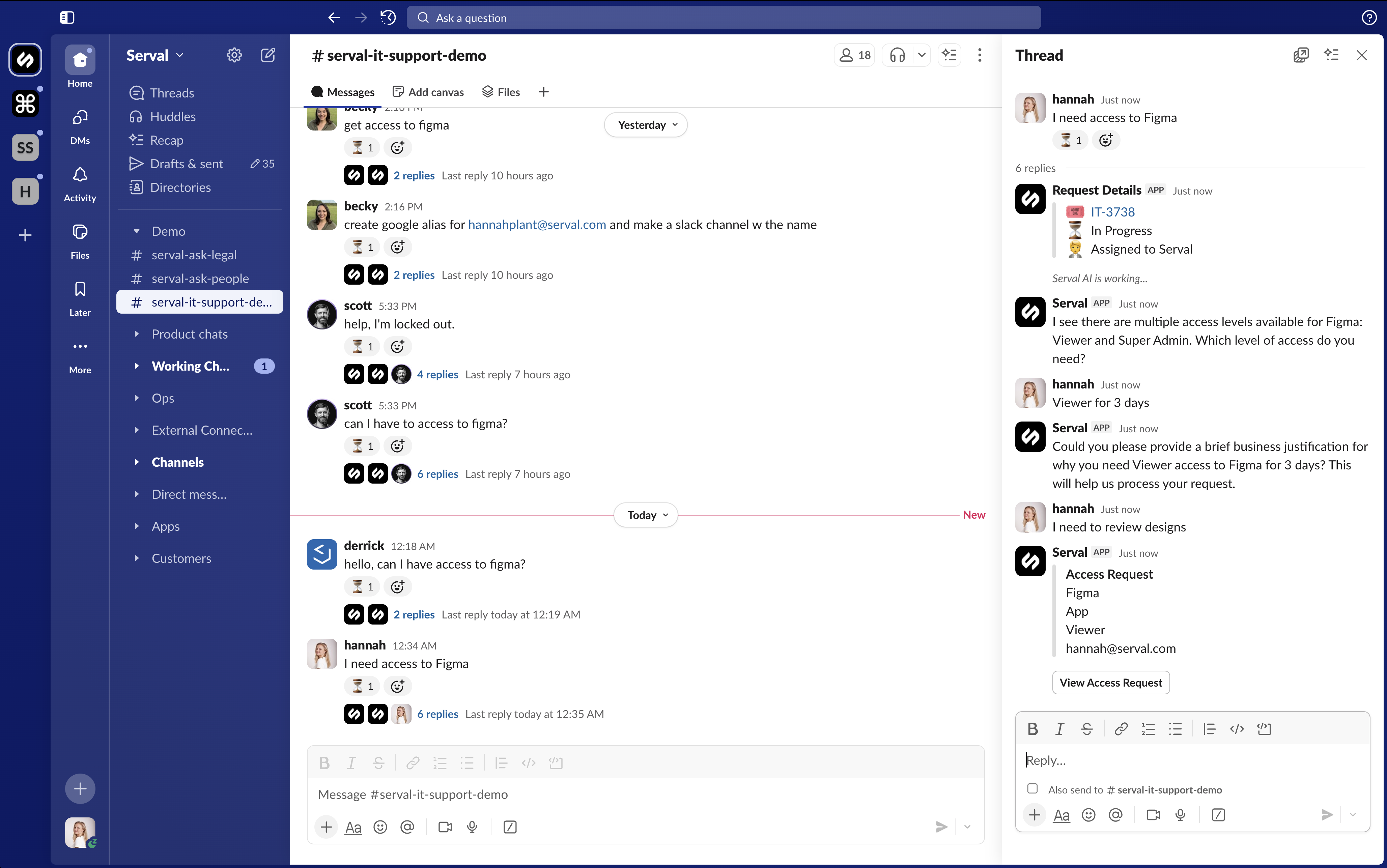
Request access through Slack, Teams, or app.serval.com. Serval guides you to the right access level, even if you don't know the specific role you need. For example, you may know you need Figma access but not whether that's Editor, Admin, or Group Admin.
**Request access two ways:**
1. **Natural language requests** through a conversational portal (Slack, Teams, or any help desk portal). You can make imperfect requests and Serval guides you to the correct type of access.
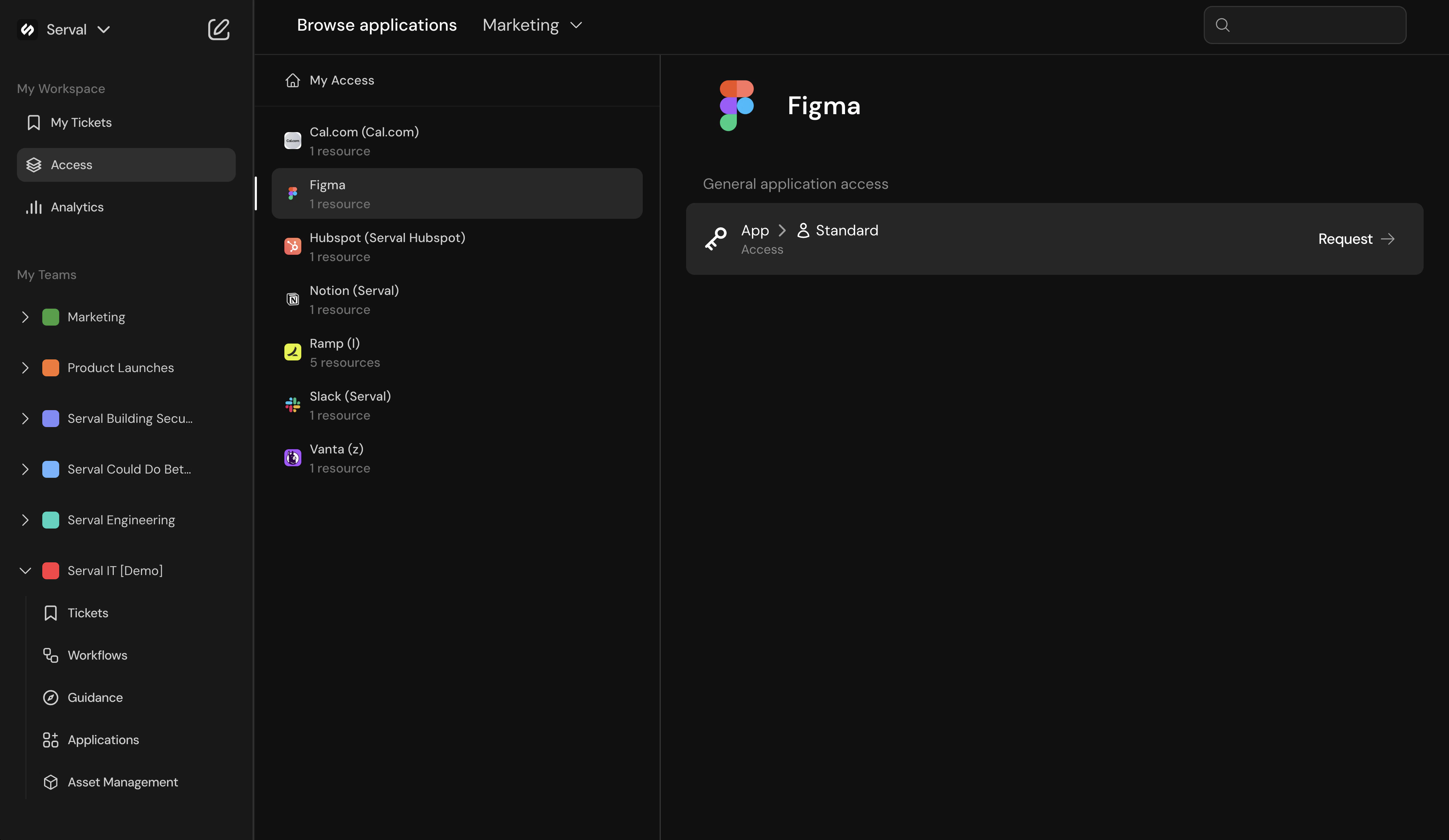
 2. **Catalog in app.serval.com**: Click **New Request** → **Browse Catalog** → select **Access** → choose the application and role → fill in required details → click **Request access**
 ### Scheduling a Start Time
When you request access, you can choose a start time instead of right away. Set a start time on the request, and after it's approved, Serval provisions the access at that time rather than immediately. You can schedule up to 90 days out, and the start time can't be in the past.
This is useful when you know you'll need access on a specific future date, so the access is ready without anyone remembering to provision it manually. Common use cases include a project kickoff or a new hire's start date.
***
## Managing Active Access
Once your access request is approved and provisioned, you can manage it throughout its lifecycle. View your current access duration, time remaining, and expiration time directly in the access request card.
### Extending Access
Need more time? Request an extension before your access expires:
* **Via Slack/Teams**: Ask Serval to extend your access. For example: "Can I extend my AWS access for another hour?"
* **Via app.serval.com**: Open the ticket where you requested access and use the edit option to request more time.
You can request an extension even while your access is still being provisioned. The new duration takes effect once both provisioning completes and the extension is approved.
### Shortening Access
If you finish early and no longer need access, you can request to shorten it:
* Ask Serval to reduce your access time, or edit the duration in the access request card.
* Shortening access helps maintain least-privilege principles.
Both extensions and shortenings may require approval depending on your organization's access policies.
***
## Amending Requests Before Approval
Changed your mind about how long you need access? You can amend your request before it's approved:
1. Open the original ticket where you requested access.
2. Request a different duration (longer or shorter).
3. Your new request replaces the pending one.
The approver sees only your final requested duration. If you amend multiple times before approval, only the last amendment matters.
***
## Canceling Requests
You can cancel access requests at different stages:
If you no longer need the access you requested, cancel it before approval:
* Ask Serval to cancel the request, or use the Cancel button in the access request card.
* The entire access request is concluded and no access is granted.
If you requested an extension but changed your mind:
* Cancel the pending extension using the Cancel button.
* Your original access remains active with its current duration.
* Only the extension request is canceled, not your existing access.
***
## Reviewing Personal Access
View your personal access history from app.serval.com: Access sidebar → select "My Access" → View historical log of all access requests and relevant tickets.
Admins can create a workflow that lets you request a CSV download of all your historical access requests.
***
## Common Questions
When your access duration ends, Serval automatically revokes the access using the same method it was granted (removing you from a group, calling an API, etc.). You'll need to request new access if you need it again.
If your access recently expired but hasn't been fully deprovisioned yet, you may be able to extend it without starting a new request. Otherwise, you'll need to submit a new access request.
Approvers can modify the duration when approving your request. For example, you might request 2 hours but be approved for 30 minutes based on policy or business needs.
The access request card shows your current duration, time remaining, and expiration time. You can also ask Serval about your active access.
### Scheduling a Start Time
When you request access, you can choose a start time instead of right away. Set a start time on the request, and after it's approved, Serval provisions the access at that time rather than immediately. You can schedule up to 90 days out, and the start time can't be in the past.
This is useful when you know you'll need access on a specific future date, so the access is ready without anyone remembering to provision it manually. Common use cases include a project kickoff or a new hire's start date.
***
## Managing Active Access
Once your access request is approved and provisioned, you can manage it throughout its lifecycle. View your current access duration, time remaining, and expiration time directly in the access request card.
### Extending Access
Need more time? Request an extension before your access expires:
* **Via Slack/Teams**: Ask Serval to extend your access. For example: "Can I extend my AWS access for another hour?"
* **Via app.serval.com**: Open the ticket where you requested access and use the edit option to request more time.
You can request an extension even while your access is still being provisioned. The new duration takes effect once both provisioning completes and the extension is approved.
### Shortening Access
If you finish early and no longer need access, you can request to shorten it:
* Ask Serval to reduce your access time, or edit the duration in the access request card.
* Shortening access helps maintain least-privilege principles.
Both extensions and shortenings may require approval depending on your organization's access policies.
***
## Amending Requests Before Approval
Changed your mind about how long you need access? You can amend your request before it's approved:
1. Open the original ticket where you requested access.
2. Request a different duration (longer or shorter).
3. Your new request replaces the pending one.
The approver sees only your final requested duration. If you amend multiple times before approval, only the last amendment matters.
***
## Canceling Requests
You can cancel access requests at different stages:
If you no longer need the access you requested, cancel it before approval:
* Ask Serval to cancel the request, or use the Cancel button in the access request card.
* The entire access request is concluded and no access is granted.
If you requested an extension but changed your mind:
* Cancel the pending extension using the Cancel button.
* Your original access remains active with its current duration.
* Only the extension request is canceled, not your existing access.
***
## Reviewing Personal Access
View your personal access history from app.serval.com: Access sidebar → select "My Access" → View historical log of all access requests and relevant tickets.
Admins can create a workflow that lets you request a CSV download of all your historical access requests.
***
## Common Questions
When your access duration ends, Serval automatically revokes the access using the same method it was granted (removing you from a group, calling an API, etc.). You'll need to request new access if you need it again.
If your access recently expired but hasn't been fully deprovisioned yet, you may be able to extend it without starting a new request. Otherwise, you'll need to submit a new access request.
Approvers can modify the duration when approving your request. For example, you might request 2 hours but be approved for 30 minutes based on policy or business needs.
The access request card shows your current duration, time remaining, and expiration time. You can also ask Serval about your active access.