> ## Documentation Index
> Fetch the complete documentation index at: https://docs.serval.com/llms.txt
> Use this file to discover all available pages before exploring further.
# Manual data entry and bulk import
> Add and edit items through the UI, or bulk import from CSV
Manual entry is the right tool for items that aren't ingested: spreadsheet-sourced data with no API behind it, a quick correction to a single value, or a one-time load while you wait to wire up the ingestion. For anything ongoing, use [Ingestion](/sections/documentation/databases/ingestion).
## When to use manual entry
Use manual entry for unique, non-recurring cases that can't be synced with an API.
* **Importing from a spreadsheet:** For bulk data from a spreadsheet with no API behind it, use CSV import.
* **One-off item:** For a one-off item that isn't tracked anywhere else, add through the UI.
* **Editing:** To fix a wrong value on a single item, edit through the UI.
Don't use manual entry for recurring data from any system with an API or data you need refreshed automatically. Instead, use [Ingestion](/sections/documentation/databases/ingestion).
Any value you set manually is overwritten on the next sync unless you pin the field to keep a manual value. See [Multiple sources for one item type](/sections/documentation/databases/ingestion#multiple-sources-for-one-item-type)
## Add an item
1. Open the item type in the Databases tab.
2. Click **Add Item->Create item manually**.
3. In the **Create Item** popup, fill out the fields.
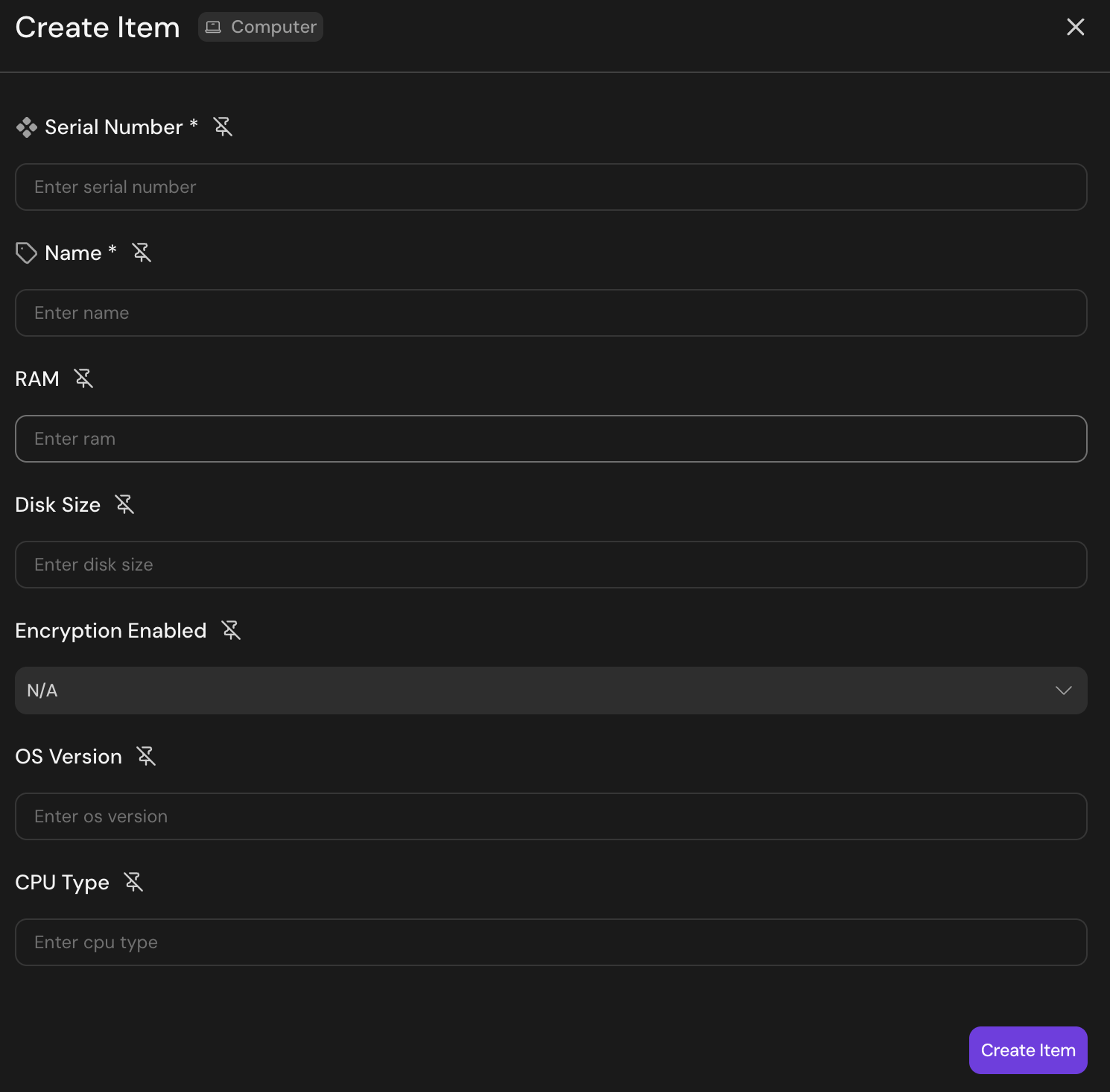 The key and name fields are required. All other fields are optional unless you're creating an edge-type relationship (which requires both endpoint fields). If you enter a key that already exists, creation fails. If you need to update by key, use edit on the existing item or update by CSV import.
## Edit field values
The key and name fields are required. All other fields are optional unless you're creating an edge-type relationship (which requires both endpoint fields). If you enter a key that already exists, creation fails. If you need to update by key, use edit on the existing item or update by CSV import.
## Edit field values
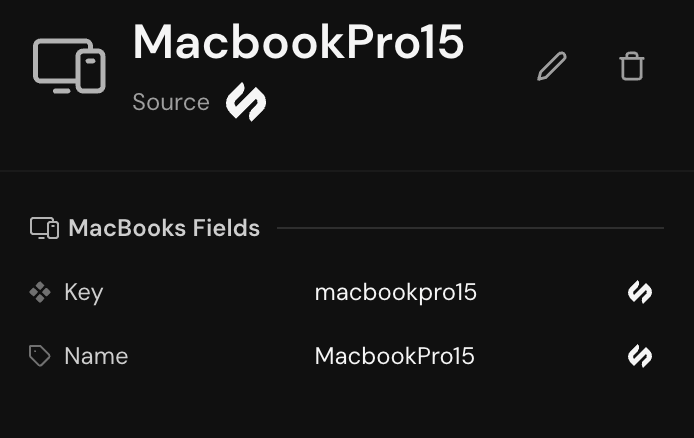 1. Click any item to open its detail view.
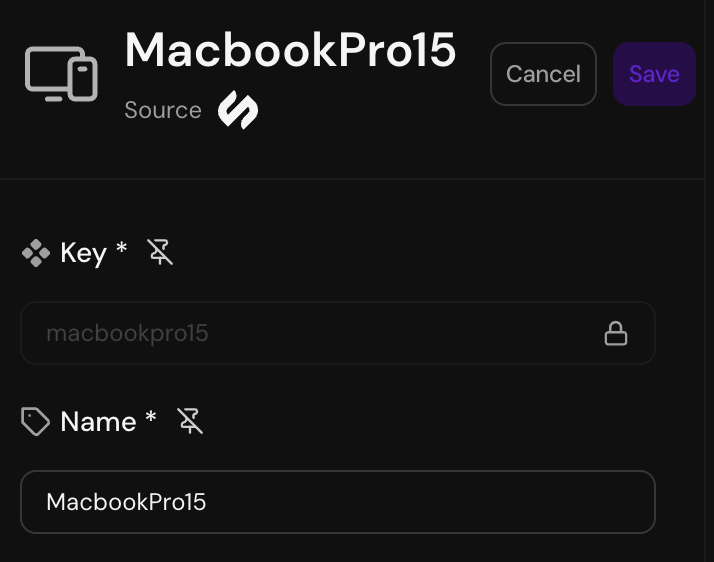
2. Click any field to edit inline, or click the edit (pencil) icon to edit all fields.
3. Changes write through immediately. Every edit is recorded in the item's history with author, timestamp, and the previous value. For more on item history, see [Administration](/sections/documentation/databases/administration).
1. Click any item to open its detail view.
2. Click any field to edit inline, or click the edit (pencil) icon to edit all fields.
3. Changes write through immediately. Every edit is recorded in the item's history with author, timestamp, and the previous value. For more on item history, see [Administration](/sections/documentation/databases/administration).
 ### Edits and ingestion
If a field is fed by an ingestion config, a manual edit gets overwritten on the next sync that maps to that field. To make a manual edit persist:
* Remove the mapping for that field on the ingestion config, or
* Lower the ingestion mapping's priority so manual entry wins, or
* Update the value at the source instead of in Serval.
Fields that no ingestion maps to are safe to edit. Provenance in the item's history shows whether each value came from manual entry or from a specific ingestion run.
## Bulk import from CSV
Use CSV import for one-shot loads from a spreadsheet, vendor export, or migration from another system.
### CSV format
* The first row is a header row.
* Map a column to the item type's key field. This is required for a successful import.
* All other mapped columns are optional.
* Columns you don't map are ignored.
* Column order doesn't matter.
| Type | How to format the value |
| :--------------- | :----------------------------------------------------------------------------------------------------------------------- |
| Text | Raw string |
| Number | `1234` or `1234.56`. No commas for thousand separators |
| Boolean | `true` or `false`. Also accepted: `1`/`0`, `yes`/`no`, `on`/`off`. |
| Timestamp | ISO 8601 is recommended (e.g. `2026-06-25T14:00:00Z`). Date-only values such as `2026-06-25` are also accepted. |
| Enum | The option **value** (canonical key), not the display label. Matching is case-insensitive. |
| Multi-select | One option value per cell. Pipe-separated values (e.g. `Engineering\|Security\|Finance`) aren't supported in CSV import. |
| Entity reference | The referenced entity's (item's) key value. UUID and external ID are also accepted. |
| User reference | The user's email address. UUID is also accepted. |
| File | Not supported in CSV import. Upload files through the UI. |
### Importing
1. Open the item type in **Databases**.
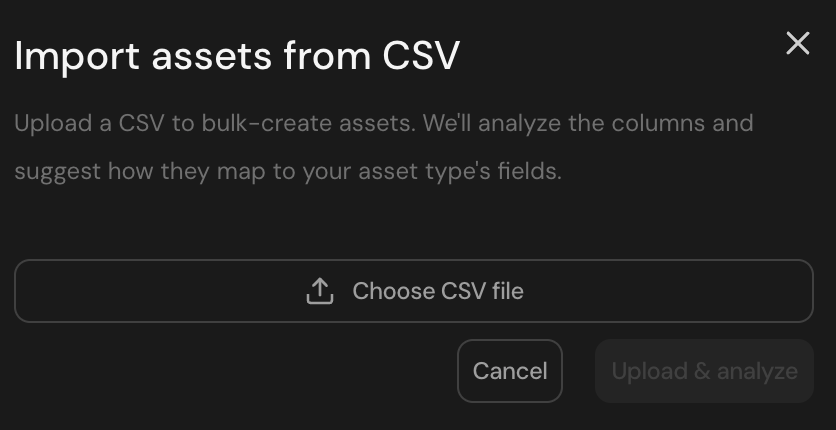
2. Click **Add Item->Import from CSV.**
3. Upload the file. Serval validates the header row against the item type's fields.
4. Review the preview. Serval shows how many rows will be inserted, how many will update existing items (matched by key), and any parse errors per row.
5. Confirm.
### Edits and ingestion
If a field is fed by an ingestion config, a manual edit gets overwritten on the next sync that maps to that field. To make a manual edit persist:
* Remove the mapping for that field on the ingestion config, or
* Lower the ingestion mapping's priority so manual entry wins, or
* Update the value at the source instead of in Serval.
Fields that no ingestion maps to are safe to edit. Provenance in the item's history shows whether each value came from manual entry or from a specific ingestion run.
## Bulk import from CSV
Use CSV import for one-shot loads from a spreadsheet, vendor export, or migration from another system.
### CSV format
* The first row is a header row.
* Map a column to the item type's key field. This is required for a successful import.
* All other mapped columns are optional.
* Columns you don't map are ignored.
* Column order doesn't matter.
| Type | How to format the value |
| :--------------- | :----------------------------------------------------------------------------------------------------------------------- |
| Text | Raw string |
| Number | `1234` or `1234.56`. No commas for thousand separators |
| Boolean | `true` or `false`. Also accepted: `1`/`0`, `yes`/`no`, `on`/`off`. |
| Timestamp | ISO 8601 is recommended (e.g. `2026-06-25T14:00:00Z`). Date-only values such as `2026-06-25` are also accepted. |
| Enum | The option **value** (canonical key), not the display label. Matching is case-insensitive. |
| Multi-select | One option value per cell. Pipe-separated values (e.g. `Engineering\|Security\|Finance`) aren't supported in CSV import. |
| Entity reference | The referenced entity's (item's) key value. UUID and external ID are also accepted. |
| User reference | The user's email address. UUID is also accepted. |
| File | Not supported in CSV import. Upload files through the UI. |
### Importing
1. Open the item type in **Databases**.
2. Click **Add Item->Import from CSV.**
3. Upload the file. Serval validates the header row against the item type's fields.
4. Review the preview. Serval shows how many rows will be inserted, how many will update existing items (matched by key), and any parse errors per row.
5. Confirm.
 Rows with parse errors are skipped, not retried. Fix them in the source CSV and re-import.
Matching by key means re-importing a corrected row updates the right item, not a duplicate
### Key collisions and updates
Import deduplicates by the key field. A row whose key matches an existing item updates that item's fields with the values in the CSV. Fields not present in the CSV are left unchanged.
## What's next
Replace manual loads with an ingestion that keeps the data fresh.
Verify the import landed correctly and start querying.
Provenance shows whether each value came from manual entry, CSV, or a specific ingestion run.
Rows with parse errors are skipped, not retried. Fix them in the source CSV and re-import.
Matching by key means re-importing a corrected row updates the right item, not a duplicate
### Key collisions and updates
Import deduplicates by the key field. A row whose key matches an existing item updates that item's fields with the values in the CSV. Fields not present in the CSV are left unchanged.
## What's next
Replace manual loads with an ingestion that keeps the data fresh.
Verify the import landed correctly and start querying.
Provenance shows whether each value came from manual entry, CSV, or a specific ingestion run.