> ## Documentation Index
> Fetch the complete documentation index at: https://docs.serval.com/llms.txt
> Use this file to discover all available pages before exploring further.
# Browsing and querying
> List view, filters, saved views, and the context graph
The list view shows every item of a type in a sortable, filterable grid. The context graph visualizes the relationships between items and lets you traverse them. Most day-to-day work happens in the list view. The context graph comes out when you need to understand impact, ownership, or dependencies.
## The list view
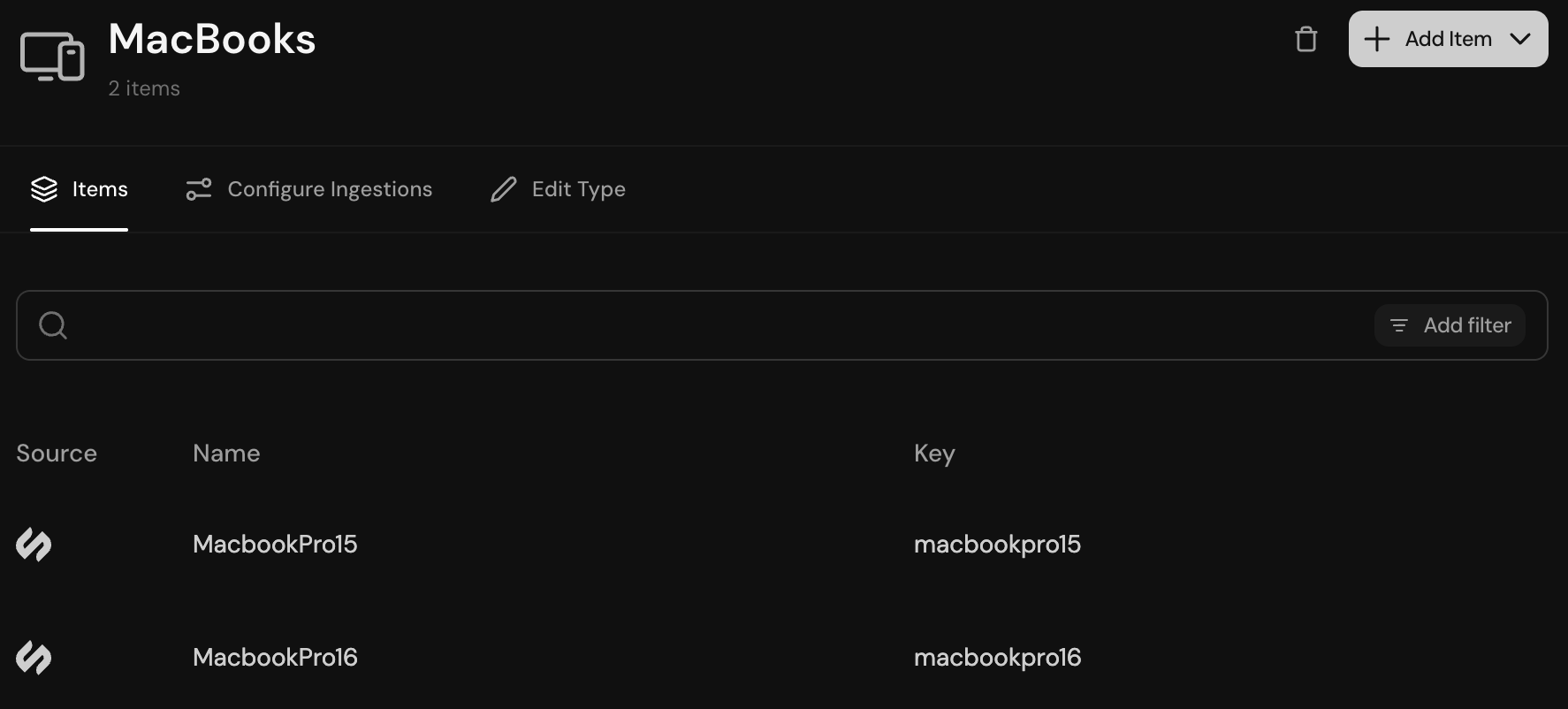 Open any item type in the Databases tab to see its list view. By default, the columns are the key field, the name field, and a handful of others Serval picks based on the type.
In the list view, you can:
* Click **Columns** to pick which fields show
* Filter on any column
* Click on a column to sort ascending or descending
* Search in the search box
* Move between pages (500 items per page by default)
* Save and share views
* Set a default view
## The context graph
Click any item on its detail view to see its context graph.
Open any item type in the Databases tab to see its list view. By default, the columns are the key field, the name field, and a handful of others Serval picks based on the type.
In the list view, you can:
* Click **Columns** to pick which fields show
* Filter on any column
* Click on a column to sort ascending or descending
* Search in the search box
* Move between pages (500 items per page by default)
* Save and share views
* Set a default view
## The context graph
Click any item on its detail view to see its context graph.
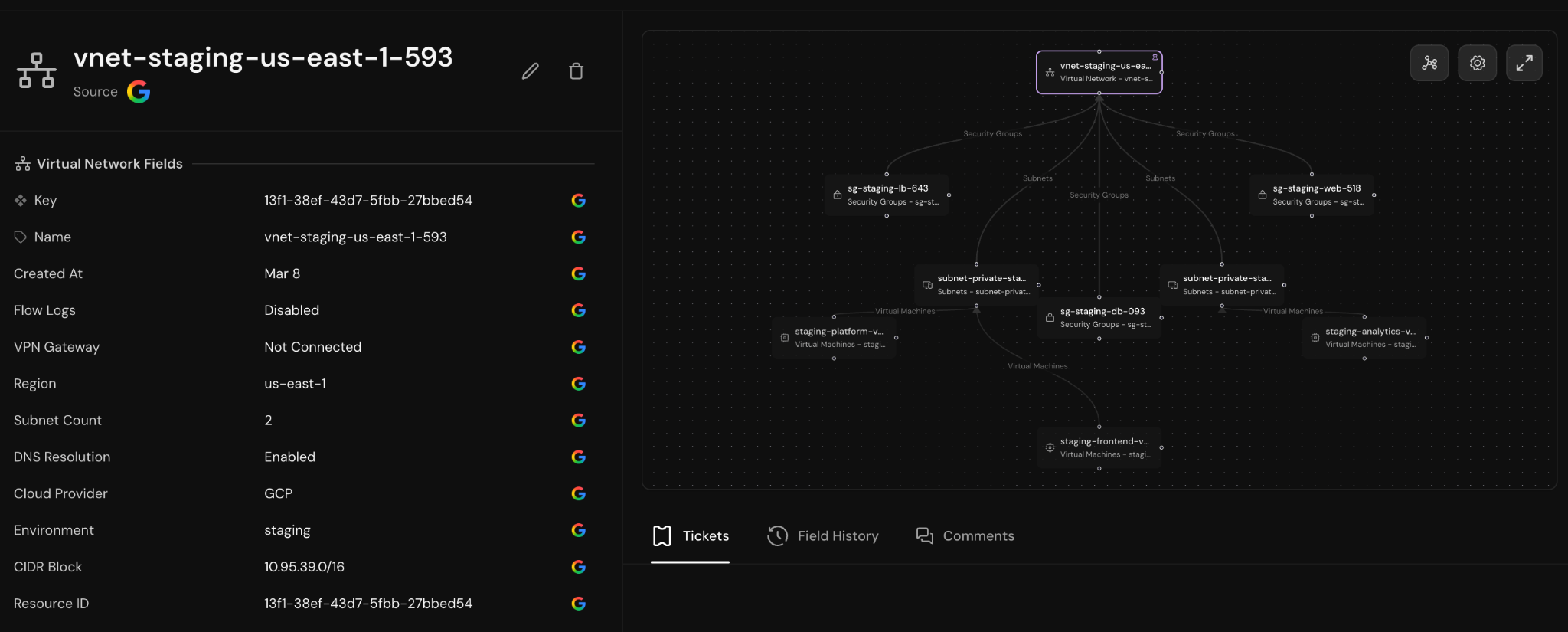 The context graph visualizes the item reference fields you set up in [Schema design](/sections/documentation/databases/schema-design#item-reference-field) as a navigable network. Every item is a node. Every reference field, and every relationship type, is a directional edge.
### What the Help Desk Agent sees
The Help Desk Agent traverses the same graph when it resolves tickets. If a user opens a ticket about "my laptop," the agent walks from the user's item to their assigned computer, then to that computer's recent incidents, hardware specs, and assigned software. Configure which item types the agent can see in [Administration](/sections/documentation/databases/administration).
### Workflows on the graph
Workflows can traverse the same relationships from code. The typical pattern: a server goes down, a workflow reads the graph to find every service that depends on it, then fans out remediation or notifications to the owners of each.
The context graph visualizes the item reference fields you set up in [Schema design](/sections/documentation/databases/schema-design#item-reference-field) as a navigable network. Every item is a node. Every reference field, and every relationship type, is a directional edge.
### What the Help Desk Agent sees
The Help Desk Agent traverses the same graph when it resolves tickets. If a user opens a ticket about "my laptop," the agent walks from the user's item to their assigned computer, then to that computer's recent incidents, hardware specs, and assigned software. Configure which item types the agent can see in [Administration](/sections/documentation/databases/administration).
### Workflows on the graph
Workflows can traverse the same relationships from code. The typical pattern: a server goes down, a workflow reads the graph to find every service that depends on it, then fans out remediation or notifications to the owners of each.