> ## Documentation Index
> Fetch the complete documentation index at: https://docs.serval.com/llms.txt
> Use this file to discover all available pages before exploring further.
# Catalyst workspace
> Get familiar with the Catalyst interface
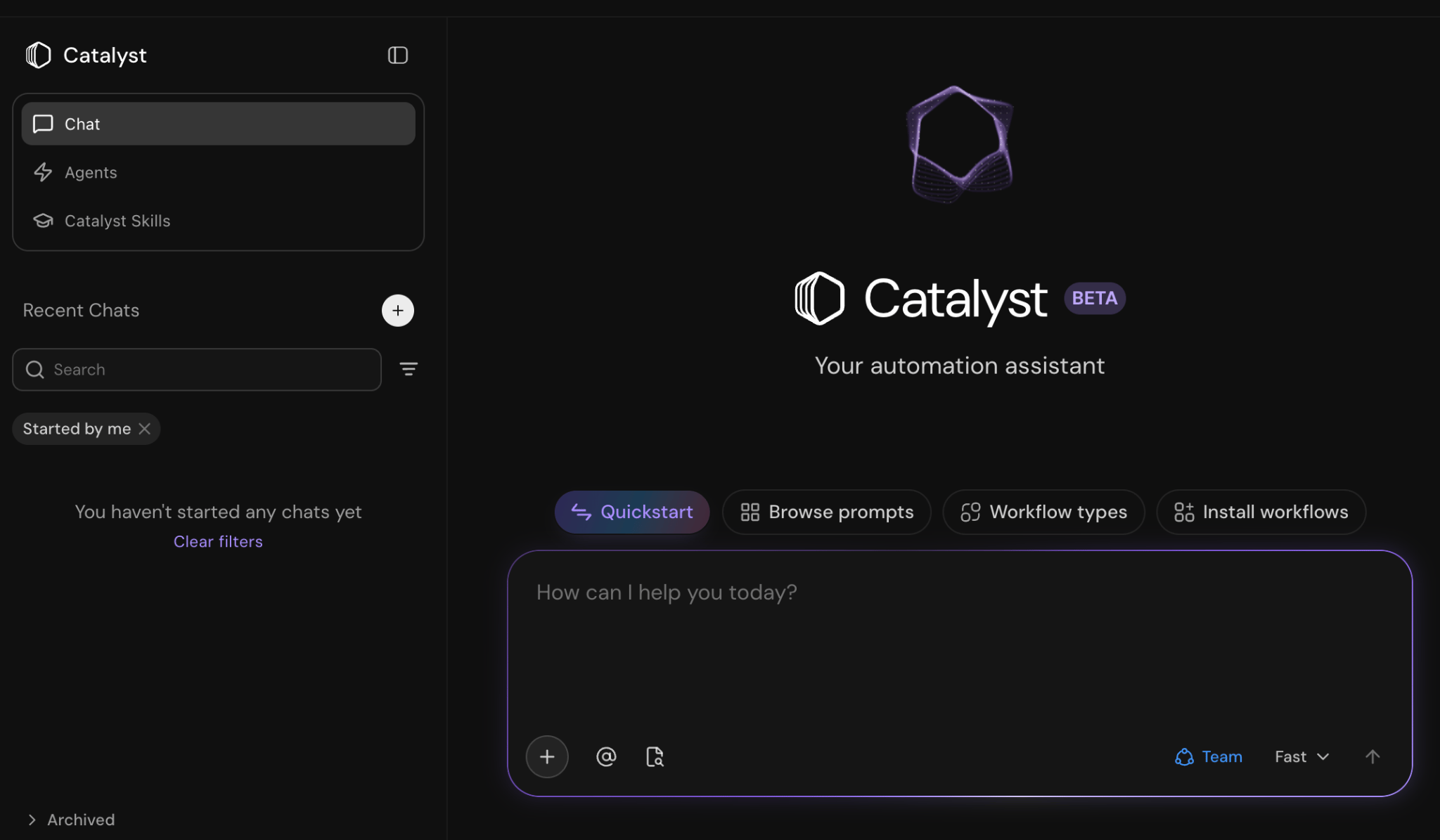
The main Catalyst page has three views:
* **Chat**: Conversational sessions with a message thread and resource panel
* **Agents**: Scheduled Catalyst runs that execute automatically on a cron schedule
* **Catalyst skills**: Team-specific instructions that guide Catalyst behavior (separate from help desk skills)
 ***
## Chat
Chat with Catalyst to build automations from natural language descriptions. Above the chat composer are a number of ways to get started quickly, including **Quickstart**, **Browse prompts**, **Workflow types**, and **Install workflows**.
### Team vs private chats
Every Catalyst chat has a visibility setting:
* **Team chat**: Anyone on the team with Catalyst access
* **Private chat**: Only you
Choose visibility when starting a new chat from the picker on the composer. For an existing session, use the visibility picker in the chat header to switch between team and private.
Use **private chat** for experiments you are not ready to share. Switch to **team chat** when you want collaborators to find the session in the sidebar or continue the work.
### Fast vs thinking mode
Catalyst offers **Fast** and **Thinking** modes that trade off between speed and depth of reasoning:
* **Fast:** Best for quick edits, small changes, or straightforward questions
* **Thinking**: Best for complex implementations and multi-step builds
Select the mode from the dropdown in the chat composer. The choice applies to the current chat and is remembered per chat.
Managers can set a **default chat mode** under **Settings → Catalyst**. New sessions start with that default and individual users can still change mode in the composer.
### Interactive cards in chat
Catalyst sometimes renders interactive UI in the message thread instead of plain text.
#### Configure integrations
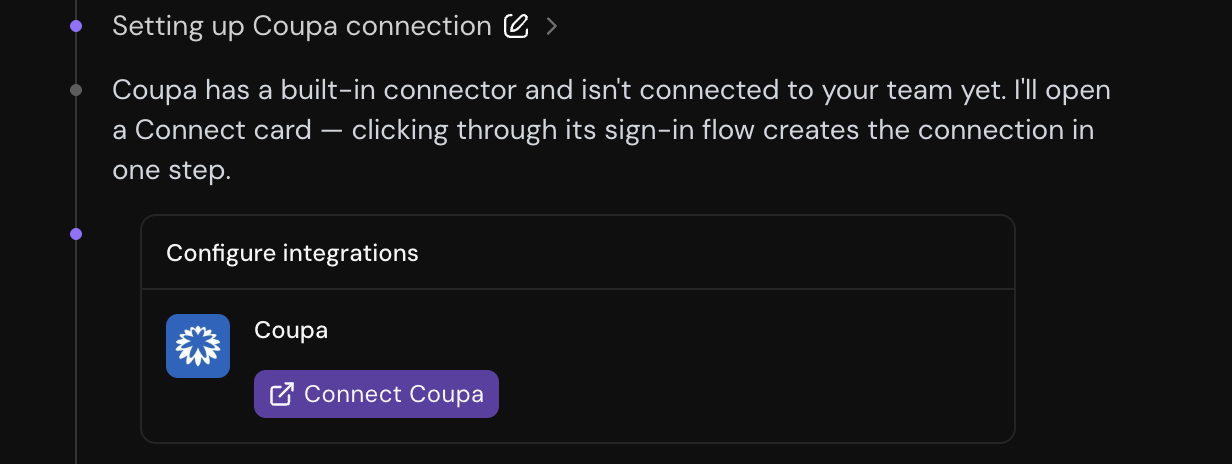
When a workflow needs an app that's not connected, Catalyst shows cards with **Connect**, **Configure**, or **Reconfigure** actions. Complete setup using the card instead of pasting credentials in chat. See [Connecting external apps](/sections/documentation/catalyst/building-workflows#connecting-external-apps).
***
## Chat
Chat with Catalyst to build automations from natural language descriptions. Above the chat composer are a number of ways to get started quickly, including **Quickstart**, **Browse prompts**, **Workflow types**, and **Install workflows**.
### Team vs private chats
Every Catalyst chat has a visibility setting:
* **Team chat**: Anyone on the team with Catalyst access
* **Private chat**: Only you
Choose visibility when starting a new chat from the picker on the composer. For an existing session, use the visibility picker in the chat header to switch between team and private.
Use **private chat** for experiments you are not ready to share. Switch to **team chat** when you want collaborators to find the session in the sidebar or continue the work.
### Fast vs thinking mode
Catalyst offers **Fast** and **Thinking** modes that trade off between speed and depth of reasoning:
* **Fast:** Best for quick edits, small changes, or straightforward questions
* **Thinking**: Best for complex implementations and multi-step builds
Select the mode from the dropdown in the chat composer. The choice applies to the current chat and is remembered per chat.
Managers can set a **default chat mode** under **Settings → Catalyst**. New sessions start with that default and individual users can still change mode in the composer.
### Interactive cards in chat
Catalyst sometimes renders interactive UI in the message thread instead of plain text.
#### Configure integrations
When a workflow needs an app that's not connected, Catalyst shows cards with **Connect**, **Configure**, or **Reconfigure** actions. Complete setup using the card instead of pasting credentials in chat. See [Connecting external apps](/sections/documentation/catalyst/building-workflows#connecting-external-apps).
 #### Questions
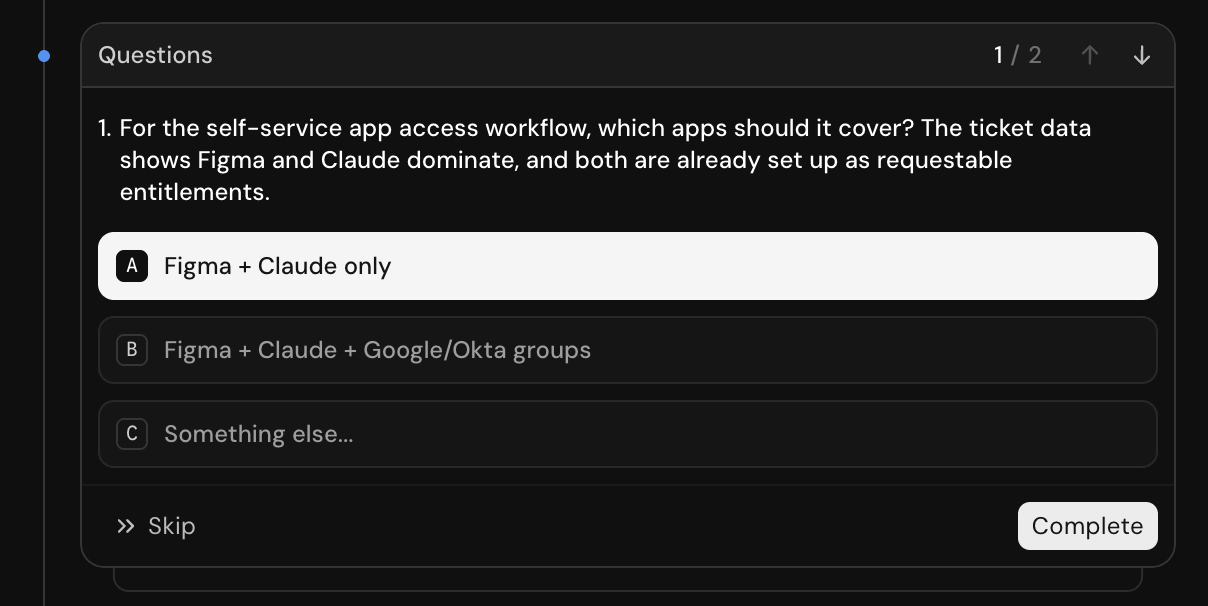
Catalyst may ask clarifying questions with selectable options (single or multi-select). When you pick an option and submit, Catalyst will note your answer and resume working.
#### Questions
Catalyst may ask clarifying questions with selectable options (single or multi-select). When you pick an option and submit, Catalyst will note your answer and resume working.
 #### Temporary workflows
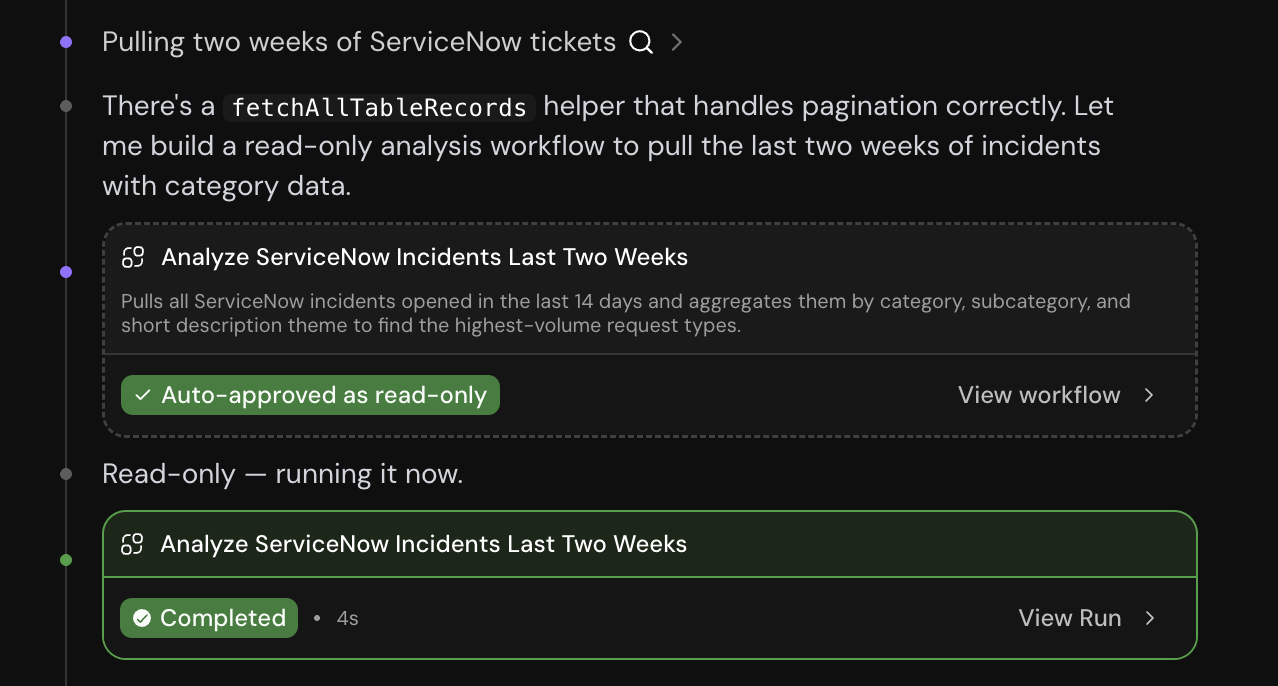
Catalyst may create a temporary workflow to probe an API, fetch data, or validate an integration in the process of completing a task. When Catalyst proposes a temporary workflow, a card appears in chat showing:
* The workflow name and a link to open it in the resource panel
* **Run** and **Reject** actions (unless the workflow is read-only, in which case it may run automatically)
#### Temporary workflows
Catalyst may create a temporary workflow to probe an API, fetch data, or validate an integration in the process of completing a task. When Catalyst proposes a temporary workflow, a card appears in chat showing:
* The workflow name and a link to open it in the resource panel
* **Run** and **Reject** actions (unless the workflow is read-only, in which case it may run automatically)
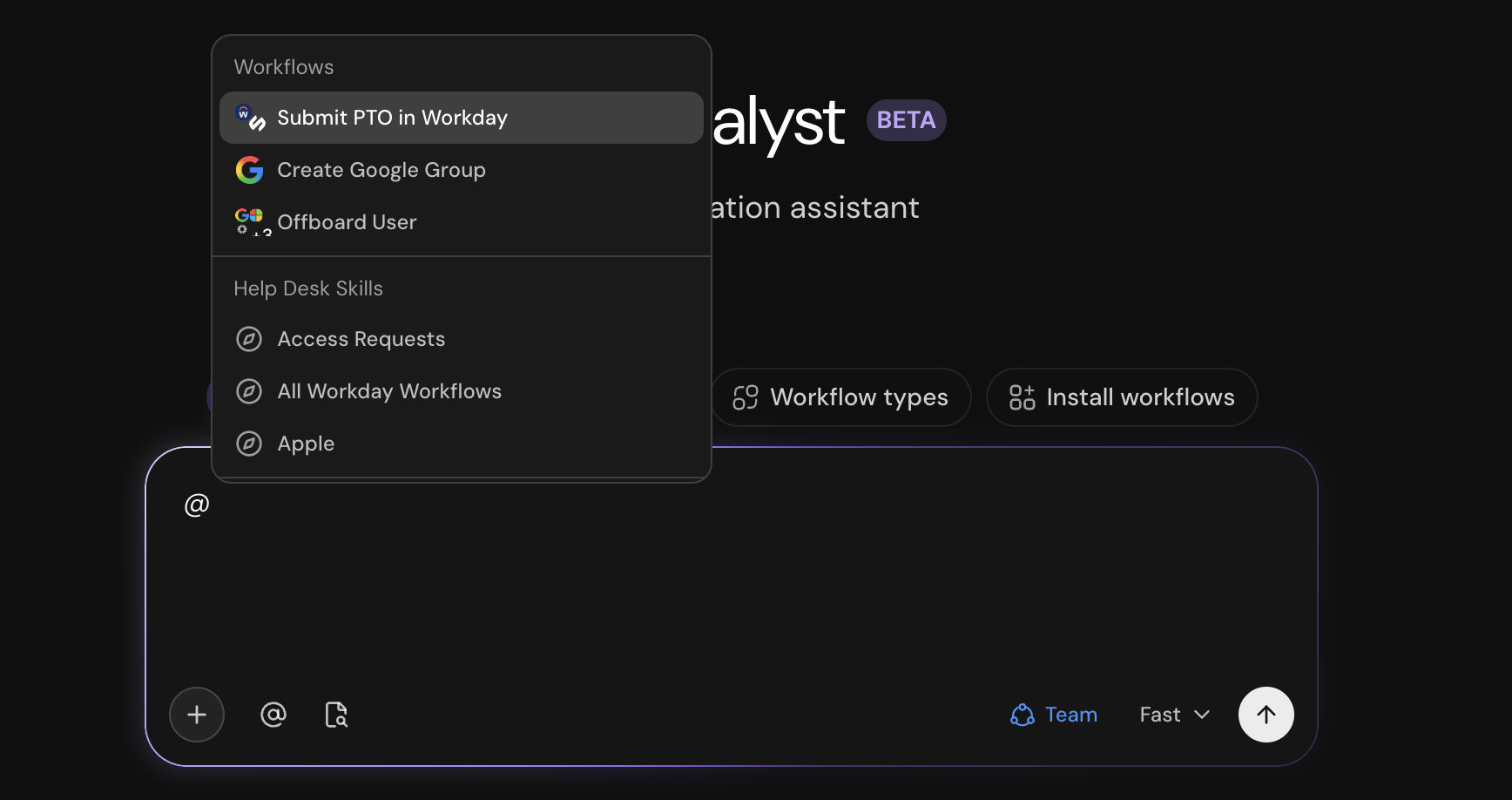
 ### @Mention resources
You can mention existing resources (such as workflows and help desk skills) when chatting with Catalyst. Type "**@**" to see a list of existing resources, and keep typing to specify.
### @Mention resources
You can mention existing resources (such as workflows and help desk skills) when chatting with Catalyst. Type "**@**" to see a list of existing resources, and keep typing to specify.
 ### File attachments
Attach files to Catalyst messages to share screenshots, data, or other context.
* Click the **plus** in the composer to pick files
* **Drag** files onto the chat area (a "Drop files to attach" overlay appears)
* **Paste** files from your clipboard when supported by your browser
#### Limits and supported types
* **Maximum file size:** 50 MB per file (under 25 MB recommended)
* **Maximum attachments:** 10 per message
* **Supported file types:**
* **Images**: PNG, JPEG, GIF, WebP
* **Documents**: PDF, DOCX, XLSX
* **Text**: CSV, TXT, Markdown, JSON
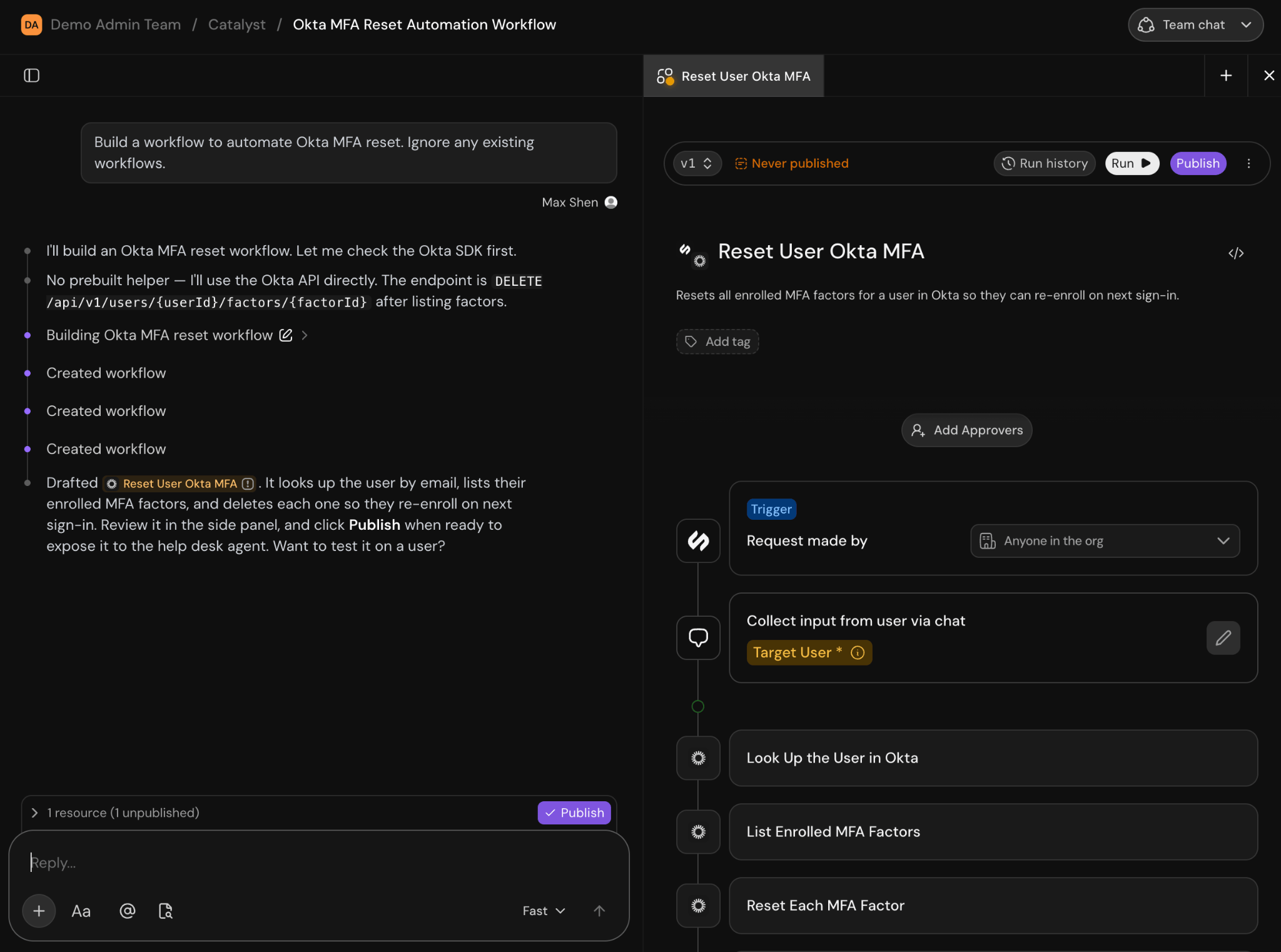
### Resource panel
When Catalyst creates or opens a resource such as a workflow or skill, a tab appears in the **resource panel** on the right side of the chat. Edits made via chat or directly in the panel are not live until you publish or complete a review.
### File attachments
Attach files to Catalyst messages to share screenshots, data, or other context.
* Click the **plus** in the composer to pick files
* **Drag** files onto the chat area (a "Drop files to attach" overlay appears)
* **Paste** files from your clipboard when supported by your browser
#### Limits and supported types
* **Maximum file size:** 50 MB per file (under 25 MB recommended)
* **Maximum attachments:** 10 per message
* **Supported file types:**
* **Images**: PNG, JPEG, GIF, WebP
* **Documents**: PDF, DOCX, XLSX
* **Text**: CSV, TXT, Markdown, JSON
### Resource panel
When Catalyst creates or opens a resource such as a workflow or skill, a tab appears in the **resource panel** on the right side of the chat. Edits made via chat or directly in the panel are not live until you publish or complete a review.
 ***
## Agents
You can set up background agents that run on a schedule without requiring you to send each message manually.
Create an agent with **New agent** or select from a set of installable agents for common uses. An agent has the following:
* **Name**: how you identify it in the list
* **Instructions**: what the agent should do each time it runs (e.g. "Investigate open tickets and summarize anything concerning")
* **Schedule**: hourly, daily, weekly, or monthly
* **Permissions**: whose permissions the agent should use while running
***
## Agents
You can set up background agents that run on a schedule without requiring you to send each message manually.
Create an agent with **New agent** or select from a set of installable agents for common uses. An agent has the following:
* **Name**: how you identify it in the list
* **Instructions**: what the agent should do each time it runs (e.g. "Investigate open tickets and summarize anything concerning")
* **Schedule**: hourly, daily, weekly, or monthly
* **Permissions**: whose permissions the agent should use while running
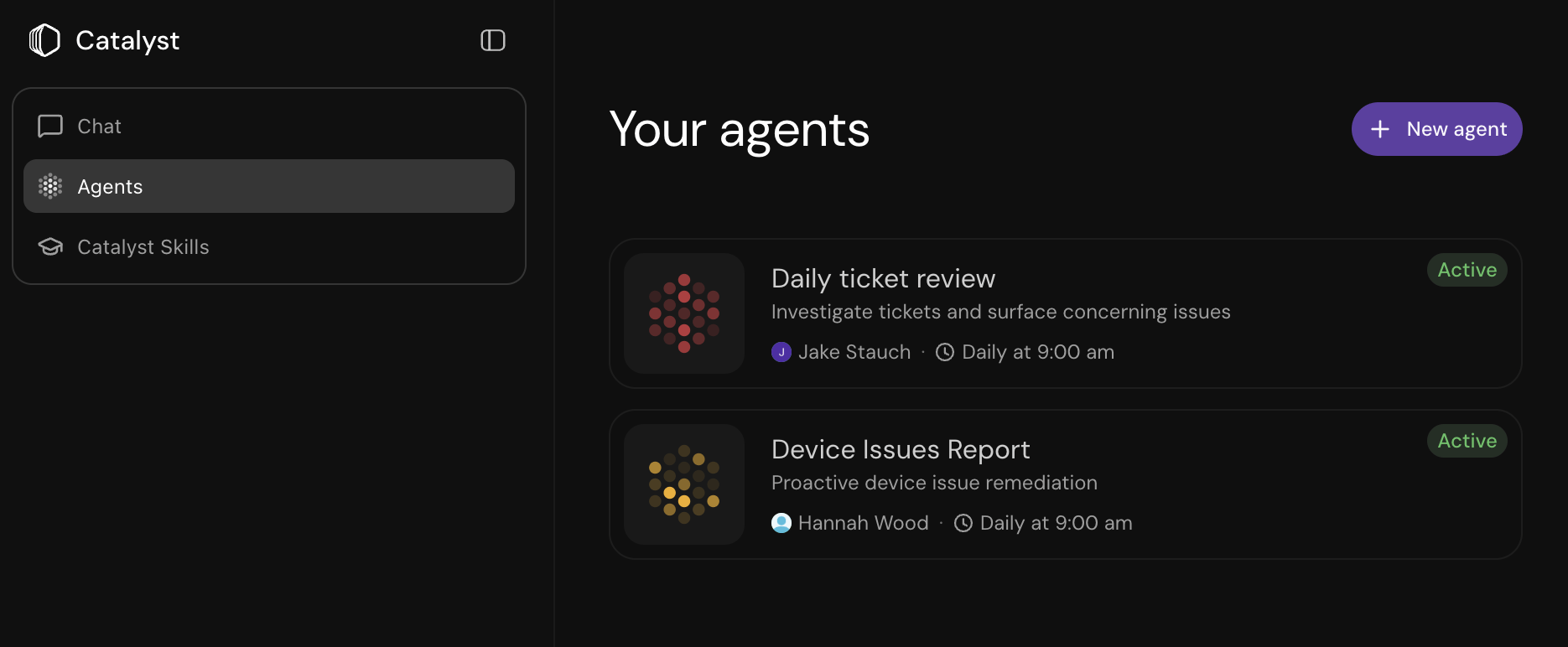 You can pause, resume, edit, and delete existing agents. Each agent run creates a Catalyst session you can open to inspect what happened. You can get notified for various events including when a run is completed or action is required.
***
## Catalyst skills
Catalyst skills provide a way to teach Catalyst about how to build your workflows and common automations.
You can pause, resume, edit, and delete existing agents. Each agent run creates a Catalyst session you can open to inspect what happened. You can get notified for various events including when a run is completed or action is required.
***
## Catalyst skills
Catalyst skills provide a way to teach Catalyst about how to build your workflows and common automations.
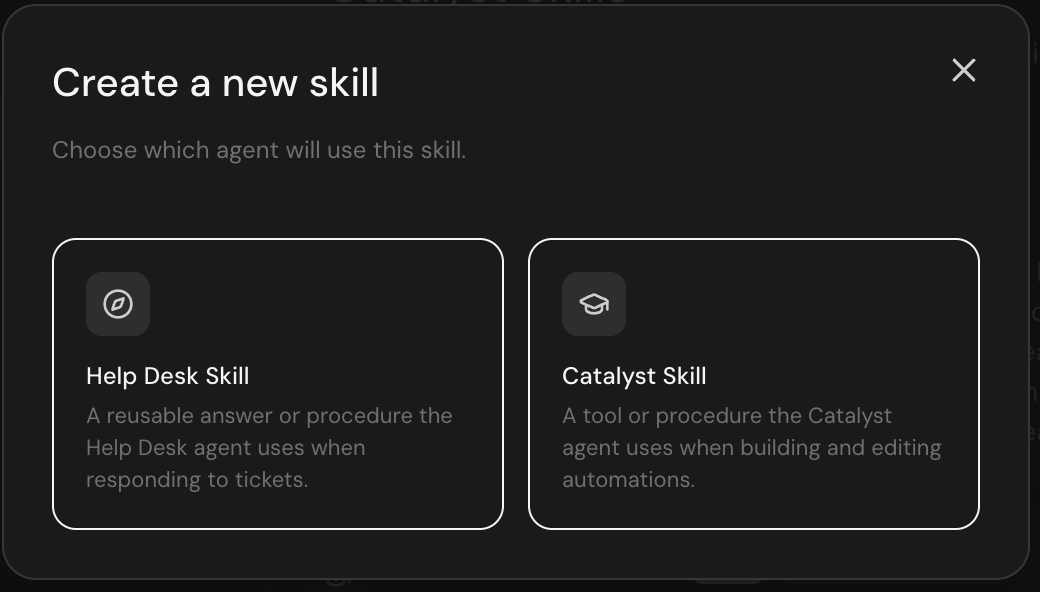
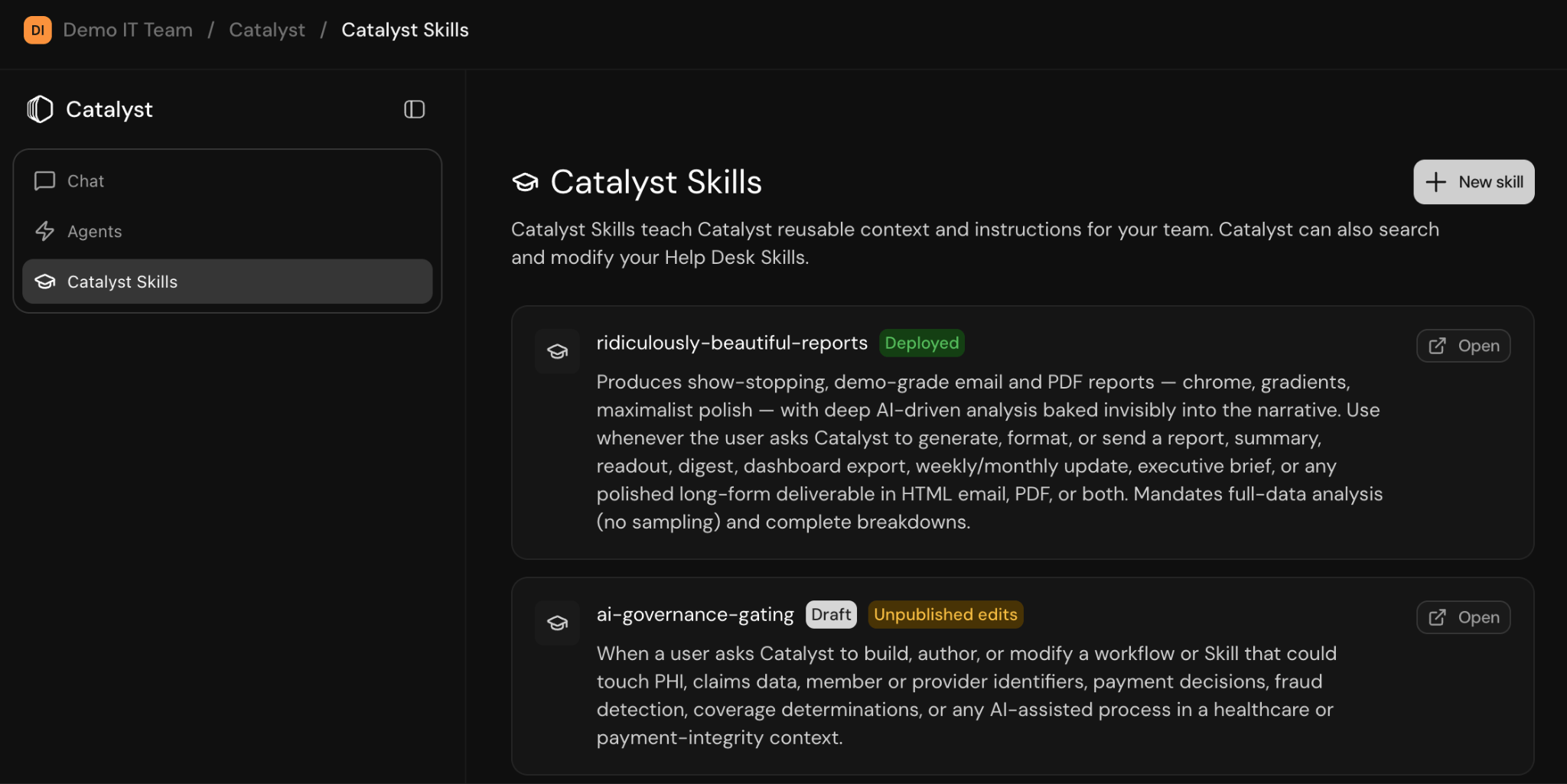 To create a skill, go to **Catalyst → Catalyst skills.**
 ### Catalyst skills vs help desk skills
Catalyst skills are distinct from help desk skills. For more information on help desk skills, see [Help desk skills](/sections/documentation/skills/overview).
| | Help desk skills | Catalyst skills |
| :------------------------: | :-----------------------------------------------------------------------------------: | :-------------------------------------------------------------------------------------------: |
| **Who uses them** | The help desk agent handling employee requests | Catalyst when building automations |
| **Where to manage** | **Skills** in the main team navigation | **Catalyst → Catalyst skills** |
| **Purpose** | How the agent behaves when handling requests: tone, procedures, when to run workflows | Reusable context and instructions for Catalyst: team conventions, naming, deployment patterns |
| **Do end users see them?** | Indirectly, through agent responses | No: builders only |
### Examples
* **Help desk skill**: "When someone asks for laptop replacement, gather the reason, run the laptop-request workflow, and set expectations on turnaround time."
* **Catalyst skill**: "Our team prefix is ENG. Always use installable workflows for Okta group changes when one exists."
***
## Learn more
What Catalyst can do
Enable Catalyst, open your first session, and publish a change
Using Catalyst to analyze ServiceNow tickets and build automations
Stage changes, propose reviews, and configure approvers
Natural language prompting, manual edits, versioning
Building analytics dashboards with Catalyst
***
## Related links
Instructions for the help desk agent on end-user requests
Builder access and team capabilities
Published versions and history for individual workflows
### Catalyst skills vs help desk skills
Catalyst skills are distinct from help desk skills. For more information on help desk skills, see [Help desk skills](/sections/documentation/skills/overview).
| | Help desk skills | Catalyst skills |
| :------------------------: | :-----------------------------------------------------------------------------------: | :-------------------------------------------------------------------------------------------: |
| **Who uses them** | The help desk agent handling employee requests | Catalyst when building automations |
| **Where to manage** | **Skills** in the main team navigation | **Catalyst → Catalyst skills** |
| **Purpose** | How the agent behaves when handling requests: tone, procedures, when to run workflows | Reusable context and instructions for Catalyst: team conventions, naming, deployment patterns |
| **Do end users see them?** | Indirectly, through agent responses | No: builders only |
### Examples
* **Help desk skill**: "When someone asks for laptop replacement, gather the reason, run the laptop-request workflow, and set expectations on turnaround time."
* **Catalyst skill**: "Our team prefix is ENG. Always use installable workflows for Okta group changes when one exists."
***
## Learn more
What Catalyst can do
Enable Catalyst, open your first session, and publish a change
Using Catalyst to analyze ServiceNow tickets and build automations
Stage changes, propose reviews, and configure approvers
Natural language prompting, manual edits, versioning
Building analytics dashboards with Catalyst
***
## Related links
Instructions for the help desk agent on end-user requests
Builder access and team capabilities
Published versions and history for individual workflows