> ## Documentation Index
> Fetch the complete documentation index at: https://docs.serval.com/llms.txt
> Use this file to discover all available pages before exploring further.
# Building workflows
> How to build and edit workflows with Catalyst: prompting, manual edits, versioning, and temporary workflows
Catalyst can create and modify workflows through conversation. Most authoring starts in **Chat**, with results opening as tabs in the **resource panel** on the right.
***
## Natural language prompting
Describe what you want in plain language. Catalyst searches your team (workflows, tickets, knowledge, connected apps), drafts workflow code, and stages changes for review.
### Tips for effective prompts
* **State the outcome**: "Create a workflow that provisions Okta access when a manager approves"
* **Name integrations**: mention the dependent apps you expect to use
* **Reference existing resources**: "Update the @password-reset workflow to also notify the security channel"
* **Ask Catalyst to check first**: "Search installable workflows before writing one from scratch"
After Catalyst creates a workflow, it asks whether you want to test it. Testing is recommended but optional, and only runs when you explicitly agree.
***
## Workflow tab
You are not limited to chat. When Catalyst opens a workflow in the resource panel, you can make adjustments on the summary view or edit the TypeScript code directly.
Use the **version picker** in the action bar to inspect earlier versions. Opening a previous version locks the editor to read-only so you can compare without accidentally editing an old snapshot. For workflow version history outside an active session, see [Workflow versioning](/sections/documentation/workflows/Manage/versioning).
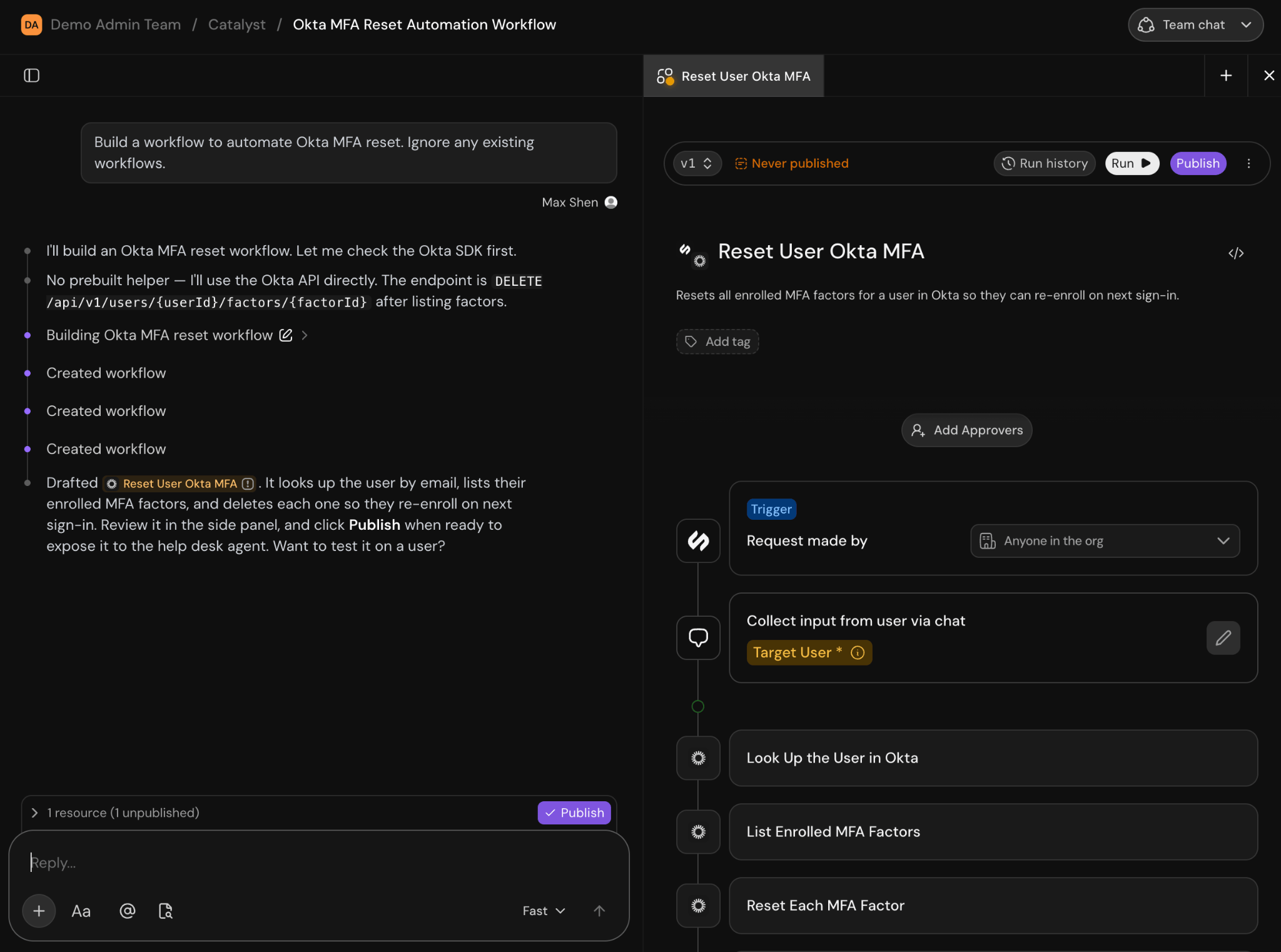 ### Published vs unpublished changes
Catalyst stages new and updated workflows as drafts. The **Publish** button on a workflow tab applies the change and exposes it to the help desk agent.
When **Require approval before publishing** is enabled in Catalyst team settings, direct **Publish** is hidden. Publishing happens through structured reviews with designated approvers. See [Changes and reviews](/sections/documentation/catalyst/changes-and-reviews) for the full flow and settings.
***
## Connecting external apps
Catalyst needs working integrations before it can call Okta, Slack, Jira, and other services in workflows.
When an app integration is missing or needs credentials, Catalyst shows **Configure integrations** cards in chat. Each card shows the service and a **Connect**, **Configure**, or **Reconfigure** action:
* **Connect**: Built-in service not yet connected: starts OAuth or setup and creates the app instance
* **Configure**: App instance exists but authentication is incomplete
* **Reconfigure**: App is connected but credentials or scopes need refresh
### Published vs unpublished changes
Catalyst stages new and updated workflows as drafts. The **Publish** button on a workflow tab applies the change and exposes it to the help desk agent.
When **Require approval before publishing** is enabled in Catalyst team settings, direct **Publish** is hidden. Publishing happens through structured reviews with designated approvers. See [Changes and reviews](/sections/documentation/catalyst/changes-and-reviews) for the full flow and settings.
***
## Connecting external apps
Catalyst needs working integrations before it can call Okta, Slack, Jira, and other services in workflows.
When an app integration is missing or needs credentials, Catalyst shows **Configure integrations** cards in chat. Each card shows the service and a **Connect**, **Configure**, or **Reconfigure** action:
* **Connect**: Built-in service not yet connected: starts OAuth or setup and creates the app instance
* **Configure**: App instance exists but authentication is incomplete
* **Reconfigure**: App is connected but credentials or scopes need refresh
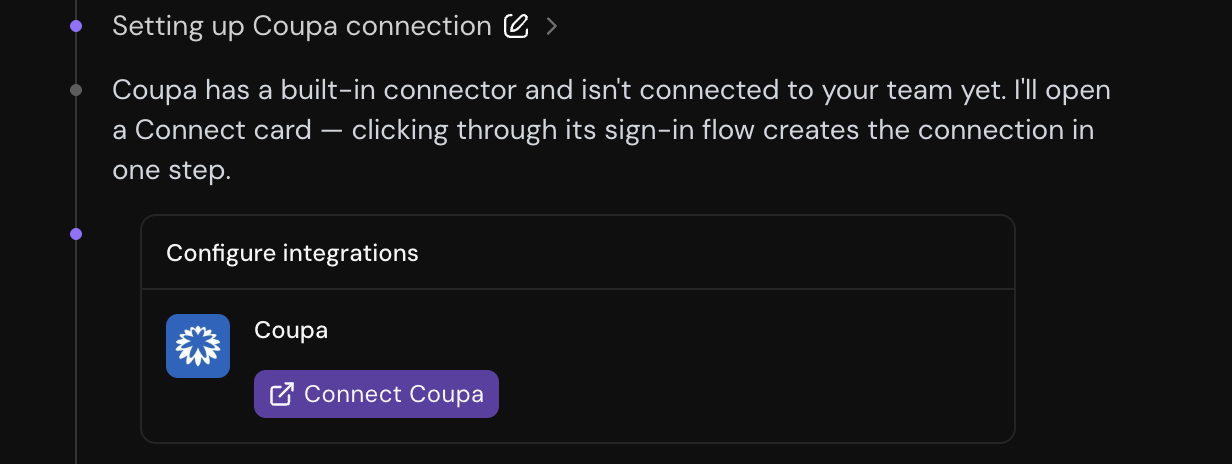 Complete the setup by following card instructions. Credentials go directly to the integration, not through chat. Catalyst won't ask you to paste API keys, client secrets, or passwords in the message thread.
Don't paste secrets into chat. Use the in-chat setup cards instead. If you do paste a secret in chat, Catalyst won't use it. As a security best practice you should rotate any secrets posted into chat.
After you finish connecting, the card updates automatically.
***
## Temporary workflows
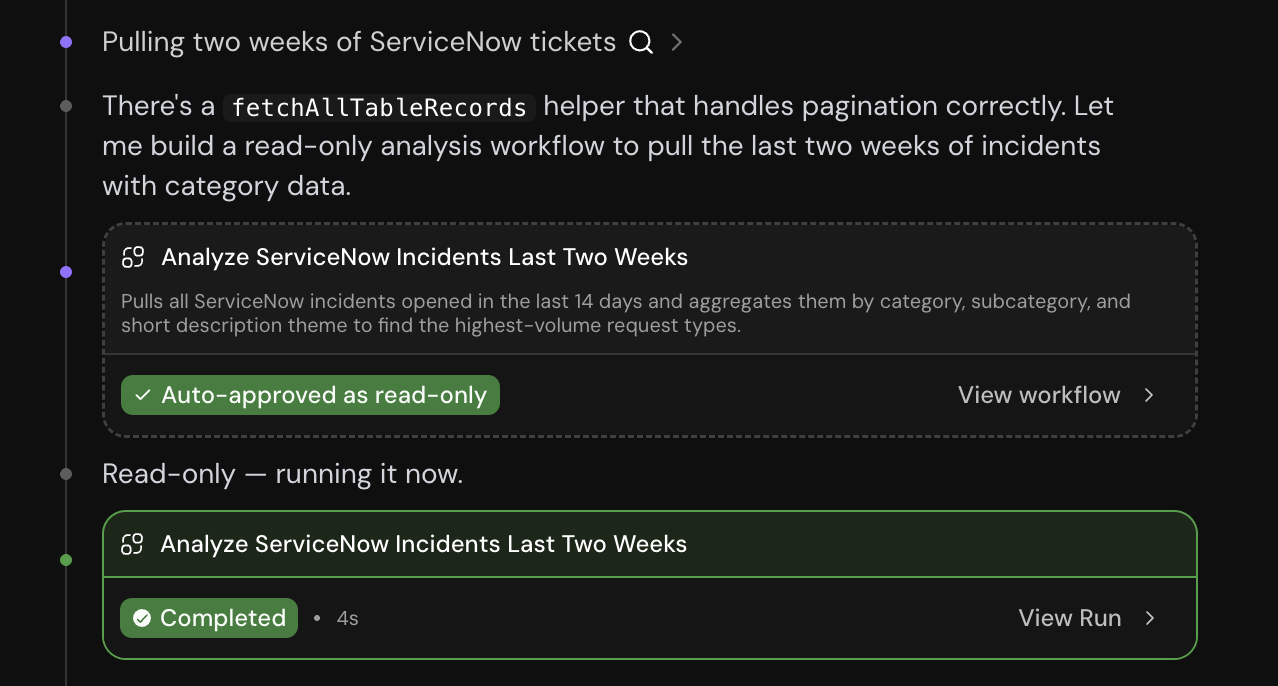
Catalyst sometimes creates a **temporary workflow**, a short-lived workflow used to probe an API, fetch data, or validate an integration before building the real automation. Temporary workflows are not published to your team's catalog.
When Catalyst proposes a temporary workflow, a card appears in chat showing:
* The workflow name and a link to open it in the resource panel
* **Run** and **Reject** actions (unless the workflow is read-only, in which case it runs automatically)
Complete the setup by following card instructions. Credentials go directly to the integration, not through chat. Catalyst won't ask you to paste API keys, client secrets, or passwords in the message thread.
Don't paste secrets into chat. Use the in-chat setup cards instead. If you do paste a secret in chat, Catalyst won't use it. As a security best practice you should rotate any secrets posted into chat.
After you finish connecting, the card updates automatically.
***
## Temporary workflows
Catalyst sometimes creates a **temporary workflow**, a short-lived workflow used to probe an API, fetch data, or validate an integration before building the real automation. Temporary workflows are not published to your team's catalog.
When Catalyst proposes a temporary workflow, a card appears in chat showing:
* The workflow name and a link to open it in the resource panel
* **Run** and **Reject** actions (unless the workflow is read-only, in which case it runs automatically)
 ***
## Related
What Catalyst can do
Get familiar with the Catalyst interface
Enable Catalyst, open your first session, and publish a change
Using Catalyst to analyze ServiceNow tickets and build automations
Stage changes, propose reviews, and configure approvers
Building analytics dashboards with Catalyst
***
## Related
What Catalyst can do
Get familiar with the Catalyst interface
Enable Catalyst, open your first session, and publish a change
Using Catalyst to analyze ServiceNow tickets and build automations
Stage changes, propose reviews, and configure approvers
Building analytics dashboards with Catalyst