> ## Documentation Index
> Fetch the complete documentation index at: https://docs.serval.com/llms.txt
> Use this file to discover all available pages before exploring further.
# Background agents
> Set up agents that run on a schedule and surface findings for you to review
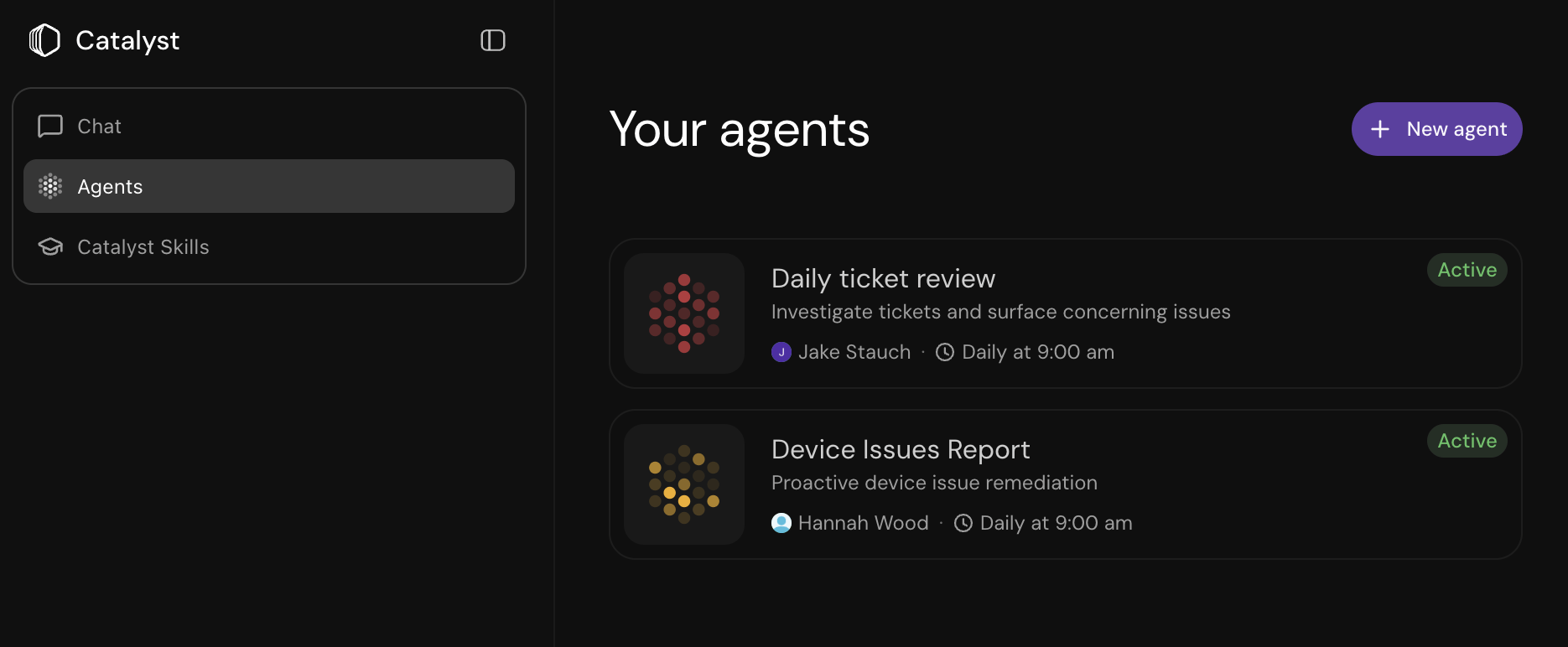
Background agents are Catalyst runs that execute on a schedule without you sending each message manually. An agent works over your team's tickets, workflows, databases, and connected apps on a recurring cadence, then surfaces what it found as a **finding** you can review, act on, or dismiss.
Use background agents for recurring, proactive work: summarizing the last day of tickets, scanning your device fleet for at-risk endpoints, reclaiming unused licenses, or spotting automation opportunities across your ticket volume.
 ## How background agents work
1. The agent runs on its schedule (or when you run it manually).
2. Each run is a Catalyst session you can open to see exactly what the agent did.
3. When a run produces something worth reviewing, it becomes a **finding** in the Agents feed.
4. You review the finding and apply, propose, dismiss, or acknowledge it.
A run only becomes a finding when it produces reviewable substance: an action the agent took or a highlight worth surfacing. Runs that find nothing actionable complete without creating a finding.
## Create an agent
You can start from a blank agent or install a prebuilt one.
Go to **Catalyst → Agents**.
Choose **New agent** to write your own, or pick a prebuilt agent from the marketplace (see [Installable agents](#installable-agents)). Installed agents come with a ready-made prompt and schedule you can edit.
Fill in the fields below, then save.
### Agent settings
How you identify the agent in the list, for example "Daily ticket review."
What the agent should do each run. Be specific about what to look at and what to produce, for example: "Investigate open tickets and summarize anything concerning."
How often the agent runs: **Hourly**, **Daily**, **Weekdays**, **Weekly**, or **None** for a manual-only agent you run on demand. Daily, weekday, and weekly schedules let you set the time of day. Weekly also lets you pick the day. Start times may vary by a few minutes.
The user whose permissions the agent uses while it runs. The agent can only see and do what that user can, so choose someone with the access the agent needs.
An optional action to take when the run finishes: **Run a workflow**, **Create a ticket**, or **Auto-publish changes** (publish the run's staged changes without a manual review step).
Optionally notify a user when the agent produces a report (**Report ready**), needs input to proceed (**Action required**), or finishes regardless of outcome (**Session completed**).
The **Run as** user determines the agent's permissions on every run. If that user's access changes, the agent's capabilities change with it.
## Installable agents
Instead of writing a prompt from scratch, install a prebuilt agent for a common use case and customize it. Each ships with a recommended schedule you can change.
| Agent | Cadence | What it does |
| ------------------------------------------- | ------- | ----------------------------------------------------------------------------------------------------------------------------------------------- |
| **Daily Ticket Digest** | Daily | Summarizes new and unresolved tickets from the last 24 hours and highlights what needs attention, with links back to each ticket. |
| **Service Desk QA / Quality Review** | Daily | Grades how human agents handled escalated tickets on clarity, correctness, comprehension, and collaboration, and produces a coaching scorecard. |
| **Proactive Device & Endpoint Remediation** | Daily | Scans the device fleet for at-risk endpoints, flags emerging issues, and drafts remediations for you to review. |
| **Ticket Trend & Volume Analytics** | Weekly | Tracks week-over-week ticket volume by category and surfaces the most common and critical failure patterns. |
| **Automation Opportunity Finder** | Weekly | Reviews recent tickets for repetitive, manual requests with no coverage and suggests workflows, guidance, or knowledge articles. |
| **Proactive License Reclamation** | Weekly | Finds unused application licenses, reports the savings, and drives reclamation through your deprovision workflows. |
When an installed agent gets a new version, its entry shows **New version available** so you can pull in the updated prompt.
## Review findings
Each finding is the agent's pitch for a single run. Open one from the Agents feed to see:
* **Highlights**: the key points on why the run matters.
* **Activity**: the concrete actions the agent took during the run.
* **Sources**: the tickets, resources, and web pages the agent drew on.
* **Changes to review**: any staged changes (workflows, skills, knowledge) the agent drafted, ready to inspect before publishing.
From a finding you can:
* **Apply** the suggested changes, or **Propose for review** on teams that require approval before publishing (see [Changes and reviews](/sections/documentation/catalyst/changes-and-reviews)).
* **Dismiss** the finding when there are staged changes you don't want.
* **Acknowledge** the finding to clear it when there is nothing to apply.
* **Chat about this** to open the agent's session and continue the work in Catalyst.
Findings you have already applied, dismissed, or acknowledged move to **Past findings**, where you can revisit them and open the underlying run.
## Manage agents
From the Agents view you can **pause**, **resume**, **edit**, and **delete** any agent. Pausing stops the schedule without deleting the agent or its history. Every run, scheduled or manual, creates a Catalyst session, so you can always open a run to inspect exactly what the agent did.
## Learn more
The Chat, Agents, and Catalyst skills views
How staged changes are reviewed and published
Build automations with Catalyst
Who can create and manage agents
## How background agents work
1. The agent runs on its schedule (or when you run it manually).
2. Each run is a Catalyst session you can open to see exactly what the agent did.
3. When a run produces something worth reviewing, it becomes a **finding** in the Agents feed.
4. You review the finding and apply, propose, dismiss, or acknowledge it.
A run only becomes a finding when it produces reviewable substance: an action the agent took or a highlight worth surfacing. Runs that find nothing actionable complete without creating a finding.
## Create an agent
You can start from a blank agent or install a prebuilt one.
Go to **Catalyst → Agents**.
Choose **New agent** to write your own, or pick a prebuilt agent from the marketplace (see [Installable agents](#installable-agents)). Installed agents come with a ready-made prompt and schedule you can edit.
Fill in the fields below, then save.
### Agent settings
How you identify the agent in the list, for example "Daily ticket review."
What the agent should do each run. Be specific about what to look at and what to produce, for example: "Investigate open tickets and summarize anything concerning."
How often the agent runs: **Hourly**, **Daily**, **Weekdays**, **Weekly**, or **None** for a manual-only agent you run on demand. Daily, weekday, and weekly schedules let you set the time of day. Weekly also lets you pick the day. Start times may vary by a few minutes.
The user whose permissions the agent uses while it runs. The agent can only see and do what that user can, so choose someone with the access the agent needs.
An optional action to take when the run finishes: **Run a workflow**, **Create a ticket**, or **Auto-publish changes** (publish the run's staged changes without a manual review step).
Optionally notify a user when the agent produces a report (**Report ready**), needs input to proceed (**Action required**), or finishes regardless of outcome (**Session completed**).
The **Run as** user determines the agent's permissions on every run. If that user's access changes, the agent's capabilities change with it.
## Installable agents
Instead of writing a prompt from scratch, install a prebuilt agent for a common use case and customize it. Each ships with a recommended schedule you can change.
| Agent | Cadence | What it does |
| ------------------------------------------- | ------- | ----------------------------------------------------------------------------------------------------------------------------------------------- |
| **Daily Ticket Digest** | Daily | Summarizes new and unresolved tickets from the last 24 hours and highlights what needs attention, with links back to each ticket. |
| **Service Desk QA / Quality Review** | Daily | Grades how human agents handled escalated tickets on clarity, correctness, comprehension, and collaboration, and produces a coaching scorecard. |
| **Proactive Device & Endpoint Remediation** | Daily | Scans the device fleet for at-risk endpoints, flags emerging issues, and drafts remediations for you to review. |
| **Ticket Trend & Volume Analytics** | Weekly | Tracks week-over-week ticket volume by category and surfaces the most common and critical failure patterns. |
| **Automation Opportunity Finder** | Weekly | Reviews recent tickets for repetitive, manual requests with no coverage and suggests workflows, guidance, or knowledge articles. |
| **Proactive License Reclamation** | Weekly | Finds unused application licenses, reports the savings, and drives reclamation through your deprovision workflows. |
When an installed agent gets a new version, its entry shows **New version available** so you can pull in the updated prompt.
## Review findings
Each finding is the agent's pitch for a single run. Open one from the Agents feed to see:
* **Highlights**: the key points on why the run matters.
* **Activity**: the concrete actions the agent took during the run.
* **Sources**: the tickets, resources, and web pages the agent drew on.
* **Changes to review**: any staged changes (workflows, skills, knowledge) the agent drafted, ready to inspect before publishing.
From a finding you can:
* **Apply** the suggested changes, or **Propose for review** on teams that require approval before publishing (see [Changes and reviews](/sections/documentation/catalyst/changes-and-reviews)).
* **Dismiss** the finding when there are staged changes you don't want.
* **Acknowledge** the finding to clear it when there is nothing to apply.
* **Chat about this** to open the agent's session and continue the work in Catalyst.
Findings you have already applied, dismissed, or acknowledged move to **Past findings**, where you can revisit them and open the underlying run.
## Manage agents
From the Agents view you can **pause**, **resume**, **edit**, and **delete** any agent. Pausing stops the schedule without deleting the agent or its history. Every run, scheduled or manual, creates a Catalyst session, so you can always open a run to inspect exactly what the agent did.
## Learn more
The Chat, Agents, and Catalyst skills views
How staged changes are reviewed and published
Build automations with Catalyst
Who can create and manage agents