> ## Documentation Index
> Fetch the complete documentation index at: https://docs.serval.com/llms.txt
> Use this file to discover all available pages before exploring further.
# Access Policies
> Control access duration, justification requirements, and approval workflows
Access policies define the rules that govern how users request and receive access to applications and resources. Create reusable policies to maintain consistent access controls across your organization.
***
## Understanding Access Policies
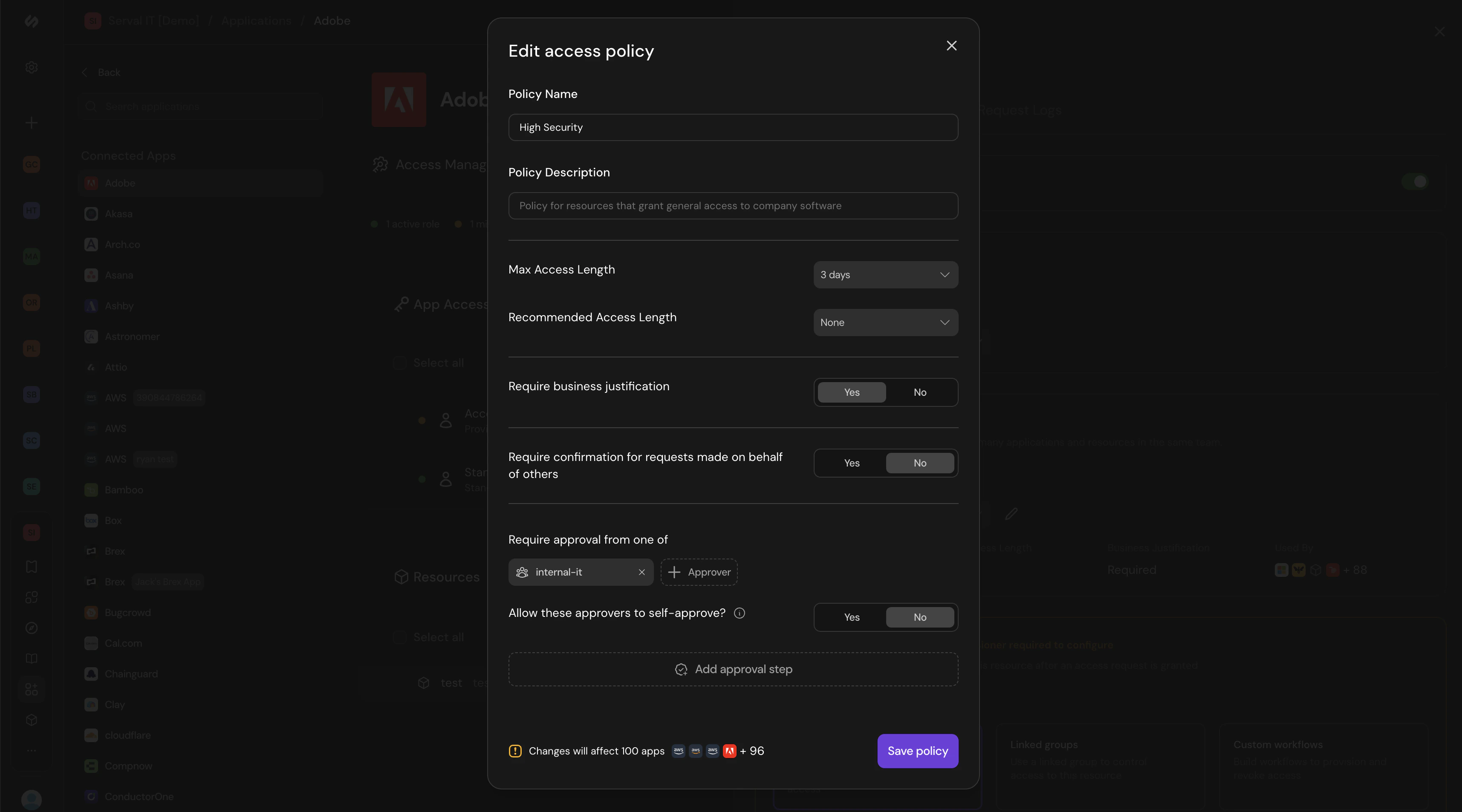
When creating or editing an access policy, configure the following settings to manage duration, and approvals needed for roles.
Descriptive name that indicates when the policy should be used (e.g., "High Security", "Standard Access")
Detailed explanation of what the policy covers and when to apply it
Maximum duration users can keep access before automatic revocation (options: indefinite, hours, days, weeks, months)
Suggested duration to guide users toward shorter access periods while still allowing maximum if needed
Toggle on to require users to explain why they need access; Serval evaluates reasonableness based on guidance settings
Toggle on to add verification step when someone requests access for another user
Select specific users, groups, or special members (like user's manager) who must approve requests
Toggle whether approvers can approve their own access requests
Add sequential approval requirements where each step must be completed before the next begins
View how many applications and roles will be affected by policy changes before saving
If you add multiple approvers in a single step, any one of them can approve the request. For sequential approvals, add multiple approval steps.
Approvers can modify the requested duration when approving. For example, if a user requests 2 hours of access, an approver can approve for 30 minutes instead. This gives approvers flexibility to grant appropriate access based on the specific request context.
 ***
## Create an Access Policy
Click "Create policy" or select an existing access policy to modify
Enter a policy name and description. Use descriptive names like "General Access" or "Temporary Admin Access" that indicate when the policy should be used.
Choose indefinite or time-limited access for Max Access Length. Optionally set a Recommended Access Length to guide users toward shorter access periods while still allowing them to request the maximum if needed.
Use time-limited access for elevated permissions like admin roles. Use indefinite access for standard user roles.
Toggle on "Require business justification" to require users to explain why they need access. Serval will evaluate whether the justification is reasonable based on your guidance settings.
Toggle on "Require confirmation for requests made on behalf of others" to add verification when someone requests access for another user.
Add approval steps by selecting approvers. You can require approval from specific users, groups, or special members like the user's manager.
For each approval step, configure:
* Who can approve (individual users or groups)
* Whether approvers can self-approve their own requests
* Whether any one approver can approve, or if all must approve
Add multiple approval steps for sensitive access by clicking "Add approval step". Approvals happen sequentially—the second step only begins after the first is complete.
If you add multiple approvers in a single step, any one of them can approve the request. For sequential approvals, add multiple approval steps.
Check how many roles will be affected by this policy before saving.
Click "Save policy" to make it available for role configuration. You'll see which applications will be affected by the new policy.
***
## Manage Access Policies
Once created, access policies can be managed centrally and applied to multiple roles across your organization.
To access policy management, navigate to the relevant team, click the "..." button, and select "Access Policies."
Choose a default policy that applies to new roles automatically to ensure consistent baseline access controls.
Modify policy settings. Changes apply to all roles using that policy, making it easy to update access controls organization-wide.
See which roles currently use each policy to understand the impact before making changes.
Add or remove roles that the policy should apply to. Reuse policies across similar access patterns for consistency.
Set up new standard policies for your organization to be used across any number of roles.
***
## Best Practices
Begin with tighter controls and loosen them based on feedback. It's easier to remove friction than add security later.
Temporary access to admin or sensitive roles reduces security risk and ensures cleanup happens automatically.
Create policies for access patterns, not individual roles. This makes management easier as you scale.
Audit which policies are in use and whether they still match your security requirements.
***
## Extensions and Modifications
Users can request extensions or reductions to their active access. These modification requests follow the same approval workflow as initial requests:
* **Extensions require approval** if configured in the access policy
* **Approvers can modify durations** when approving extension requests
* **Users can amend requests** before approval (the final requested duration is what the approver sees)
* **No approval required?** If no approval procedure is configured, requests and extensions auto-approve with the requested duration
If a user amends their request multiple times before approval, only the final amendment is submitted for approval. Earlier amendments are automatically superseded.
***
## Create an Access Policy
Click "Create policy" or select an existing access policy to modify
Enter a policy name and description. Use descriptive names like "General Access" or "Temporary Admin Access" that indicate when the policy should be used.
Choose indefinite or time-limited access for Max Access Length. Optionally set a Recommended Access Length to guide users toward shorter access periods while still allowing them to request the maximum if needed.
Use time-limited access for elevated permissions like admin roles. Use indefinite access for standard user roles.
Toggle on "Require business justification" to require users to explain why they need access. Serval will evaluate whether the justification is reasonable based on your guidance settings.
Toggle on "Require confirmation for requests made on behalf of others" to add verification when someone requests access for another user.
Add approval steps by selecting approvers. You can require approval from specific users, groups, or special members like the user's manager.
For each approval step, configure:
* Who can approve (individual users or groups)
* Whether approvers can self-approve their own requests
* Whether any one approver can approve, or if all must approve
Add multiple approval steps for sensitive access by clicking "Add approval step". Approvals happen sequentially—the second step only begins after the first is complete.
If you add multiple approvers in a single step, any one of them can approve the request. For sequential approvals, add multiple approval steps.
Check how many roles will be affected by this policy before saving.
Click "Save policy" to make it available for role configuration. You'll see which applications will be affected by the new policy.
***
## Manage Access Policies
Once created, access policies can be managed centrally and applied to multiple roles across your organization.
To access policy management, navigate to the relevant team, click the "..." button, and select "Access Policies."
Choose a default policy that applies to new roles automatically to ensure consistent baseline access controls.
Modify policy settings. Changes apply to all roles using that policy, making it easy to update access controls organization-wide.
See which roles currently use each policy to understand the impact before making changes.
Add or remove roles that the policy should apply to. Reuse policies across similar access patterns for consistency.
Set up new standard policies for your organization to be used across any number of roles.
***
## Best Practices
Begin with tighter controls and loosen them based on feedback. It's easier to remove friction than add security later.
Temporary access to admin or sensitive roles reduces security risk and ensures cleanup happens automatically.
Create policies for access patterns, not individual roles. This makes management easier as you scale.
Audit which policies are in use and whether they still match your security requirements.
***
## Extensions and Modifications
Users can request extensions or reductions to their active access. These modification requests follow the same approval workflow as initial requests:
* **Extensions require approval** if configured in the access policy
* **Approvers can modify durations** when approving extension requests
* **Users can amend requests** before approval (the final requested duration is what the approver sees)
* **No approval required?** If no approval procedure is configured, requests and extensions auto-approve with the requested duration
If a user amends their request multiple times before approval, only the final amendment is submitted for approval. Earlier amendments are automatically superseded.